You finished the edit, exported, uploaded, and the result on YouTube is not what you saw on your timeline. There are bars down the sides, the picture looks soft for the first hour, or the colors came out flatter than you graded them. None of that is a content problem. It is a size, shape, or encoding problem, and every one of them is decided before you click Upload.
This guide gives you the exact YouTube video size, dimensions, aspect ratio, and resolution for 2026, based on YouTube's own help center. It covers the full resolution ladder from 240p to 8K, the bit rates YouTube recommends for each, how YouTube handles vertical and square uploads, file size and length limits, the current thumbnail size, and how to turn the long videos already on your channel into Shorts without re-editing them.
Quick answer: what size is a YouTube video?
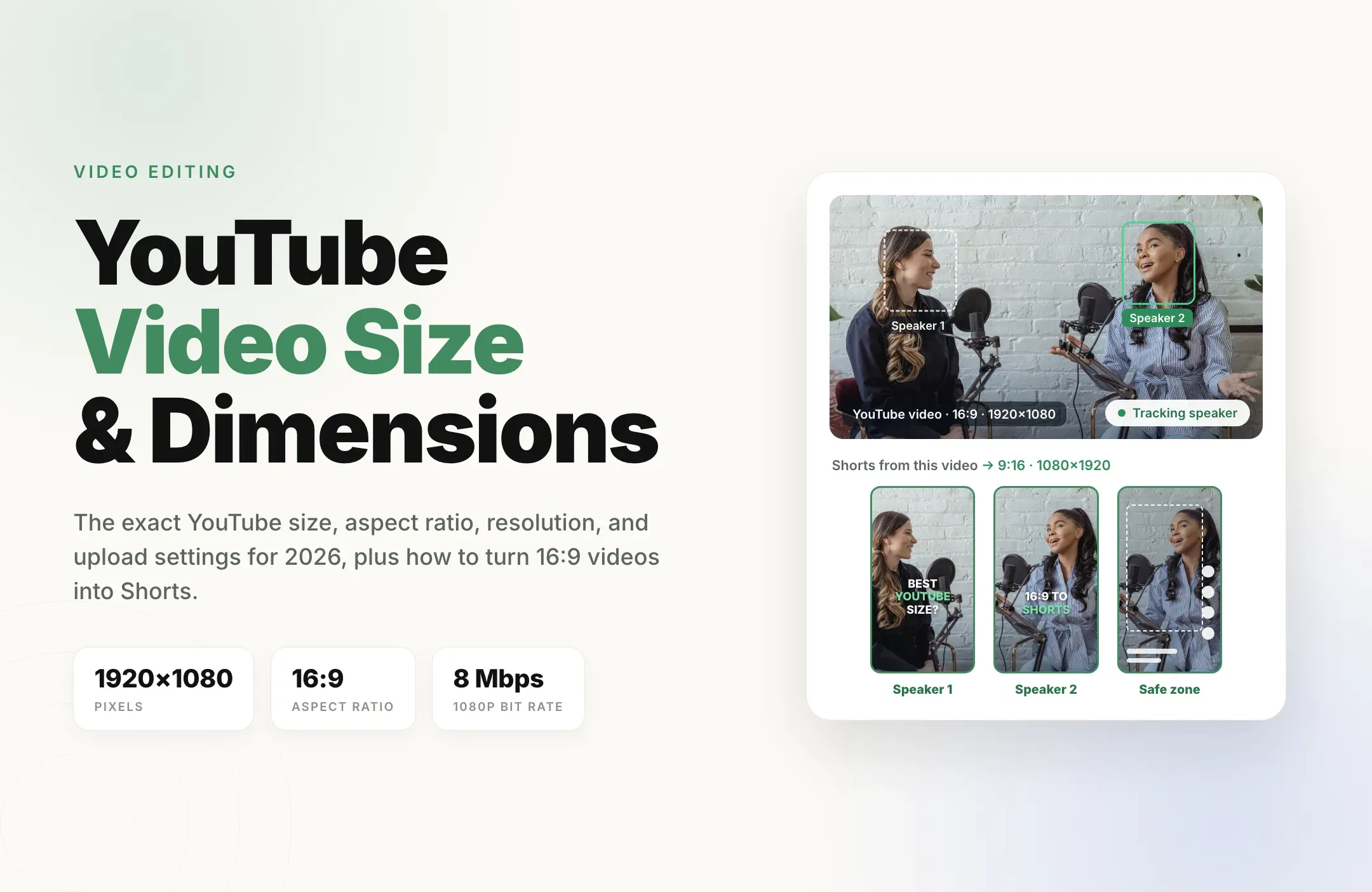
The standard YouTube video size is 1920 x 1080 pixels (1080p) in a 16:9 aspect ratio, exported as an MP4 with H.264 video and AAC audio at 48 kHz, at the same frame rate you recorded in. At 1080p, YouTube recommends a bit rate of 8 Mbps for 24 to 30 fps and 12 Mbps for 48 to 60 fps.
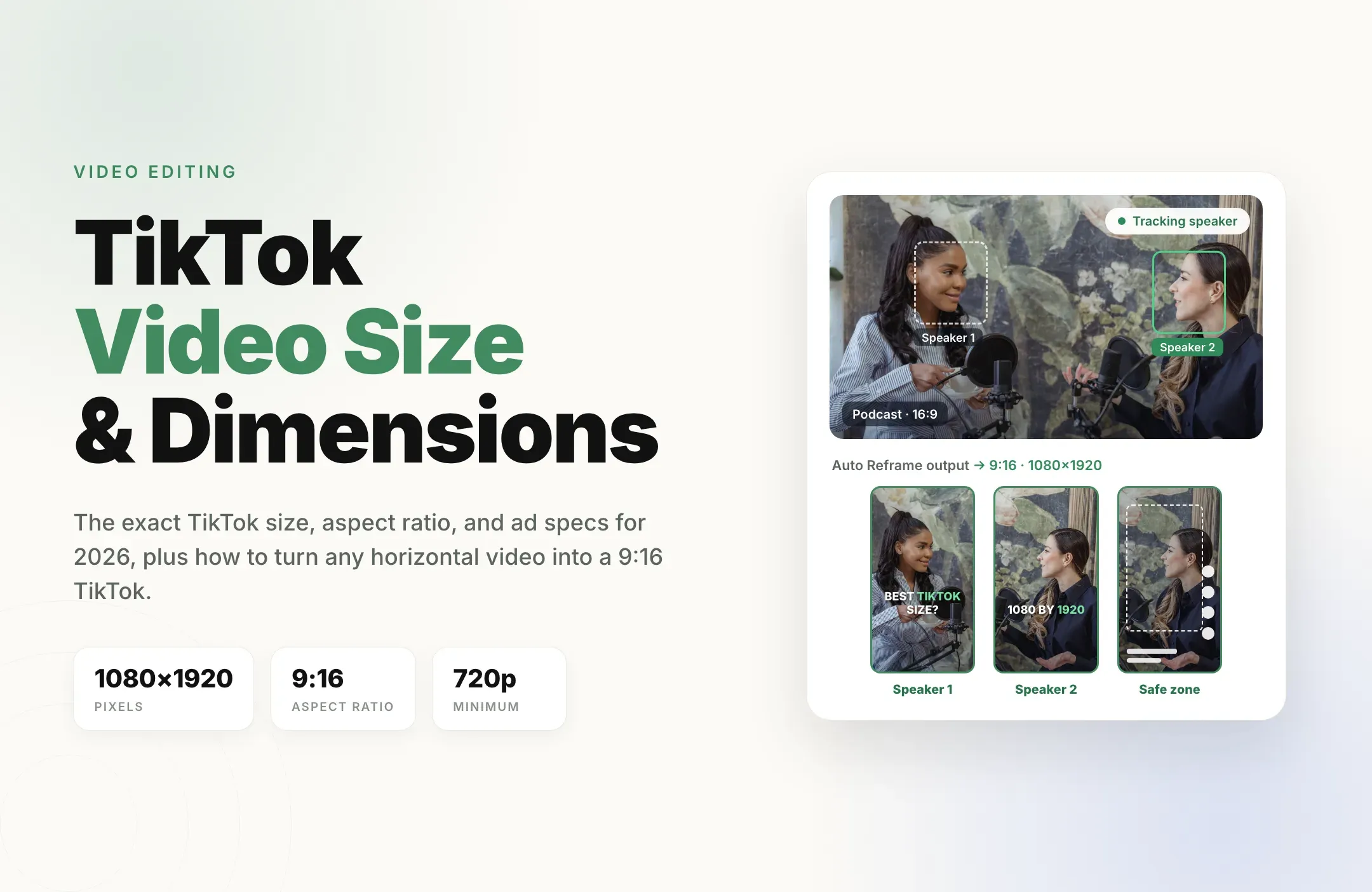
If you recorded in 4K, upload in 4K: 3840 x 2160, still 16:9. And if you are making a Short instead of a regular video, the target flips to 1080 x 1920 in 9:16 vertical, three minutes or less.
YouTube video dimensions by resolution
YouTube's standard aspect ratio on a computer is 16:9. These are the 16:9 sizes YouTube lists for encoding, from lowest to highest quality.
|
Resolution |
Dimensions (pixels) |
Best for |
|---|---|---|
|
240p |
426 x 240 |
Not recommended for new uploads |
|
360p |
640 x 360 |
Very old or low-bandwidth footage |
|
480p (SD) |
854 x 480 |
Archival clips, old webcam recordings |
|
720p (HD) |
1280 x 720 |
Minimum for anything new |
|
1080p (Full HD) |
1920 x 1080 |
The default for most channels |
|
1440p (2K) |
2560 x 1440 |
Gaming, screen recordings, sharper text |
|
2160p (4K) |
3840 x 2160 |
Camera footage shot in 4K, cinematic content |
|
4320p (8K) |
7680 x 4320 |
Specialist 8K footage only |
All of these are the same shape. 1280 x 720 and 3840 x 2160 are both 16:9; the bigger one simply holds more detail. That distinction matters, because "size" gets used for three different things.
Size vs dimensions vs aspect ratio vs resolution
- Aspect ratio is the shape of the frame, written as width to height. 16:9 is the widescreen shape YouTube's player is built around.
- Dimensions are the exact width and height in pixels, such as 1920 x 1080.
- Resolution is the shorthand for how much detail the frame holds, named after the height: 720p, 1080p, 1440p, 2160p (4K).
- File size comes from resolution, length, frame rate, and bit rate together. It only matters when you hit YouTube's upload limit.
YouTube aspect ratio: 16:9 and everything else
The right YouTube aspect ratio for a regular video is 16:9. YouTube does accept other shapes, and according to its help center the player "automatically adapts itself to the size of the video." What that looks like depends on the shape.
|
Aspect ratio |
Example size |
How YouTube shows it |
|---|---|---|
|
16:9 (widescreen) |
1920 x 1080 |
Fills the player on desktop and TV. The standard. |
|
4:3 (classic TV) |
1440 x 1080 |
Plays with empty space on the left and right. |
|
21:9 (ultrawide) |
2560 x 1080 |
Plays with empty space above and below. |
|
1:1 (square) |
1080 x 1080 |
Narrow box in the player. Treated as a Short if 3 minutes or less. |
|
9:16 (vertical) |
1080 x 1920 |
Padded on desktop browsers. Treated as a Short if 3 minutes or less. |
Two rules from YouTube's help center are worth following exactly:
- Do not add black bars to the file yourself. YouTube says to avoid adding padding or black bars directly to your video. The player adds its own padding where needed (white by default, dark gray in dark theme), and baked-in bars just make your video smaller inside that padding.
- Shape decides the format. A square or vertical video that is three minutes or shorter is classified as a Short. A 16:9 video is always a regular video, however short it is.
Which YouTube video resolution should you upload?
Upload at the highest resolution you recorded in, and never below 720p for new content.
- 1080p is the right default for talking-head videos, podcasts, tutorials, and webinars. It is what most viewers watch on phones and laptops.
- 1440p is worth it for gaming and screen recordings, where small text and UI edges blur quickly at 1080p.
- 4K (2160p) is worth it if your camera recorded in 4K. It keeps more detail after YouTube's compression and looks better on large TVs.
- Upscaling does not add detail. Some creators export 1080p footage at 1440p because higher-resolution uploads tend to look cleaner after YouTube processes them. YouTube does not document this, so treat it as an optional trick, not a rule.
Expect higher resolutions to take longer to process. Right after upload, YouTube often makes a lower-resolution version available first while the HD and 4K versions finish. If your video looks blurry in the first minutes, wait before re-uploading.
YouTube recommended upload settings (2026)
These are YouTube's recommended upload encoding settings. If your editor has a "YouTube 1080p" preset, it is usually close to this already; check the bit rate.
|
Setting |
YouTube's recommendation |
|---|---|
|
Container |
MP4 (moov atom at the front, also called Fast Start; no edit lists) |
|
Video codec |
H.264, progressive scan (no interlacing), High Profile, 4:2:0 chroma |
|
Frame rate |
Same as recorded. Common rates: 24, 25, 30, 48, 50, 60 fps |
|
Bit rate |
Variable bit rate; see the table below |
|
Audio codec |
AAC-LC (Opus is also accepted) |
|
Audio sample rate |
48 kHz |
|
Audio bit rate |
128 kbps mono, 384 kbps stereo, 512 kbps 5.1 |
|
Color space (SDR) |
BT.709 |
YouTube bit rate for each resolution
Bit rate is the setting that most often ruins an upload. Too low and YouTube compresses an already compressed file, which is where smeared faces and blocky gradients come from. These are YouTube's recommended video bit rates for SDR and HDR uploads.
|
Resolution |
SDR, 24 to 30 fps |
SDR, 48 to 60 fps |
HDR, 24 to 30 fps |
HDR, 48 to 60 fps |
|---|---|---|---|---|
|
8K |
80 to 160 Mbps |
120 to 240 Mbps |
100 to 200 Mbps |
150 to 300 Mbps |
|
2160p (4K) |
35 to 45 Mbps |
53 to 68 Mbps |
44 to 56 Mbps |
66 to 85 Mbps |
|
1440p (2K) |
16 Mbps |
24 Mbps |
20 Mbps |
30 Mbps |
|
1080p |
8 Mbps |
12 Mbps |
10 Mbps |
15 Mbps |
|
720p |
5 Mbps |
7.5 Mbps |
6.5 Mbps |
9.5 Mbps |
|
480p |
2.5 Mbps |
4 Mbps |
Not supported |
Not supported |
|
360p |
1 Mbps |
1.5 Mbps |
Not supported |
Not supported |
These are minimum targets, not ceilings. Going higher is fine and usually looks better; YouTube re-encodes everything anyway.
YouTube file size and length limits
- Length: by default you can upload videos up to 15 minutes long. To go longer, verify your account with a phone number in YouTube Studio.
- Maximum: once verified, the limit is 256 GB or 12 hours, whichever comes first.
- In practice: a 1-hour 1080p video at YouTube's recommended bit rate is a few gigabytes, far below the cap. You only get near 256 GB with very long 4K or 8K uploads.
YouTube video size vs YouTube Shorts size
Regular videos and Shorts use opposite shapes, and YouTube uses the shape (plus length) to decide which one your upload is.
|
|
Regular YouTube video |
YouTube Short |
|---|---|---|
|
Aspect ratio |
16:9 horizontal |
9:16 vertical (1:1 square also counts) |
|
Recommended dimensions |
1920 x 1080 (or 3840 x 2160) |
1080 x 1920 |
|
Length |
Up to 15 minutes, or 12 hours if verified |
3 minutes or less |
|
Where it plays |
Home, search, suggested, TV |
The Shorts feed |
|
Thumbnail |
16:9 custom thumbnail |
9:16 custom thumbnail |
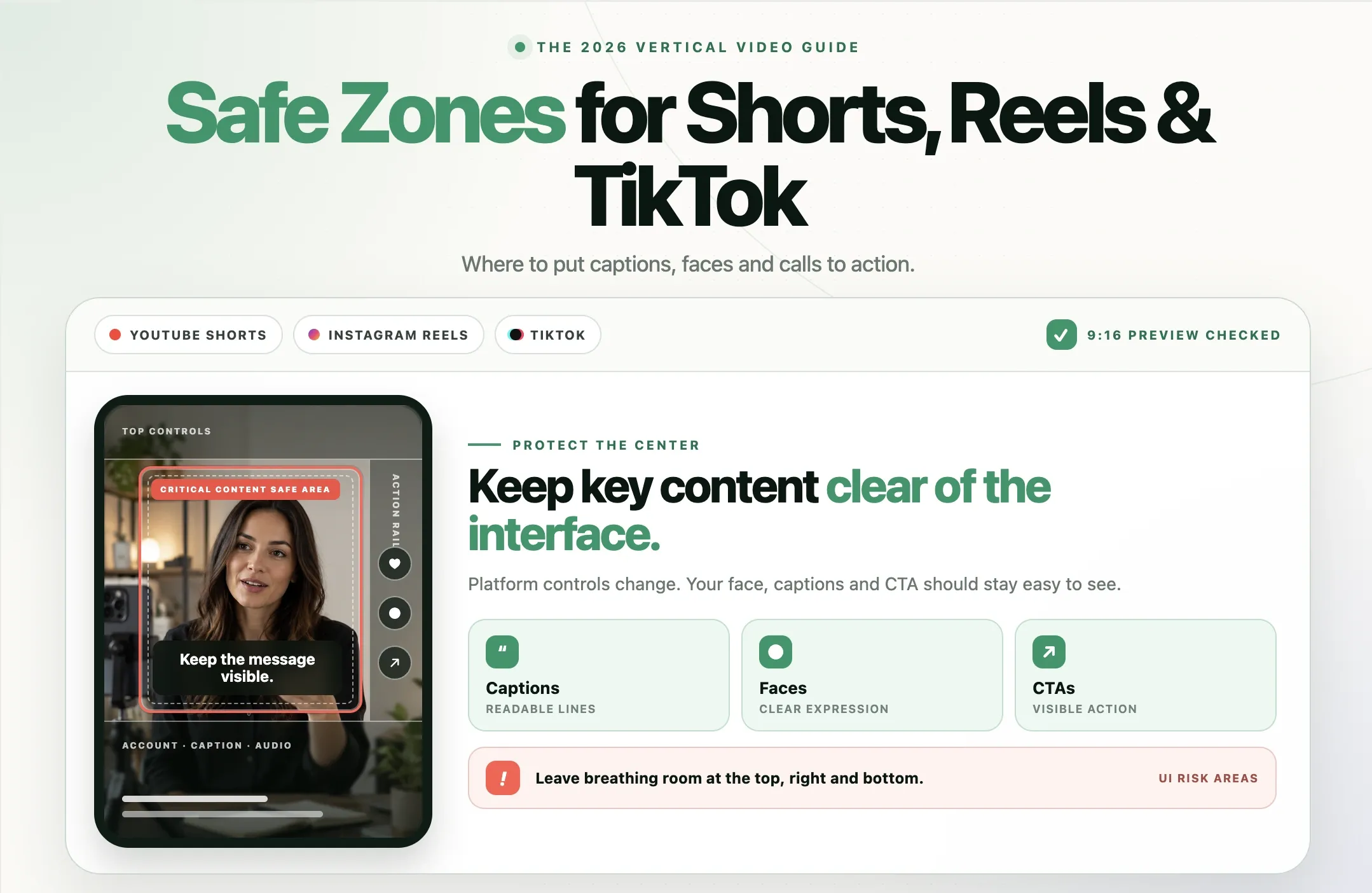
The practical takeaway: you cannot post one file to both. A 16:9 video never becomes a Short, and a vertical video under three minutes never becomes a regular video. For the right length of each, see our guide to the best video length for Shorts, Reels, and TikTok, and to keep text away from the Shorts buttons, use our Shorts, Reels, and TikTok safe zones guide.
YouTube thumbnail size
The thumbnail is part of your video's "size" in the way viewers actually experience it, since it is what they see before they click. YouTube's help center now recommends:
- 3840 x 2160 pixels (16:9) for regular videos, with a minimum width of 640 pixels. The 1280 x 720 size that most guides still quote works, but it is no longer the recommendation.
- 2160 x 3840 pixels (9:16) for Shorts, with a minimum height of 640 pixels.
- JPG or PNG, up to 2 MB when uploading from the mobile app and up to 50 MB from a computer.
- Custom thumbnails need a verified account.
For Shorts specifically, here is how to add a YouTube Shorts thumbnail.
How to turn your 16:9 YouTube videos into Shorts
Here is the part most size guides skip. If your channel is built on 16:9 videos, you already have the raw material for dozens of Shorts: strong answers, stories, reactions, and tips buried inside long uploads. The problem is the shape. Cutting a 16:9 frame down to 9:16 by hand means keyframing a crop for every clip so the speaker stays in shot, then adding captions, then exporting each one at 1080 x 1920.
Reap does that for the whole video at once:
- Paste a YouTube link or upload the file. Use a video already on your channel, or the master file of your next upload, a podcast episode, a webinar, or a stream VOD.
- Let AI find the moments. Reap's clipping pulls standalone moments that make sense on their own, so you are not scrubbing a 40-minute timeline. You can trim or adjust any of them.
- Reframe from 16:9 to 9:16. Auto Reframe converts the horizontal footage to vertical and tracks the active speaker, so the crop follows the conversation instead of sitting in the middle of an empty frame. A split layout can stack two speakers in one vertical clip.
- Add captions. Generate captions in 100+ languages, pick from 50+ animated caption styles on paid plans, and keep them in the center of the frame, clear of the Shorts buttons.
- Export or schedule. Download vertical MP4s or schedule them to YouTube Shorts, TikTok, Instagram Reels, and LinkedIn from Reap's publishing calendar.
Exports are 1080p on the Creator plan and up to 4K on Studio. The free plan exports at 720p with a watermark, which is enough to test the workflow on your own footage. For more ways to do this at scale, see how to automate YouTube Shorts creation.
Example: one 1080p upload, a week of Shorts
Say you publish a 30-minute interview at 1920 x 1080. From that single upload you can pull:
- A 45-second hook where your guest makes a surprising claim, reframed to 1080 x 1920 with the speaker tracked.
- A 90-second explanation of one idea, captioned for viewers watching on mute.
- A 30-second back-and-forth, with a split layout showing both of you.
- A 2-minute story that stands on its own, still under the 3-minute Shorts limit.
Post them across the week and set the full interview as each Short's related video in YouTube Studio, so viewers who like a clip can jump to the long version. The same vertical exports also fit TikTok and Instagram Reels, and you can cut 16:9 or square versions for LinkedIn.
Common YouTube video size problems and how to fix them
My video has black bars on the sides or top
The video is not 16:9, or bars were added inside the file during export. Check your sequence settings: a 1920 x 1080 timeline with a 1440 x 1080 clip in it will export with bars baked in. Set the sequence to the shape of your footage, or reframe the footage to 16:9, and let YouTube's player handle any padding.
My video looks blurry after uploading
Either YouTube is still processing the HD versions, or the file was exported at too low a resolution or bit rate. Wait for processing to finish first. If it is still soft, re-export at 1080p or higher with at least 8 Mbps (12 Mbps at 60 fps) and avoid exporting the same file more than once.
My vertical video was posted as a Short
Any square or vertical video that is three minutes or shorter is classified as a Short. If you want it as a regular video, it needs to be horizontal or longer than three minutes. If you want it as a Short, make sure it is a true 9:16 file, not a horizontal file with vertical content inside bars.
My colors look washed out or different
Your export is probably using a color setting YouTube does not expect. YouTube recommends BT.709 for SDR uploads and says it does not recommend an RGB color matrix. Export in BT.709 (most editors' Rec. 709 option) and check the result on a phone as well as your monitor.
YouTube will not let me upload a video over 15 minutes
Your account is not verified yet. Verify it with a phone number in YouTube Studio and the limit rises to 12 hours or 256 GB.
YouTube video size checklist before you upload
- Aspect ratio is 16:9, with no black bars inside the file.
- Dimensions are 1920 x 1080, or 3840 x 2160 if you shot in 4K.
- File is an MP4 with H.264 video and AAC-LC audio at 48 kHz.
- Frame rate matches what you recorded.
- Bit rate is at least 8 Mbps at 1080p (12 Mbps at 48 to 60 fps).
- Color is BT.709 for standard (SDR) video.
- Thumbnail is 16:9, ideally 3840 x 2160, as a JPG or PNG.
- Your best moments are lined up as 9:16 Shorts that link back to the full video.
Final thoughts
The YouTube video size to aim for is simple: 1920 x 1080 at 16:9, exported as an H.264 MP4 at your recorded frame rate with enough bit rate, or 3840 x 2160 if you shot in 4K. Get that right and the player, the processing, and the thumbnail all work for you instead of against you.
The bigger opportunity is what happens after the upload. Every 16:9 video on your channel is also a stack of 9:16 Shorts waiting to be cut. Reap finds those moments, reframes them to vertical while following the speaker, captions them, and schedules them back to your channel. Try Reap for free and turn your next YouTube upload into a week of Shorts.