Auto Reframe
Auto Reframe: resize any video without losing the subject.
reap automatically follows speakers and important visuals as it converts landscape footage into social-ready portrait or square video.
Ready for TikTok, Reels, Shorts, and social feeds.
The problem
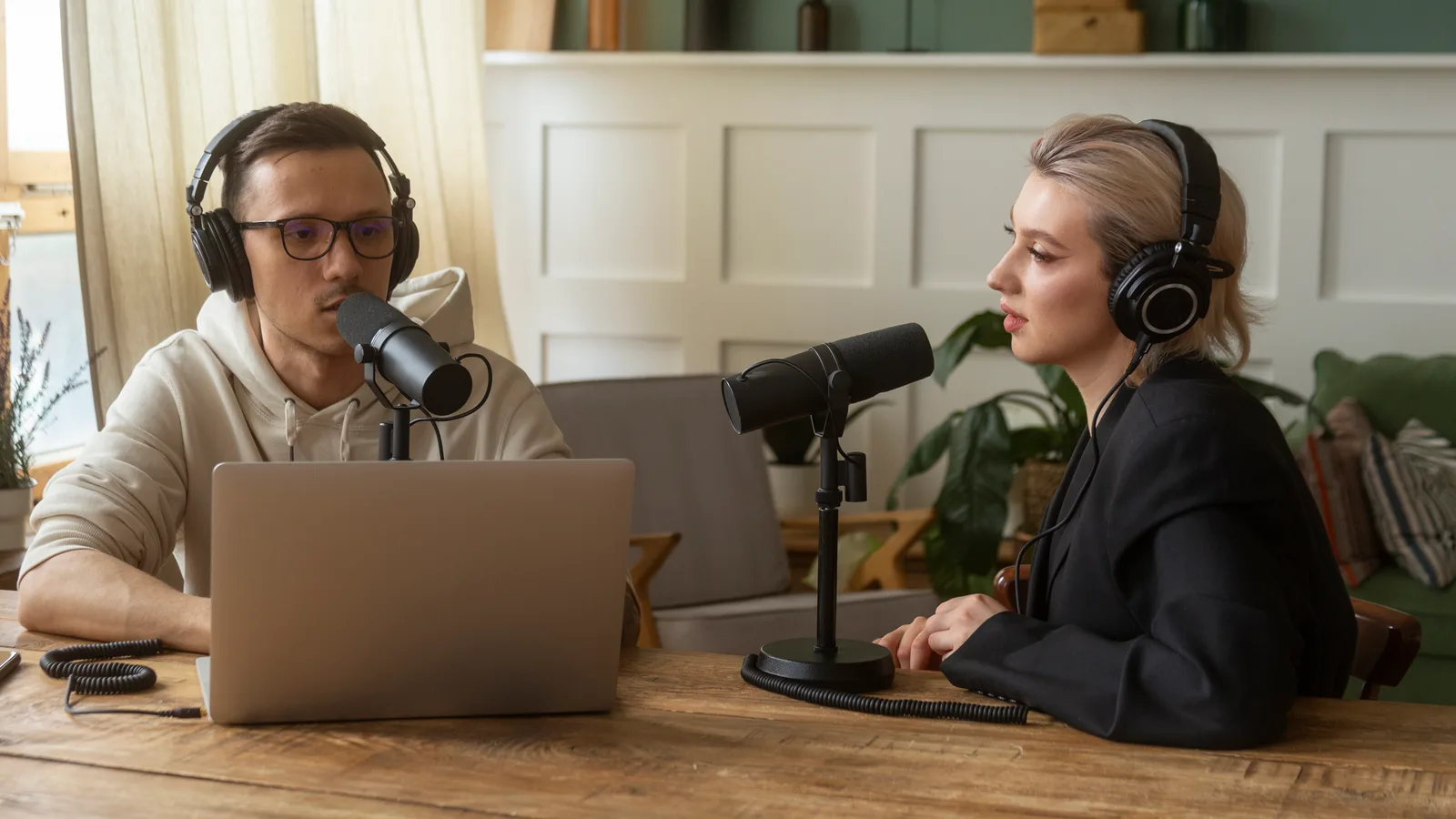
A fixed crop can’t follow the conversation.
A center crop stays in one place. The conversation doesn’t, so the frame keeps landing on the gap, or the wrong person, shot after shot.
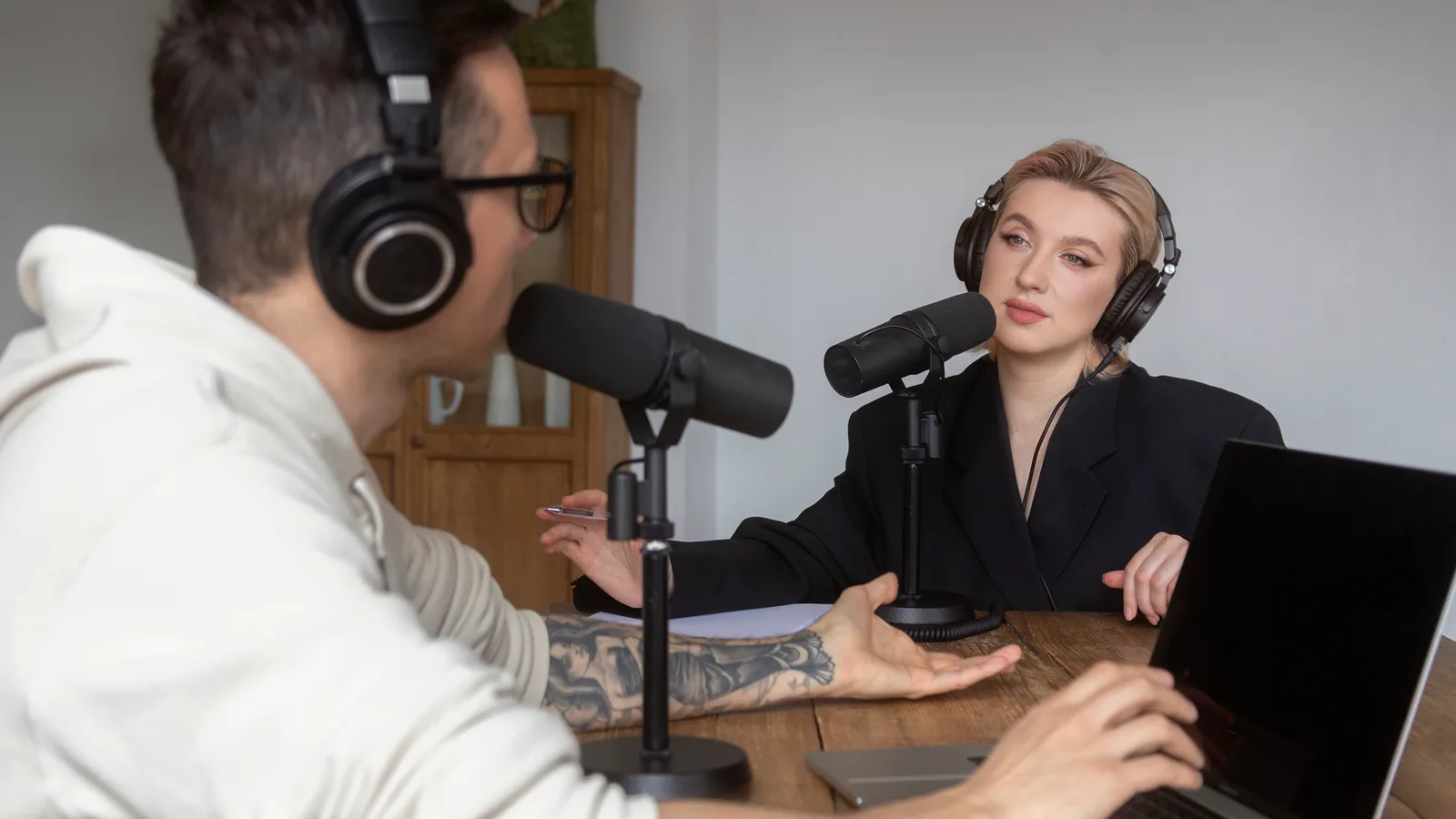
Every frame here is a crop of the same landscape source, taken at the same moment.
One source. Every aspect ratio.
Change the aspect ratio, not the focus.
Resize or adjust your video’s aspect ratio from a 16:9 landscape into portrait 9:16 or square 1:1, keeping the important parts of the scene visible.
Any kind of footage
Not only for people talking.
Tell reap what kind of video it is, and Auto Reframe tunes its tracking to match. A talking head, a screen recording, gameplay, and cinematic footage each get framed differently.
Longer videos are split into scenes automatically, so each shot is reframed on its own instead of one crop being stretched across a cut.
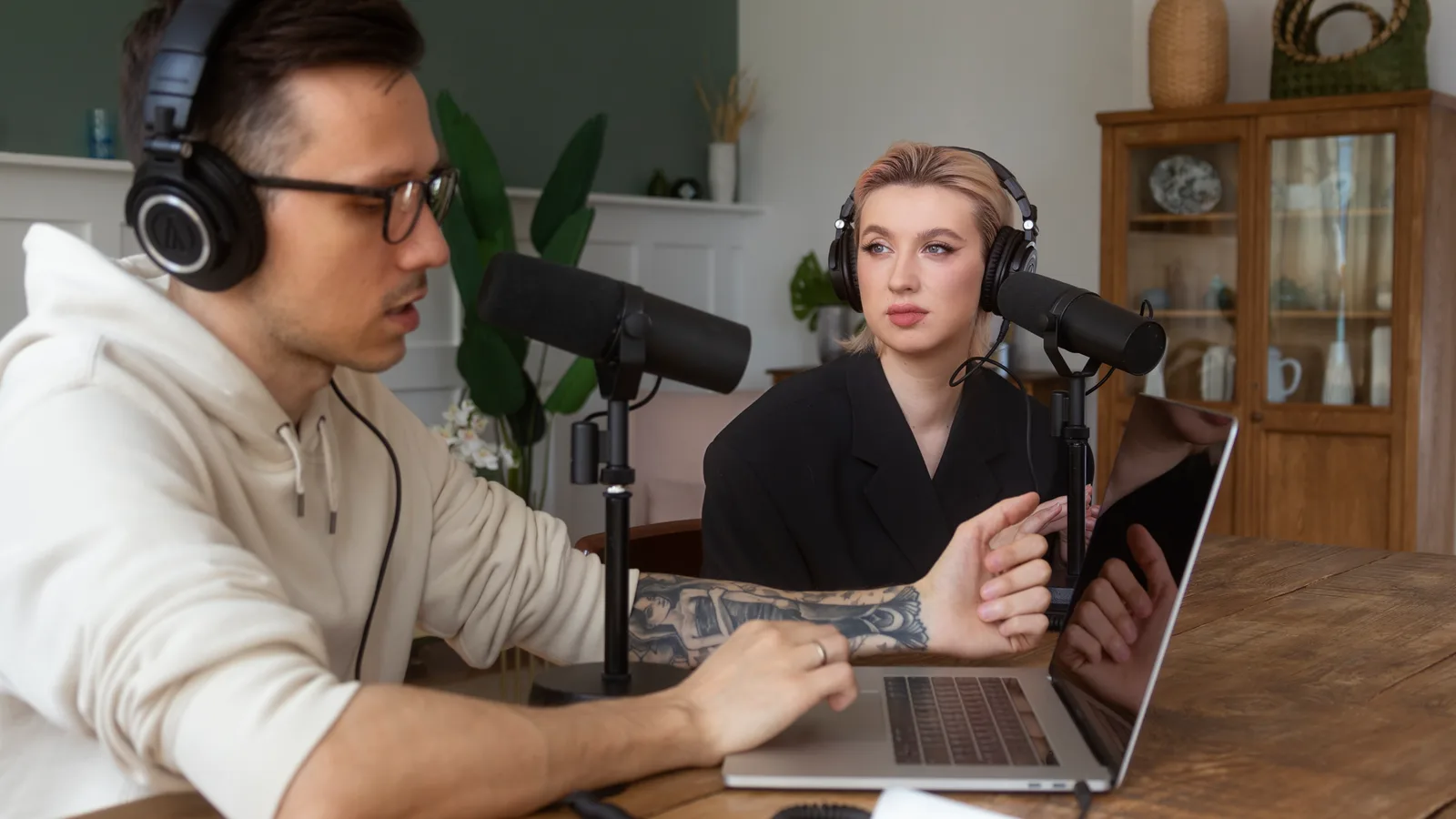
Real video frames. The window marks the 9:16 crop. The frame beside it is exactly that crop.
Multi-speaker
Built for conversations, not just talking heads.
Podcasts, interviews, panels, and product demos do not stay in one place. Pick a format to see where the frame lands.
You stay in control
Let AI do the first pass. Keep the final say.
Nothing exports until you’ve seen it. Preview every reframed clip, and when a shot needs a more precise composition, move, crop, or resize it yourself, and reap keeps your manual changes.
Automatic framing for newly added segments is updated after saving or exporting. Manual framing changes take priority.
More than resizing
Reframe inside your complete video workflow.
Auto Reframe works alongside reap’s clipping, transcription, captioning, branding, and publishing tools, so a new aspect ratio does not require a new workflow.
Reframing is available in the reap editor, and programmatically through the REST API, the CLI, and the MCP server, so the same job can run from a dashboard, a script, or an AI assistant.
See how the full clipping workflow runsWho it’s for
Made for content that needs to travel.
The pattern is the same everywhere: footage that was shot wide, and an audience that watches on a phone.
Creators
Every horizontal upload, reframed for the vertical feed.
Podcasters
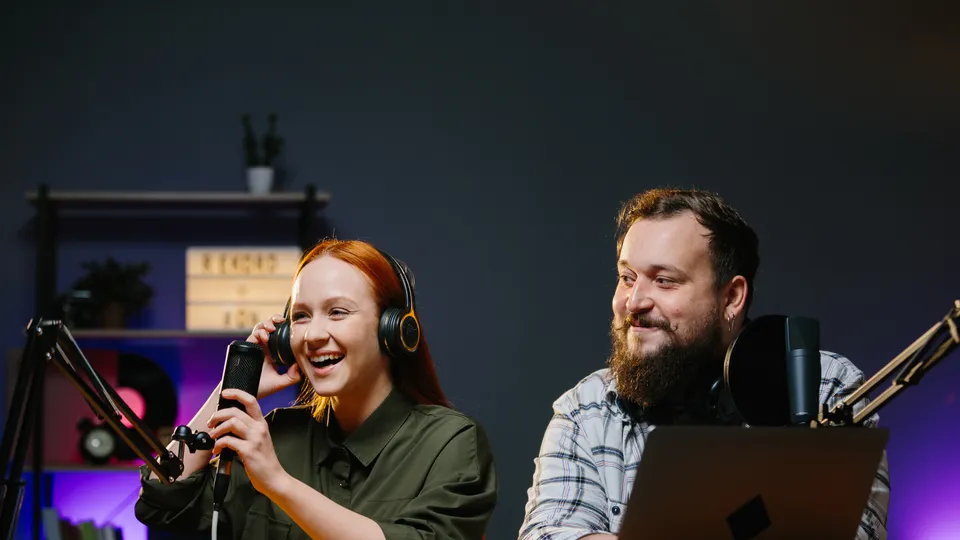
A wide two-shot, cropped to whoever is talking.
Interviewers
Two chairs, one vertical frame that follows the talk.
YouTubers
Long-form landscape, reshaped into Shorts.
Social teams
One landscape master, every vertical placement.
Streamers
Gameplay VODs go vertical without losing the play.
Agencies
A client's back-catalogue reframed in bulk, not by hand.
Educators
An hour of lecture, cut into portrait clips.
Webinar hosts
Last quarter's webinar, still a week of vertical posts.
Course creators
One recorded module, framed for every phone.
Conference teams
A day on stage, reframed into a month of clips.
Coaches
Film once, wide. Post tall all week.
Frequently asked questions
Auto Reframe is reap's AI reframing tool and video resizer. It changes a video's aspect ratio, converting landscape into portrait 9:16 or square 1:1, by analysing the scene, following speakers and moving subjects, and adjusting the crop through the video so the important part of the frame stays visible. You can preview the result and refine the composition by hand at any point.
Auto Reframe outputs portrait 9:16 and square 1:1 from landscape source footage. Portrait is the default. You can produce both from the same source video without re-editing the original.
Yes. Auto Reframe is reap's AI video resizer for aspect ratio. Instead of only scaling the canvas or shrinking the file size, it changes the video's aspect ratio, turning landscape 16:9 into portrait 9:16 or square 1:1, and it tracks the speaker or subject so the important part of the frame is kept rather than cropped out. As a video aspect ratio converter, it resizes the composition, not just the dimensions.
Yes. Use Auto Reframe to resize video for Instagram, TikTok, and YouTube Shorts: it turns landscape footage into portrait 9:16 for Reels, TikTok, and Shorts, or square 1:1 for LinkedIn and Instagram feed posts, keeping the subject in frame while it changes the aspect ratio. reap can publish or schedule the resized clip straight to those platforms.
Upload your landscape footage to reap and run Auto Reframe to make the video vertical. It works like a vertical video converter: it reframes the 16:9 source onto a 9:16 portrait canvas, tracks the speaker or subject so nobody gets cropped out, and lets you preview and adjust before export. You can make one video vertical or create vertical video from a whole batch of clips in the same run.
Auto Reframe is a horizontal to vertical video converter. Add your landscape 16:9 video, choose portrait 9:16 or square 1:1, and reap converts the horizontal video to vertical while keeping the speaker or subject centred. It changes the aspect ratio intelligently instead of stretching or letterboxing, and you can fine-tune the crop on any clip before you export.
Yes. Face tracking is on by default and keeps the active speaker in frame as they move or as the visual focus shifts between people. Two controls shape the behaviour: follow speed, where a lower value is smoother and a higher value snaps to the face faster, and dead zone, which sets how far the face can move before the framing reacts. Tracking is an automatic first pass, not a guarantee. Preview the result and adjust anything that needs a different composition.
Yes. Open the clip in the reap editor and move, crop, or resize the video on the portrait canvas. Manual framing takes priority: reap keeps your adjustments instead of overwriting them with the automatic result.
No. Reframing is a processing job rather than a live browser effect. For segments you add in the editor, automatic framing is updated when you save the project or export the clip. Manual framing changes you make are kept as they are.
Yes. Auto Reframe is part of reap's clipping: when reap turns a long video into clips, each clip is reframed to a vertical 9:16 or square 1:1 aspect ratio as part of that run. You can also reframe on its own, outside clipping, through the reap editor, the REST API, the CLI, and the MCP server.
Portrait 9:16 output suits TikTok, Instagram Reels, and YouTube Shorts. Square 1:1 output suits LinkedIn, Instagram feed posts, and other square placements. reap can publish and schedule finished clips to TikTok, Instagram Reels, YouTube Shorts, LinkedIn, and Facebook, or you can export the file and upload it yourself.
Every format. Still perfectly focused.
Turn landscape footage into social-ready portrait or square video with intelligent framing and creative control. See plans and pricing on the pricing page.
Try Auto ReframeExplore reap