For years, creators could design a custom thumbnail for a regular YouTube video but could not upload one for a Short. The usual options were to accept an automatically selected frame, choose a frame on mobile or build a thumbnail-like frame into the video itself.
That limitation is finally changing.
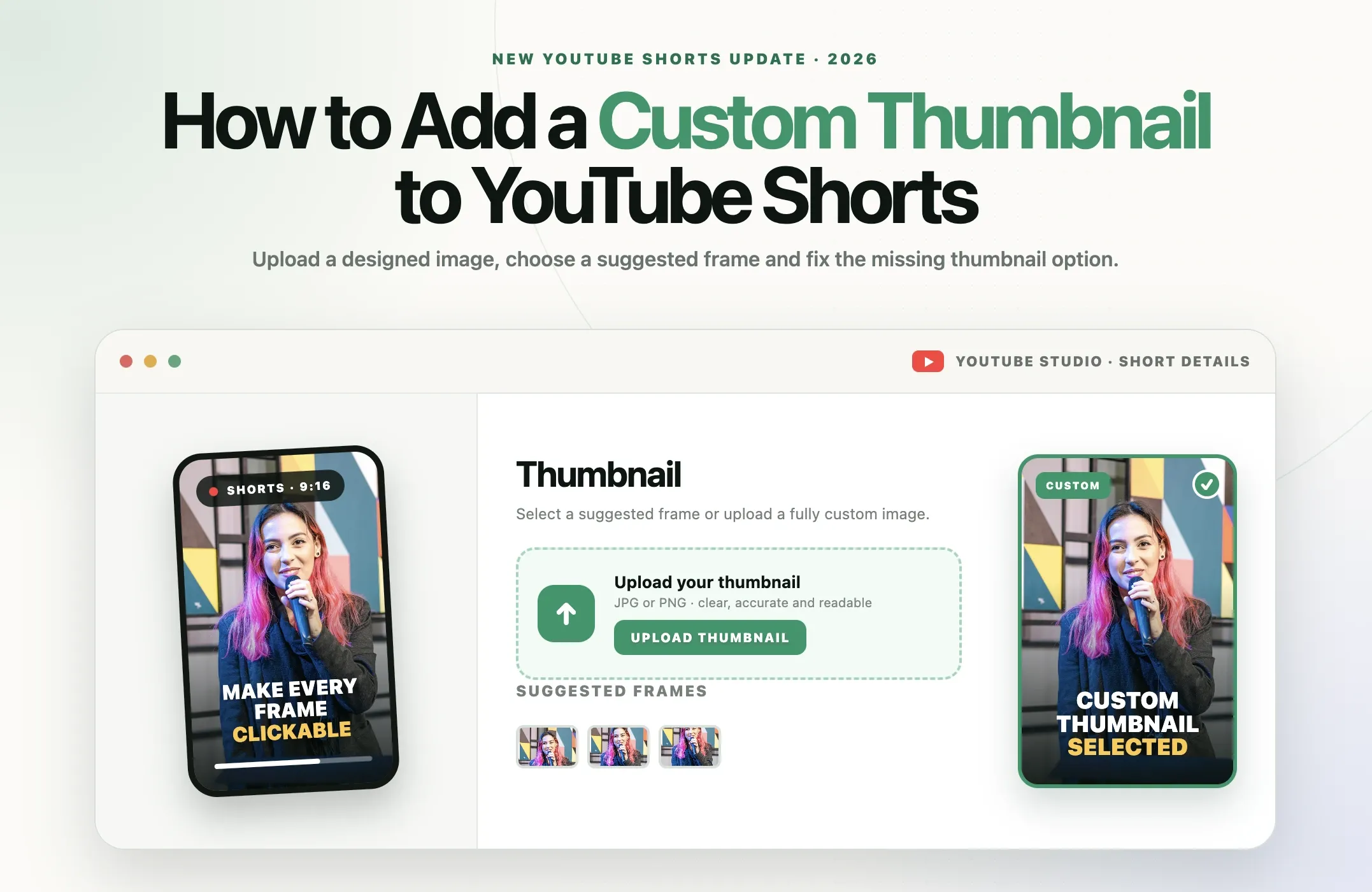
On July 24, 2026, YouTube announced that creators in the YouTube Partner Program can start uploading fully custom thumbnails for Shorts. YouTube also introduced three suggested thumbnail frames on desktop and said the custom upload feature will expand to more creators over time.
The phrase “over time” matters. This is a staged rollout, not an instant switch for every channel. Some creators will see an Upload thumbnail button in YouTube Studio while others will still see only suggested frames or the older mobile frame selector.
Quick answer: Open the Short in YouTube Studio and look for the Thumbnail section. If your channel has access, choose Upload thumbnail, select an image and save the changes. If the button is missing, your channel may not be in the YouTube Partner Program or the feature may not have reached your account yet.
Can you upload a custom thumbnail to YouTube Shorts?
Yes, but access is limited during the initial rollout.
According to YouTube’s official July 2026 announcement, YouTube Partner Program creators can begin uploading custom thumbnails for Shorts. The company described this as a top-requested feature and said it plans to make the option available to more creators.
Creators without the feature still have two official alternatives:
- Choose one of three suggested thumbnail frames in YouTube Studio on desktop.
- Choose a specific frame from the Short in the YouTube mobile app.
Important rollout note: Some YouTube Help pages still display the older statement that custom image uploads are unavailable for Shorts. The July 24 product announcement is newer and specifically confirms the rollout for YPP creators. Your current YouTube Studio interface is the most reliable indicator of whether the feature is enabled for your channel.
Who can add a fully custom Shorts thumbnail?
The first announced group is creators accepted into the YouTube Partner Program, commonly called YPP.
Being in YPP does not necessarily mean the button will appear immediately. Product rollouts are often enabled in stages by account, region, device or experiment group. YouTube has not published a date when every eligible creator will receive the feature.
Before troubleshooting, check these four conditions:
- Your channel is currently accepted into YPP.
- You are signed in to the correct channel or Brand Account.
- You are using the latest YouTube Studio experience on desktop.
- Your channel still has custom thumbnail privileges and no relevant restrictions.
If all four are true and the button is still absent, the most likely explanation is that the rollout has not reached your channel.
How to add a custom thumbnail to a new YouTube Short
The exact wording may change during the rollout, but the upload process follows the familiar YouTube Studio publishing workflow.
- Open YouTube Studio on a desktop browser.
- Select Create and upload your vertical video.
- Complete the title, description, audience and other required details.
- Find the Thumbnail section on the Details screen.
- If available, select Upload thumbnail.
- Choose the prepared JPG, PNG or GIF image from your computer.
- Review the preview and confirm that important text and faces remain visible.
- Finish the remaining checks, then publish or schedule the Short.
If the Thumbnail section shows three suggested frames but no upload button, YouTube has enabled the new desktop frame selector for your account but not the fully custom upload feature.
How to change the thumbnail of an existing YouTube Short
If custom thumbnail editing is enabled for existing Shorts on your channel, use the Short’s Details page:
- Sign in to YouTube Studio on desktop.
- Select Content from the left menu.
- Open the Shorts tab or locate the Short in your content list.
- Click the Short to open its Details page.
- Find the Thumbnail section.
- Select Upload thumbnail and choose the new image.
- Click Save.
Thumbnail changes may take time to appear consistently across YouTube. Check the channel page and search result after processing rather than repeatedly uploading the same image.
If the existing Short does not show an upload option, try the suggested frames on desktop or the frame selector in the YouTube app. Availability can differ between new uploads and existing content while a feature is being introduced.
How to choose a Shorts thumbnail without the custom upload feature
Option 1: Choose one of three frames on desktop
YouTube now offers three suggested frames for Shorts in the desktop upload workflow. This is similar to the automatic thumbnail suggestions available for long-form videos.
Choose the frame with the clearest subject, strongest expression and least motion blur. Avoid a frame where captions are half animated, a hand covers the face or the speaker’s mouth is caught in an awkward position.
Option 2: Select any frame on mobile
The YouTube mobile app allows creators to scrub through a Short and select a frame. This offers more control than the three desktop suggestions, but the selected image must already exist inside the video.
When planning the Short, hold a clean composition for a moment during filming or editing. That gives the mobile frame selector a usable image with a clear face, product or result.
Option 3: Create a thumbnail-friendly frame inside the video
If custom image uploads are unavailable, place a clean, designed frame inside the video and select it on mobile. Do not make it a long static opening. A Short still needs to deliver movement or information immediately.
A practical compromise is to include the designed composition for a small number of frames at a natural transition, then select that moment as the thumbnail.
What size should a YouTube Shorts thumbnail be?
YouTube’s rollout announcement does not publish a separate technical specification for fully custom Shorts thumbnails. Its general custom thumbnail guidance recommends a large image, JPG, GIF or PNG format and a minimum width of 640 pixels.
For a vertical Short, a practical working file is:
|
Setting |
Practical recommendation |
Why it helps |
|---|---|---|
|
Canvas |
1080 × 1920 pixels |
Matches the native 9:16 Short |
|
Format |
JPG or PNG |
Widely supported and easy to optimize |
|
Subject |
Inside the central area |
Protects the subject when surfaces crop the image |
|
Text |
Three to six large words |
Remains readable at small display sizes |
|
Contrast |
Strong separation between text and background |
Improves recognition on mobile and television |
Treat 1080 × 1920 as a production recommendation, not a newly published YouTube requirement. Keep a 16:9 version available as well because YouTube surfaces may present vertical videos differently. YouTube’s general guidance notes that vertical videos can receive an automatically generated 4:5 treatment on some Home, Explore and Subscription surfaces.
Where does a YouTube Shorts thumbnail appear?
A custom thumbnail does not replace the opening frame people see after they swipe to your Short in the vertical Shorts feed. The video begins playing immediately there, so the first second of the video still has to work as its own hook.
Thumbnails matter most on choice-based surfaces where a viewer sees a preview before deciding whether to watch. Depending on the device and current interface, those surfaces can include:
- YouTube search results,
- your channel page,
- subscriptions and browsing surfaces,
- watch history,
- playlists,
- desktop and television interfaces.
This distinction changes the strategy. A thumbnail can improve the packaging of a Short outside the swipe feed, but it cannot rescue a weak opening once playback begins.
How to design a YouTube Shorts thumbnail that earns clicks
Make one promise
A good thumbnail communicates one outcome, question or tension. Do not summarize the entire Short. If the video teaches three editing mistakes, the thumbnail might say “Stop doing this” beside one clear visual example.
Use a real frame or truthful image
The image should represent what the viewer will actually receive. YouTube advises creators to keep titles and thumbnails accurate. Misleading packaging may attract a click but lose the viewer immediately, weakening retention and trust.
Keep text large and short
Long sentences become unreadable when a thumbnail is reduced to the size of a card. Use a few bold words and let the video title provide the additional context.
Design for cropping
Place faces, products and text away from the extreme edges. A vertical thumbnail may be shown in a 9:16, 4:5 or other preview treatment depending on the YouTube surface.
Pair the thumbnail with the title
The thumbnail and title should add information rather than repeat the same sentence. For example:
- Thumbnail: “Before You Post”
- Title: Three YouTube Shorts Settings That Limit Reach
Fulfill the promise immediately
The opening seconds should confirm that the viewer clicked the correct video. Show the result, state the problem or begin the demonstration without an unrelated introduction.
Why is the custom thumbnail option missing?
The most common reasons are:
- Your channel is not in YPP. The initial custom Shorts thumbnail rollout is aimed at YouTube Partner Program creators.
- The rollout has not reached your account. YouTube said it will expand access over time.
- You are checking the wrong interface. Start with YouTube Studio on desktop and open the Short’s Details page.
- You are signed in to another channel. Confirm the profile and Brand Account before troubleshooting.
- Your thumbnail privileges are restricted. Community Guidelines issues can affect custom thumbnail access.
- You reached a daily upload limit. YouTube limits the number of custom thumbnails a channel can upload in a day.
Do not repeatedly delete and re-upload a Short simply to force the feature to appear. That will not accelerate an account rollout and can discard useful performance history.
How to measure whether the thumbnail is working
YouTube Analytics reports impressions and click-through rate for surfaces where a thumbnail is registered as an impression. YouTube defines CTR as how often viewers watched after seeing a thumbnail.
Compare performance with context:
- Look at traffic sources that actually display a clickable thumbnail.
- Compare similar Shorts over a meaningful period, not the first few minutes.
- Watch views and retention alongside CTR.
- Expect CTR to change as YouTube shows the Short to broader audiences.
A higher CTR is not automatically a win if viewers leave immediately. The best thumbnail attracts the right viewer and accurately sets up the video that follows.
Custom thumbnail checklist
- The subject is recognizable at a small size.
- The image communicates one idea.
- Text is limited, large and high contrast.
- Important elements sit within a central safe area.
- The thumbnail and title work together.
- The image accurately represents the Short.
- The first seconds deliver the promised value.
- The image follows YouTube’s thumbnail and Community Guidelines policies.
The bottom line
Custom thumbnails give Shorts creators more control over how their videos appear beyond the swipe feed. The change is especially useful for search, channel pages and other places where viewers choose between several videos.
For now, access depends on channel eligibility and rollout status. YPP creators should check the Thumbnail section in YouTube Studio. Everyone else can improve packaging by selecting a strong suggested frame, choosing a precise frame on mobile and composing future videos with thumbnail-safe moments.
The thumbnail earns attention. The Short still has to keep it.