You finally have a clip worth posting: a sharp answer from a podcast, a stream highlight, a product demo that went right on the first take. You upload it to TikTok and something is off. There is a black band above and below a thin strip of video, or the app has zoomed in so far that your guest is half out of frame, or the whole thing looks soft once it hits the For You feed. The content is fine. The size is wrong.
TikTok is built around one tall, full-screen canvas, and anything that does not match it gets padded, cropped, or squeezed by compression. This guide gives you the exact TikTok video size, dimensions, aspect ratio, and resolution for 2026, the official specs for TikTok ads, how TikTok handles square and horizontal uploads, and a fast way to turn footage you already have into correctly sized TikToks without rebuilding each one in an editor.
Quick answer: what size is a TikTok video?
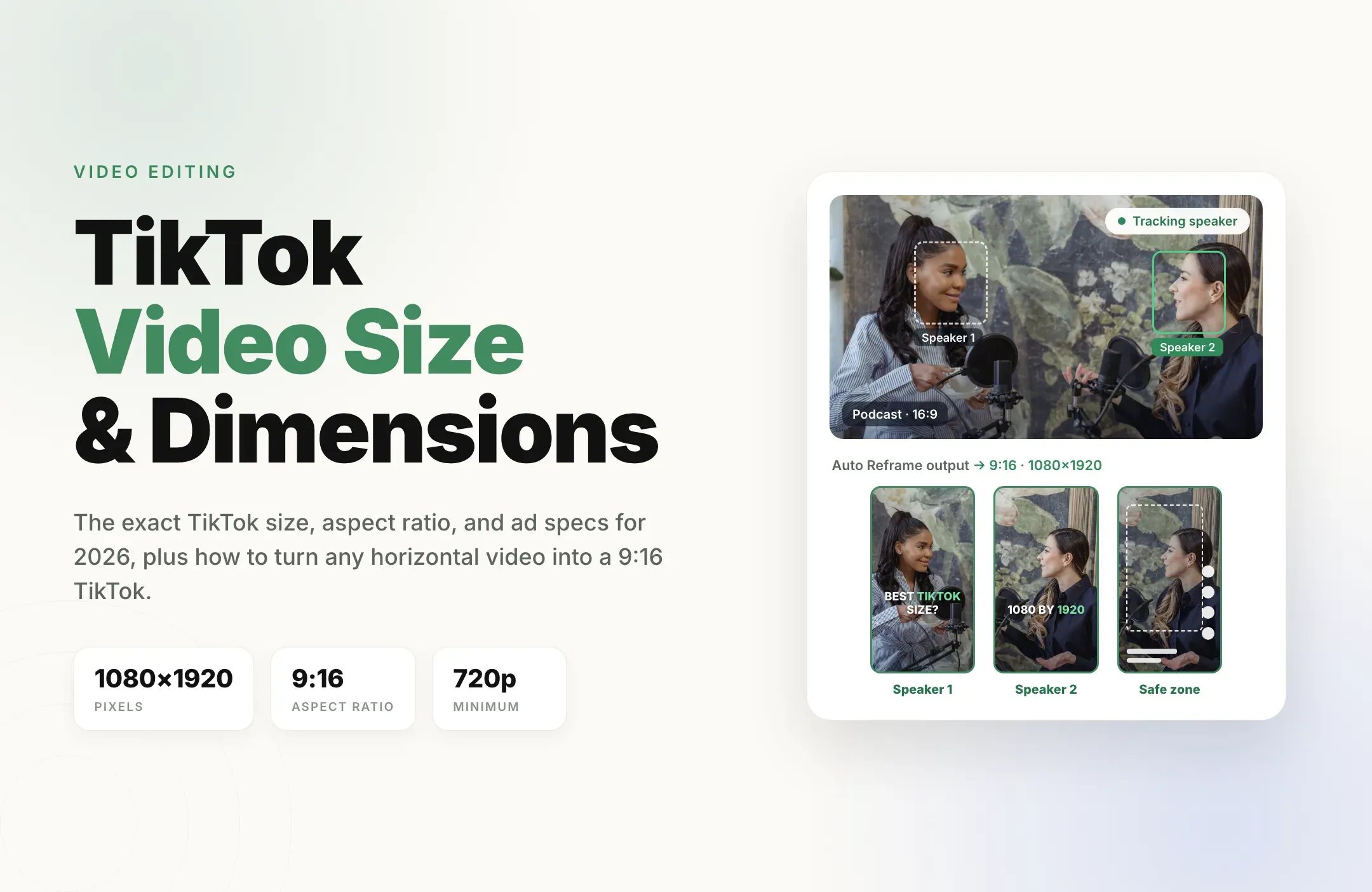
The best TikTok video size is 1080 x 1920 pixels in a 9:16 vertical aspect ratio, exported as an MP4 (H.264 video, AAC audio) at 30 frames per second. That is the full-screen portrait format the For You feed is designed for, and it is the size that fills a phone screen with no bars and no forced crop.
If you only remember one line from this guide, make it that one. Everything below explains the details around it: the lowest resolution TikTok accepts, how other shapes are displayed, where TikTok's buttons cover your video, the separate rules for ads, and what to do when your recording starts out the wrong shape.
TikTok video specs in 2026
These are the recommended settings for a regular, organic TikTok post. Treat the size, ratio, and format rows as fixed targets. Treat length and file size as ceilings that TikTok changes over time and that can differ by device, region, and account, so check the upload screen before a long or very large upload.
|
Spec |
Recommended setting |
Notes |
|---|---|---|
|
Dimensions |
1080 x 1920 pixels |
Full HD vertical. Larger 9:16 files (for example 2160 x 3840) also work. |
|
Aspect ratio |
9:16 |
The only ratio that fills the whole screen. |
|
Minimum resolution |
720 x 1280 pixels |
TikTok's desktop uploader asks for 720 x 1280 or higher. Lower looks blurry. |
|
File format |
MP4 (MOV also accepted) |
The desktop uploader also takes WebM. |
|
Codec |
H.264 video, AAC audio |
The safest combination for clean processing. |
|
Frame rate |
30 fps |
Use 60 fps for gaming, sports, or fast motion. |
|
Recording length (in app) |
Up to 10 minutes |
Longer videos must be uploaded rather than filmed in the app. |
|
Upload length and file size |
Varies by account and region |
Desktop uploads allow far longer, larger files than mobile. Check TikTok Studio before uploading. |
TikTok size vs dimensions vs aspect ratio vs resolution
People search all four of these as if they mean the same thing. They control different problems, so it helps to keep them apart.
- Aspect ratio is the shape of the frame. TikTok's is 9:16, tall and narrow. Get this wrong and you get black bars or a hard crop, no matter how sharp the footage is.
- Dimensions are the pixel measurements that produce the shape. 1080 x 1920 and 720 x 1280 are both 9:16; they are just different sizes of the same shape.
- Resolution is how much detail the frame holds. 1080 x 1920 is full HD. 720 x 1280 is accepted but noticeably softer once TikTok compresses it.
- File size is how heavy the export is in megabytes or gigabytes, which depends on resolution, length, frame rate, and bit rate together.
A blurry TikTok is a resolution or bit rate problem. A TikTok with bars or a cropped face is an aspect ratio problem. Fixing the wrong one wastes an afternoon.
TikTok screen size vs TikTok video size
Most modern phones are taller than 9:16 (many sit around 19.5:9), so the TikTok screen is not exactly the same shape as the video. TikTok fits the 9:16 frame to the display and may trim a thin sliver from the edges or leave a small strip around it, depending on the phone. You cannot design for every device, which is why the practical rule is to keep anything important away from the very edges of the frame. You do not need a special "screen size" export. A clean 1080 x 1920 file is the right canvas for every phone.
How TikTok displays 9:16, 1:1, and 16:9 videos
TikTok accepts other shapes, but it does not show them the same way. Here is what happens to each one in the feed.
|
Aspect ratio |
Example size |
How it appears on TikTok |
When to use it |
|---|---|---|---|
|
9:16 (vertical) |
1080 x 1920 |
Fills the whole screen |
Almost always. This is the native format. |
|
1:1 (square) |
1080 x 1080 |
Sits in the middle with empty space above and below |
Only when reposting a square clip as is |
|
16:9 (horizontal) |
1920 x 1080 |
A small band in the middle of the screen; viewers can tap to rotate to full screen |
Rarely. Reframe it to 9:16 instead. |
A square or horizontal TikTok is not banned or penalized for its shape, but it uses a fraction of the screen, and that means smaller faces, smaller captions, and less to stop the scroll. When the same video can be reframed to 9:16, it almost always performs better as a vertical.
TikTok ad specs (in-feed ads)
TikTok ads have their own requirements in Ads Manager, and they are more flexible on shape than most people expect. According to TikTok's help center for auction in-feed ads, non-Spark video ads accept:
|
Ad spec |
Requirement |
|---|---|
|
Vertical 9:16 |
At least 540 x 960 pixels (recommended) |
|
Horizontal 16:9 |
At least 960 x 540 pixels |
|
Square 1:1 |
At least 640 x 640 pixels |
|
File types |
.mp4, .mov, .mpeg, .3gp, .avi |
|
Maximum file size |
500 MB |
|
Duration |
Up to 10 minutes |
|
Bit rate |
At least 516 kbps |
Two practical notes. First, those are minimums: build the ad at 1080 x 1920 anyway so it looks sharp, because the minimum is about acceptance, not quality. Second, Spark Ads boost an existing organic post, so they inherit that post's format. If you plan to put spend behind a video later, post it at the right size from the start. Ad placements also add elements such as a call-to-action button and brand name, so leave extra room near the bottom of the frame.
TikTok safe zones: where the buttons cover your video
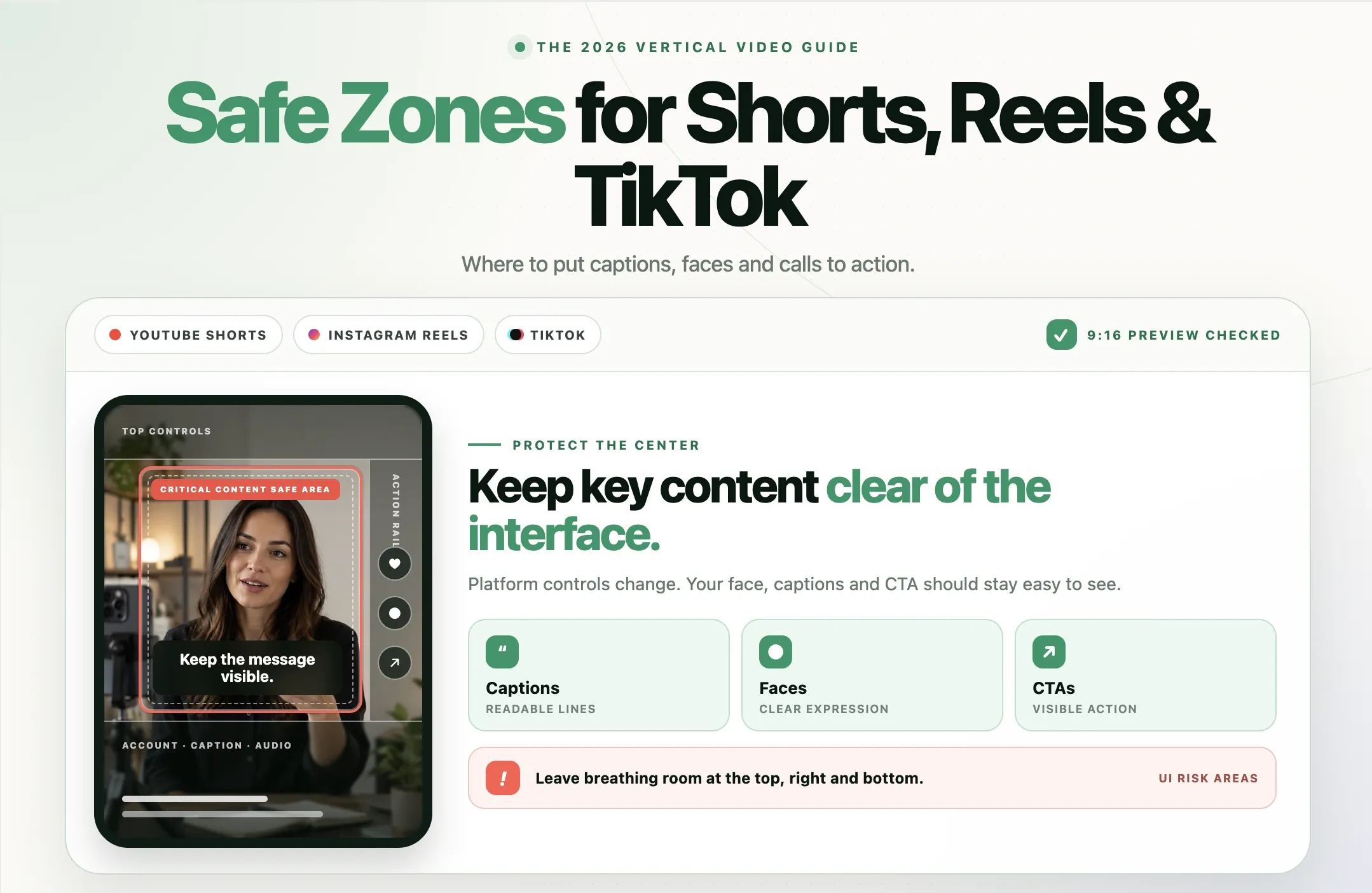
The canvas is 1080 x 1920, but TikTok lays its own interface on top of it. The like, comment, save, and share buttons and the creator's profile picture run down the right side. The username, caption, sound name, and navigation bar sit along the bottom, and ads and shopping posts add more there. Across the top are the Following and For You tabs.
Anything you place under those elements is partly hidden: a face, a logo, a product, or, most often, burned-in captions. There is no single permanent pixel box, because TikTok adjusts its layout by placement, caption length, and app version. The working rule of thumb is to keep critical content in the central area of the frame, raise captions above the bottom fifth or so, stay clear of the right edge, and keep text below the top tabs. Then upload a private draft and look at it on a phone before you post. Our guide to YouTube Shorts, Reels, and TikTok safe zones covers each platform's layout in more detail.
The real problem: most of your footage is horizontal
Spec charts assume you are filming a vertical video from scratch. Most good content does not start that way. Podcasts, webinars, interviews, Twitch and YouTube streams, Zoom calls, conference talks, screen recordings, and product demos are almost all recorded in 16:9. That footage is exactly what makes great TikToks, and it is exactly the wrong shape.
Dropping a 16:9 recording into a 9:16 TikTok leaves you two bad options. Keep the whole frame and you get thick bars with a tiny strip of video in the middle. Fill the screen with a fixed center crop and you lose whoever is sitting off-center, which in a two-person podcast is usually both people. The manual fix is to build a vertical sequence in a desktop editor and keyframe the crop so it follows the speaker. That works, and it also costs real time on every clip, which is why so many creators post far less than they planned to.
How to resize any video to TikTok size with Reap
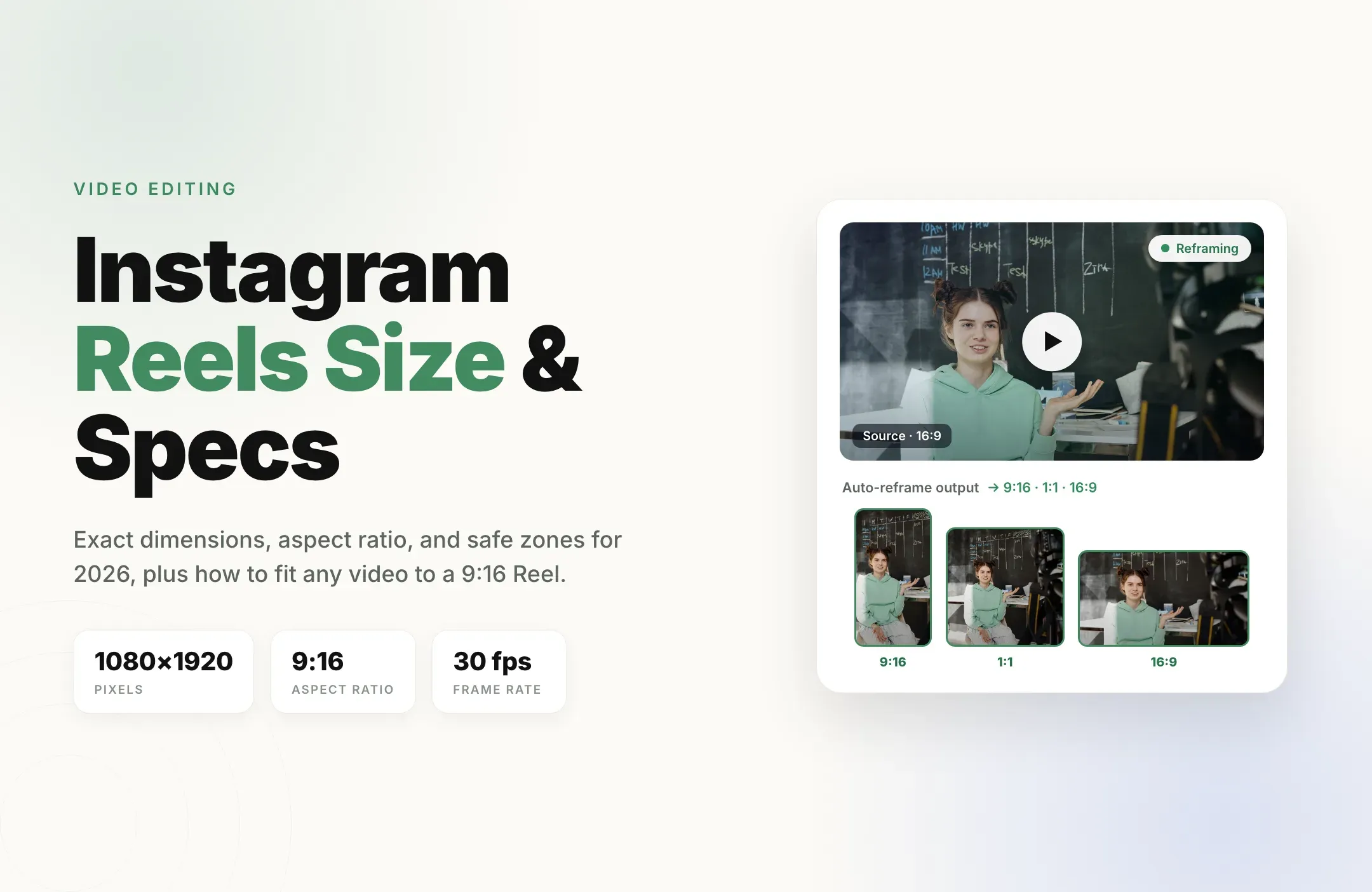
Reap's Auto Reframe converts landscape footage into a 9:16 vertical while tracking whoever is speaking, so the crop moves with the conversation instead of sitting still in the middle. Face tracking is on by default, and it handles multi-speaker shots, product demos, and other footage where the subject is not a single talking head. Here is the workflow from a long recording to a finished TikTok.
- Upload or link your video. Add a podcast episode, stream VOD, webinar, interview, or a single raw clip. Reap works from the footage you already have.
- Choose the moments. Trim to the part you want, or let Reap's AI clipping pull the strongest standalone moments from a long video so you are not scrubbing an hour-long timeline by hand.
- Reframe to 9:16. Pick the portrait output. Auto Reframe tracks the active speaker and keeps them in frame as they move, and you can adjust follow speed and the crop on any clip before export. Need the same clip for LinkedIn or the Instagram feed? Output a square 1:1 version from the same run.
- Add captions in the safe area. Generate captions in 100+ languages with 50+ animated styles, and position them in the center of the frame, above TikTok's caption and sound row. A large share of TikTok is watched with the sound off, so on-screen text earns its place.
- Export or publish straight to TikTok. Download a vertical MP4, or schedule it to TikTok (and to Reels, Shorts, and LinkedIn) from Reap's publishing calendar without downloading and re-uploading files.
Because the output is the right shape from the start, you skip the loop of uploading, seeing it look wrong, and going back to fix it. One note on quality: paid plans export full 1080 x 1920, while the free plan exports at 720p, which TikTok still accepts. For a side-by-side look at other tools, see our list of the best TikTok video editors.
Example: one stream, a week of TikToks
The size question matters most when one recording turns into many posts, because every one of them has to be the right shape. Say you streamed for two hours in 16:9, or recorded a 45-minute podcast with two hosts. From that single file you can pull:
- A 20-second hook where something unexpected happens, reframed to 9:16 with the speaker tracked.
- A 45-second answer to a question your audience keeps asking, captioned for silent viewing.
- A 30-second back-and-forth between two hosts, with the crop following whoever is talking.
- A 60-second story or tutorial moment for people who already follow you.
Each one comes out vertical, captioned inside the safe area, and ready to schedule. That is a week of TikToks from one recording, with no manual keyframing. It is the same set-up-once, publish-all-week idea behind batch video editing. If you post the same clips to Instagram, the Instagram Reels size is identical, so one export can serve both.
Common TikTok size problems and how to fix them
My TikTok looks blurry after posting
Usually one of three things. The source is below 1080 x 1920, the bit rate was too low, or high-quality uploading is turned off. Export at full HD or higher, avoid re-exporting the same file several times (each pass loses detail), and check that the high-quality upload option is on in TikTok's post settings before you publish. Uploading over Wi-Fi rather than a weak mobile connection also helps.
There are black bars, or TikTok zoomed in on my video
The file is not 9:16. A horizontal video is shown as a small band with empty space around it, and cropping it to fill the screen zooms in and cuts people off. Reframe the footage to a true 9:16 frame before uploading rather than letting the app pad or crop it.
My captions or face are hidden behind buttons
Your key elements are outside the safe area. Move captions up from the bottom and keep faces and products away from the right edge, then preview a private draft on a phone to confirm.
The upload fails or takes forever
The file is too large, too long for your account, or in an unusual format. Re-export as an H.264 MP4 at a sensible bit rate instead of uploading a huge master file, and use TikTok Studio on desktop for long or large videos. For how long your TikToks should actually run, see our guide to the best video length for Shorts, Reels, and TikTok.
TikTok video size checklist before you post
- Aspect ratio is 9:16.
- Dimensions are 1080 x 1920 pixels (720 x 1280 at the very least).
- File is an MP4 or MOV with H.264 video and AAC audio.
- Frame rate is 30 fps, or 60 fps for fast motion and gaming.
- Faces, products, and captions sit in the central area, clear of the right-side buttons and the bottom caption row.
- Captions are on and large enough to read on a phone.
- High-quality upload is enabled, and you previewed a draft on a real phone.
- For ads: at least 540 x 960 for vertical, under 500 MB, with extra room at the bottom for the call-to-action.
Final thoughts
TikTok video size comes down to one target: 1080 x 1920 pixels, 9:16, exported as an H.264 MP4. Getting the numbers right takes a minute. The part that actually slows creators and brands down is that their best footage is horizontal, and cropping every clip by hand is what turns a posting plan into a backlog.
Reap closes that gap. Point it at a recording you already have, let it find the moments worth posting, reframe them to a true vertical that follows the speaker, add captions inside the safe area, and send them straight to TikTok. Try Reap for free and turn one long video into a week of correctly sized TikToks.