You recorded something good. A clean talking-head take, a webinar moment, a demo that finally landed. Then you drop it into the Instagram Reels uploader and it looks wrong: letterboxed with black bars, zoomed in on someone's forehead, or soft and pixelated. The problem is almost never the content. It is the size.
Instagram Reels have a specific canvas, and video that does not match it gets cropped, padded, or recompressed in ways that hurt reach. This guide gives you the exact Reels dimensions, aspect ratio, resolution, and safe zones for 2026, explains what each of those terms actually controls, and shows you how to fit any existing recording to Reels size in minutes instead of re-shooting or rebuilding a sequence from scratch.
Quick answer: what size should an Instagram Reel be?
Export your Reel at 1080 x 1920 pixels, in a 9:16 vertical aspect ratio, as an MP4 (H.264) file at 30 frames per second. That is the full-screen vertical format Instagram built Reels around, and it is what the feed, Explore, and the Reels tab all display at full size.
Everything else in this guide is detail on top of that one answer: the minimum resolution Instagram will accept, where the on-screen buttons cover your video, how the cover gets cropped on your profile grid, and what to do when your footage is the wrong shape to begin with.
Instagram Reels specs in 2026
Here are the current recommended specifications for an organic Reel. Treat the dimensions, aspect ratio, and format as firm. Treat file size and length as ceilings that shift over time and by account, so confirm them in the app before a big upload.
|
Setting |
Reels requirement |
|---|---|
|
Aspect ratio |
9:16 (full-screen vertical) |
|
Recommended dimensions |
1080 x 1920 pixels |
|
Minimum resolution |
720 x 1280 pixels |
|
File format |
MP4 or MOV, H.264 or HEVC video, AAC audio |
|
Frame rate |
30 fps (use 60 fps for fast motion) |
|
Max file size |
Up to about 4 GB (Meta's published ads figure; confirm in app) |
|
Length |
Varies by account, commonly up to 3 minutes with longer uploads rolling out |
|
Cover image |
1080 x 1920, cropped to a 3:4 tile on your profile grid |
|
Safe zone |
Keep key content about 14% from top, 35% from bottom, 6% from each side |
A few of these deserve a plain-language explanation, because people use the words interchangeably and then wonder why their video still looks off.
Size, dimensions, aspect ratio, and resolution are not the same thing
- Aspect ratio is the shape of the frame: the relationship between width and height. 9:16 is tall and narrow. This is the single most important setting, because the wrong ratio is what produces black bars or hard crops.
- Dimensions are the exact pixel measurements that create that shape. 1080 x 1920 is a 9:16 frame measured in pixels.
- Resolution is how much detail those pixels hold. 1080 x 1920 is full HD. Instagram will accept down to 720 x 1280, but anything lower looks soft once Instagram compresses it.
- File size is how many megabytes the exported video weighs, driven by resolution, length, frame rate, and bit rate together.
When a Reel looks bad, one of these is usually the cause: the wrong aspect ratio (crop or bars), low resolution (blur), or a bit rate so high the upload fails or so low the motion smears.
Which aspect ratio should you actually use?
Instagram will let you upload 9:16, 4:5, and 1:1 video to Reels, but they do not all get the same treatment in the feed. Here is how to choose.
|
Ratio |
Pixel size |
Best for |
How it appears in Reels |
|---|---|---|---|
|
9:16 |
1080 x 1920 |
Full-screen Reels, the default for almost everyone |
Fills the entire screen |
|
4:5 |
1080 x 1350 |
Cross-posting one file to the main feed too |
Shows in a smaller window with padding |
|
1:1 |
1080 x 1080 |
Square-first brand or multi-platform content |
Shows small, with empty space top and bottom |
For almost every creator and brand, the answer is 9:16 at 1080 x 1920. It fills the entire screen, leaves the most room for motion and captions, and matches how Reels are watched. Use 4:5 only when you are cross-posting the exact same file to the main feed and do not want to make a second version, and accept that it will sit in a smaller window inside the Reels player.
Safe zones: keep the important stuff off the edges
The Reels canvas is 1080 x 1920, but Instagram covers parts of it with its own interface: the caption and account name along the bottom, the like, comment, share, and audio buttons down the right side, and sometimes a progress bar and profile tap target. If your subject's face, your logo, or your burned-in captions sit in those areas, they get hidden behind the UI.
Instagram's own Reels ad guidance points to safe margins of roughly 14% from the top, 35% from the bottom, and about 6% on each side. You do not need to measure to the pixel. The practical rule is simple: keep faces, key text, and anything clickable inside the middle vertical band of the frame, well clear of the bottom third and the right rail. We go deeper on this in our guide to short-form video safe zones.
The cover and the profile grid crop
Your Reel plays as a full 1080 x 1920 vertical video, but the cover image you choose is displayed differently depending on where someone sees it. In the Reels feed it is full screen. On your profile grid it is cropped to a taller 3:4 tile, and in older grid views it can be squeezed toward a square. If your cover text or subject is centered, it survives every crop. If it is near the top or bottom edge, it gets cut on the grid. Center the focal point of your cover, and keep any title text in the middle of the frame.
The real problem: most footage is the wrong shape
Here is the catch that specs charts never mention. Almost nothing you record starts out at 9:16. Webinars, interviews, podcasts, screen recordings, Zoom calls, product demos, and most phone video shot by someone who was not thinking about Reels all come in horizontal 16:9 or near-square. Dropping a 16:9 video into a 9:16 Reel gives you one of two bad outcomes: thick black bars above and below a tiny strip of video, or a center crop that lops off whoever was sitting on the left and right.
The old fix was to open a desktop editor, build a vertical sequence, scale the footage, and keyframe the position by hand so the speaker stayed in frame. That works, and it also takes real time for every single clip. When you are trying to post consistently, that friction is what kills the habit.
How to resize any video to Instagram Reels size with Reap
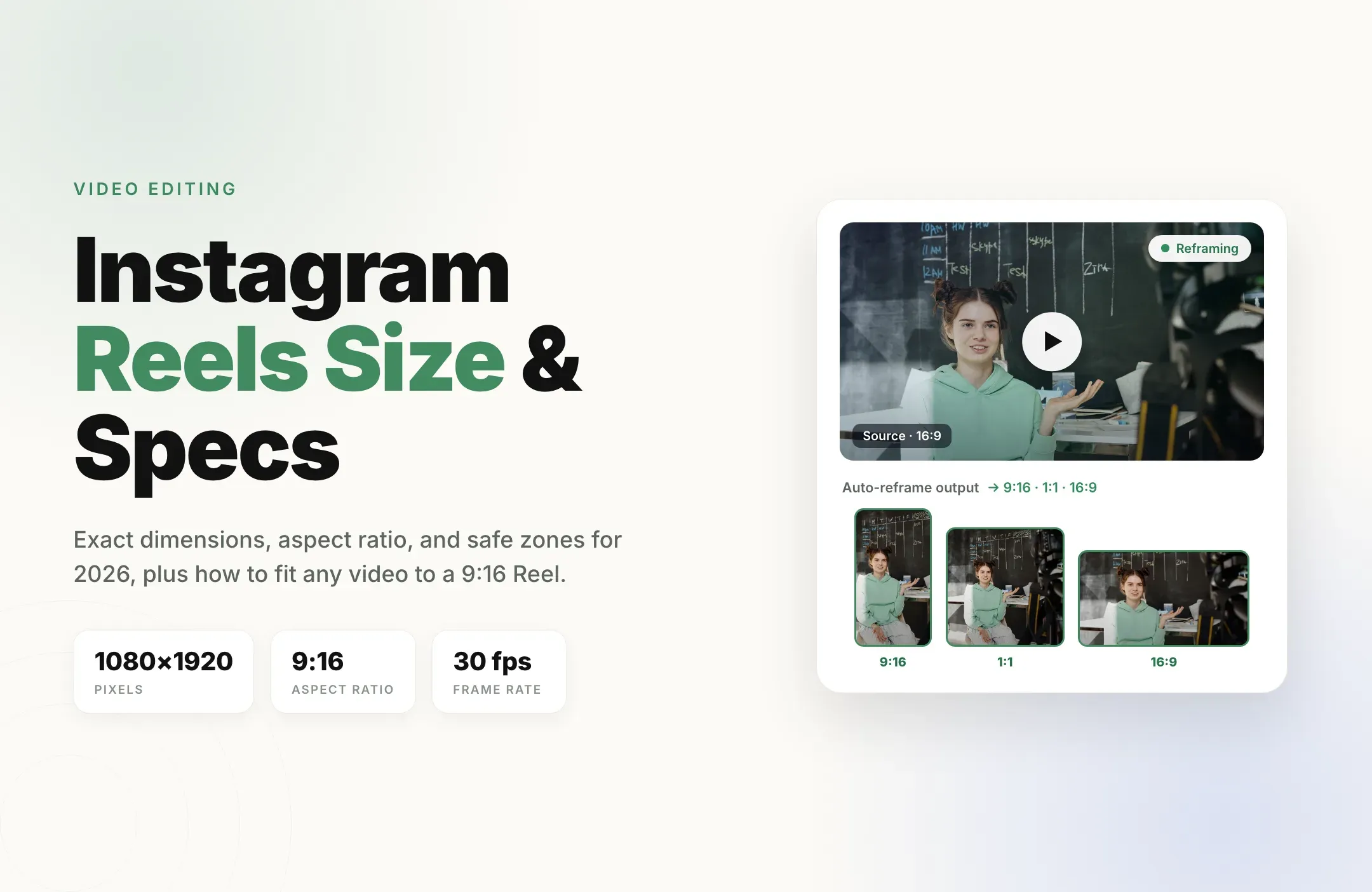
Reap is built to turn video you already have into correctly sized, captioned vertical clips without rebuilding anything. Its auto-reframe uses face and subject tracking to keep the important part of the frame centered as it converts to 9:16, so a horizontal interview becomes a clean vertical Reel instead of a static crop. Here is the workflow.
- Add your source video. Upload a file or paste a link to a longer recording, a podcast episode, a webinar, or a raw talking-head clip. Reap works from the footage you have.
- Pick the moment, or let AI find it. Trim to the excerpt you want to post, or let Reap's clipping suggest the strongest standalone moments from a long video so you are not scrubbing a timeline by hand.
- Reframe to 9:16. Choose the vertical 1080 x 1920 output. Auto-reframe tracks the speaker and keeps them centered, so two people in a wide shot do not get cropped out of their own conversation. You can also output 1:1 or 16:9 from the same clip for other platforms.
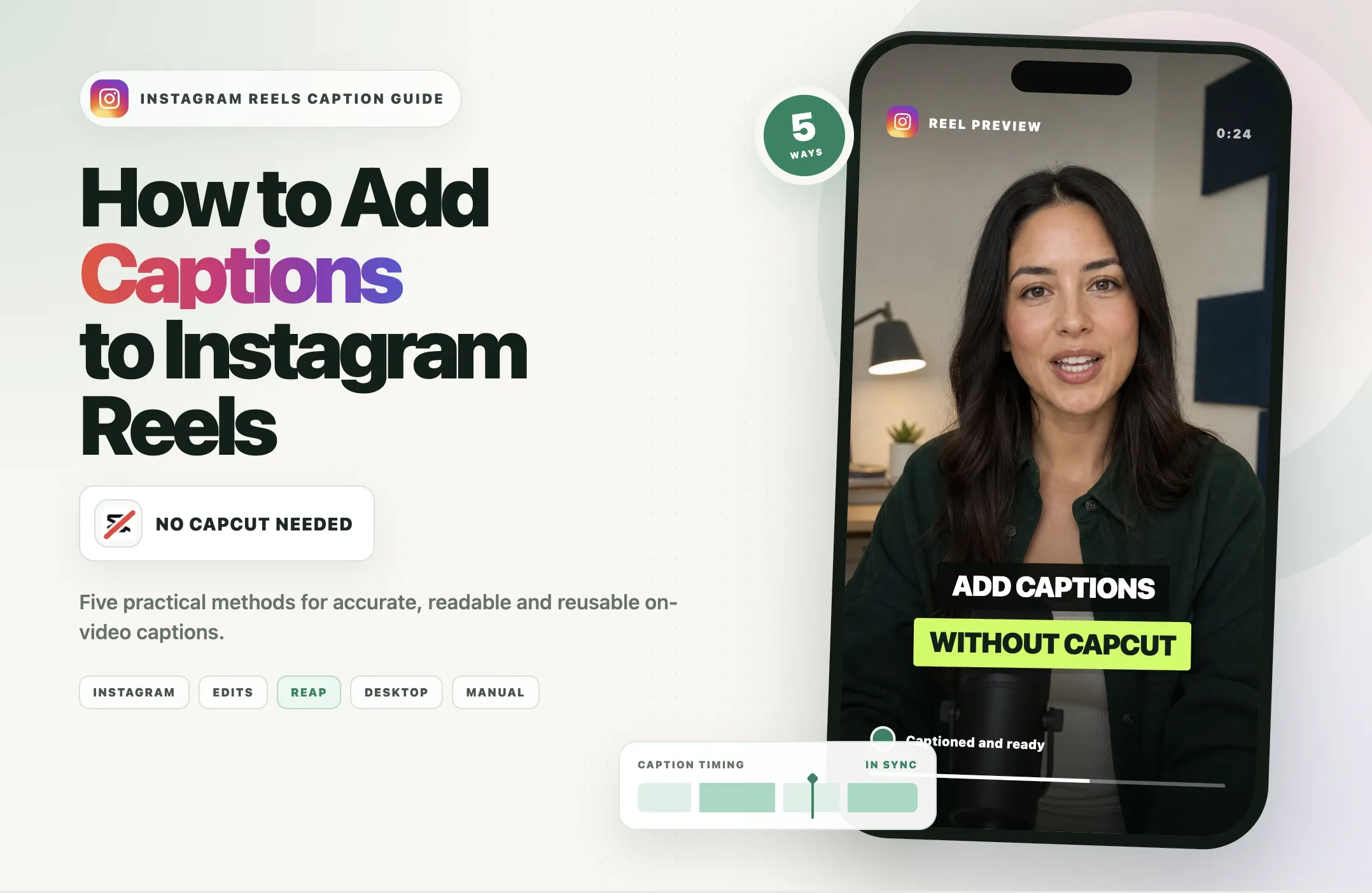
- Add captions inside the safe zone. Generate captions automatically, in more than 100 languages, and position them in the middle band so Instagram's UI never covers them. Most Reels are watched on mute, so this is not optional.
- Check the frame and export. Confirm the subject and captions sit clear of the bottom third and right rail, then export a 1080 x 1920 MP4 that is already the right size for Reels. No black bars, no guesswork.
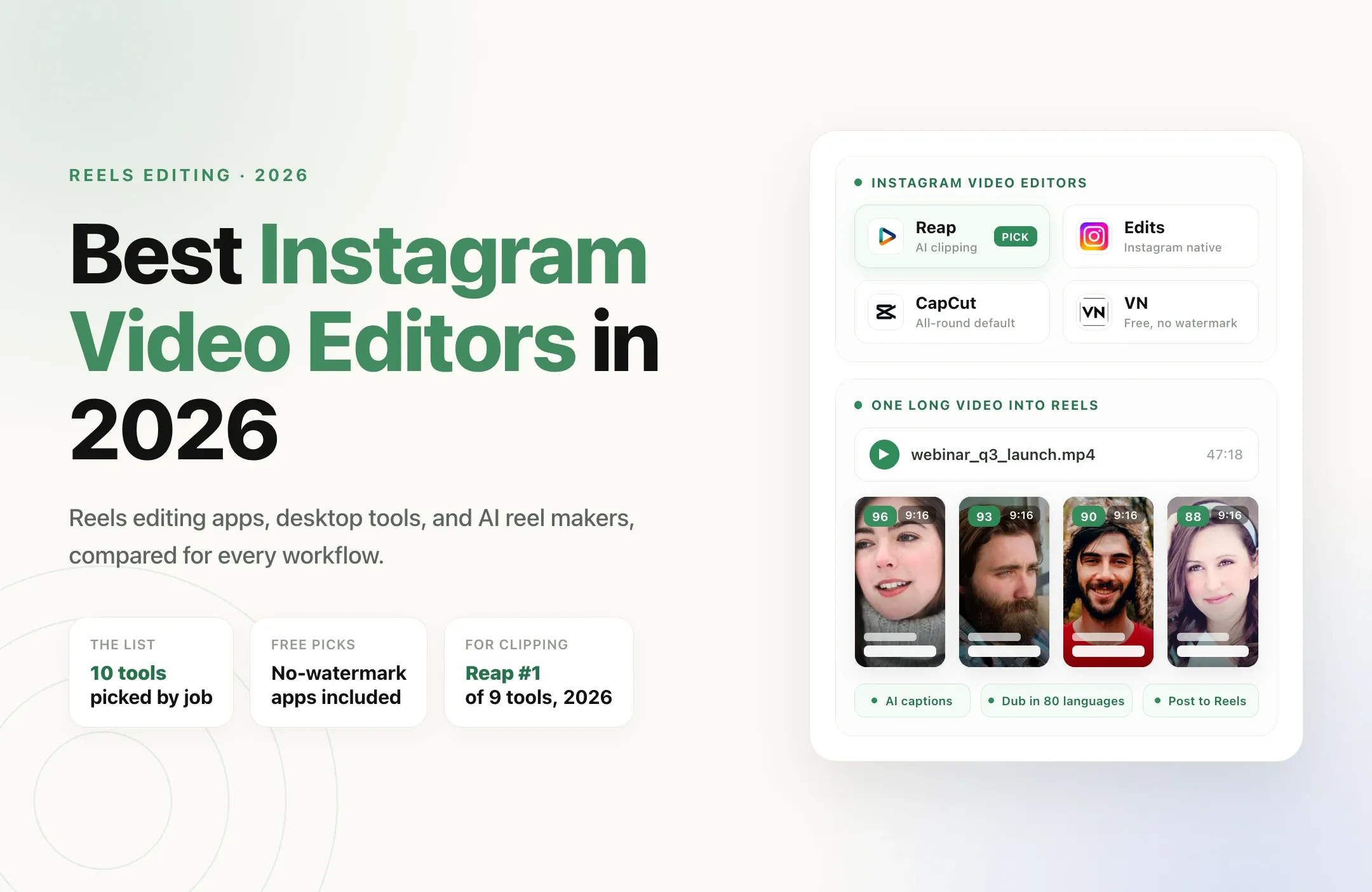
Because the output is correct by construction, you skip the whole "upload, see it look wrong, go back and fix it" loop. For a fuller comparison of tools that do this, see our roundup of the best Instagram video editors.
Example: one long video, a week of Reels
The reason the size question matters so much is that one recording should become many posts, and every one of them has to be the right shape. Say you have a 40-minute podcast episode recorded in 16:9. From that single file you can pull:
- A 30-second hook where a guest says something surprising, reframed to 9:16 with the speaker tracked.
- A 60-second how-to answer, captioned, for people searching the topic.
- A 15-second reaction clip for a trend or a question in your comments.
- A quieter 45-second story moment for existing followers.
Each one exports at 1080 x 1920, captions centered, subject in frame. That is four Reels from one recording, all correctly sized, without opening a timeline editor once. This is the same repurposing idea behind batch video editing: do the setup once, publish all week.
Common Reels formatting problems and how to fix them
The Reel looks blurry or soft
Your source was below 1080 x 1920, or your bit rate was too low and Instagram's compression finished the job. Export at full HD or higher, keep the frame rate at 30 or 60, and avoid re-exporting the same file multiple times, since each pass loses quality.
There are black bars or the video is zoomed in
Your file is not 9:16. A 16:9 video padded to vertical gives you bars; force-cropped, it zooms in. Reframe the footage to a true 1080 x 1920 vertical frame instead of letting the uploader pad or crop it for you.
Captions or faces are hidden behind buttons
Your key elements are outside the safe zone. Move captions and subjects into the center band, clear of the bottom 35% and the right side.
The upload fails or gets compressed hard
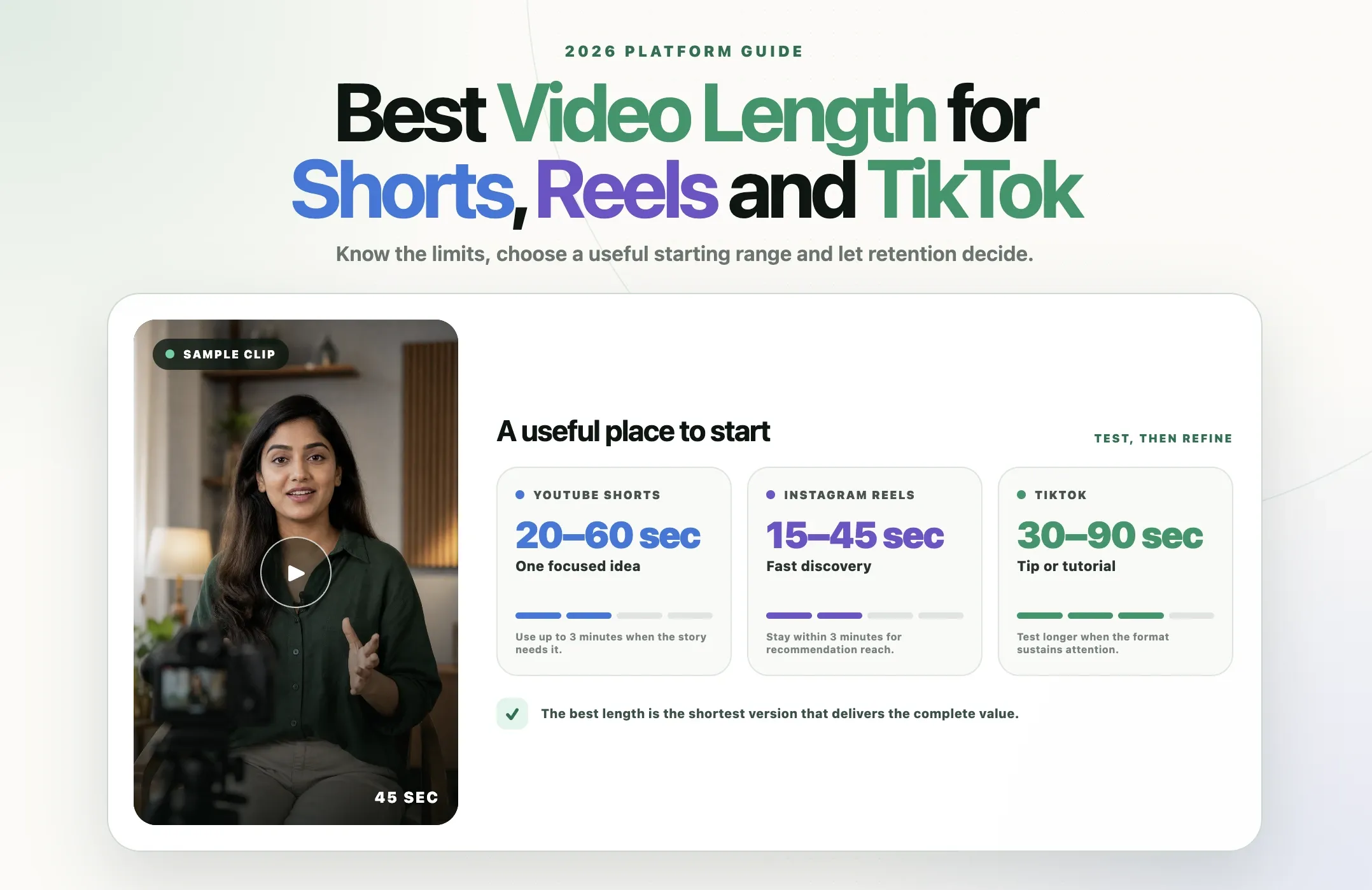
The file is too large or the bit rate is too high. Re-export as an H.264 MP4 at a sensible bit rate rather than a massive master file. For how long your Reel should run and what Instagram recommends to non-followers, see our guide to the best video length for Shorts, Reels, and TikTok.
A pre-publish checklist for Instagram Reels
- Aspect ratio is 9:16.
- Dimensions are 1080 x 1920 pixels (or higher at the same ratio).
- Format is an MP4 or MOV using H.264, with AAC audio.
- Frame rate is 30 fps, or 60 fps for fast motion.
- Faces, logos, and captions sit inside the safe zone, clear of the bottom third and right rail.
- The cover's focal point is centered so it survives the 3:4 grid crop.
- Captions are on and readable, because most viewers watch on mute.
Final thoughts
Instagram Reels size comes down to one target: 1080 x 1920 pixels at 9:16, exported as an H.264 MP4. The specs are the easy part. The hard part is that the video you actually have is usually the wrong shape, and re-cutting every clip by hand is what stops people from posting.
That is the gap Reap closes. Point it at a recording you already own, let it find the moment and reframe to a true vertical, drop captions inside the safe zone, and export a Reel that is the right size before you ever open Instagram. Try Reap for free and turn one video into a week of correctly sized Reels.