Brand templates
Build your video brand once. Use it everywhere.
Save your captions, fonts, colors, logos, intros, outros, backgrounds, and video settings in one reusable Reap template.
One template. Every video recognizably yours.
Three unbranded videos



Saved once · applied to every new project
Three videos, your brand
 One small stepOne small stepOne small step
Your brand should not need rebuilding for every clip.
Choosing the font again. Repositioning the logo. Recreating the caption style. Adding the same intro and outro. Repeated setup slows production and creates inconsistencies.
Without brand templates
- Choose style
- Upload logo
- Reposition elements
- Add intro
- Add outro
- Reconfigure output
- Repeat for the next video
Six decisions per video, re-made by whoever happens to be editing.
With Reap
- Create templateName the visual system once.
- Select templatePick it when the project starts.
- Generate on-brand contentCaptions, fonts, logo, intro, outro, and framing all applied.
What that one template carries
- Captions
- Audiogram
- Text
- Intro
- Outro
- Logo
- Background
- Settings
- Fonts
The setup happens once. Every project after that starts from it.
More than a caption preset
Everything that makes a video yours.
Save the visual elements and production preferences that define your content, then reuse them as one system. Think of it as a brand kit for video, except it carries the caption styling and output settings too. Pick a section below to see what a Brand Template holds and how the preview reacts.
Templates
Configuration
The selected preset carries its font, color, size, animation, and position into every clip made from this template.
Summary & Preview
 Make an impactOne small step
Make every word look like your brand.
Save your caption font, color, size, animation, and position. Upload custom fonts so every clip uses the typography your audience recognizes. The presets are the same ones on the AI captions page. A template just remembers which one is yours.
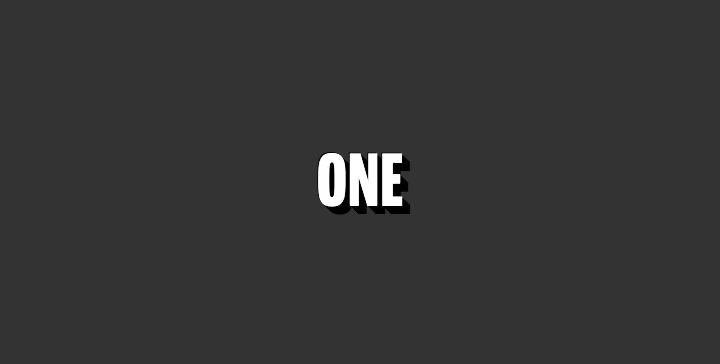
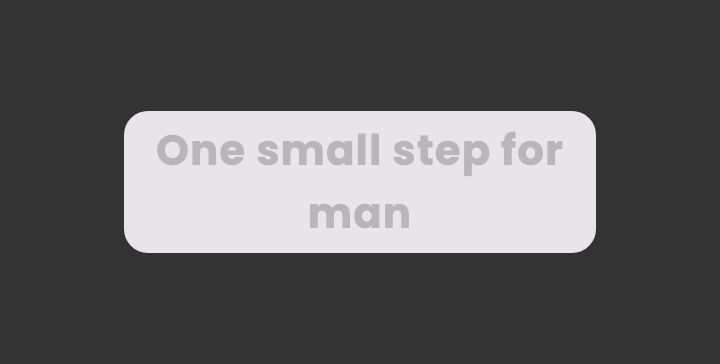
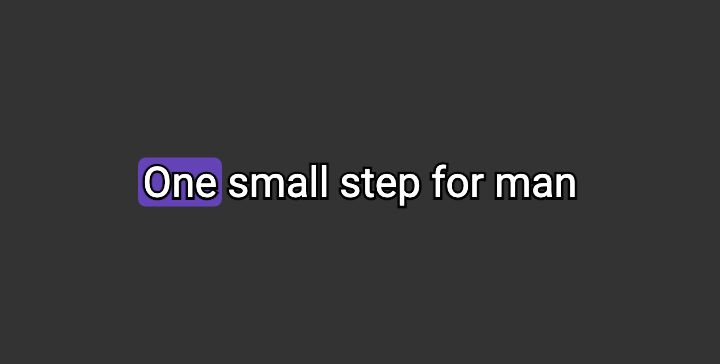
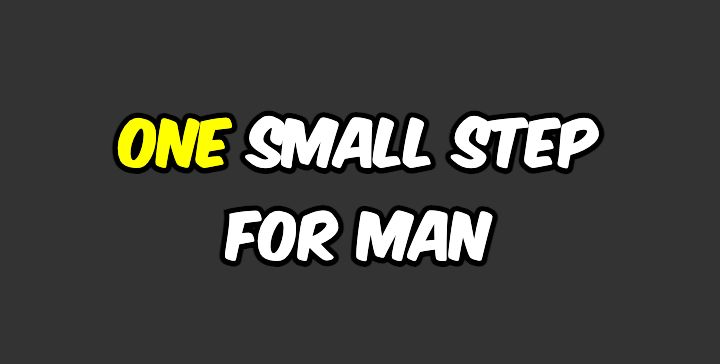
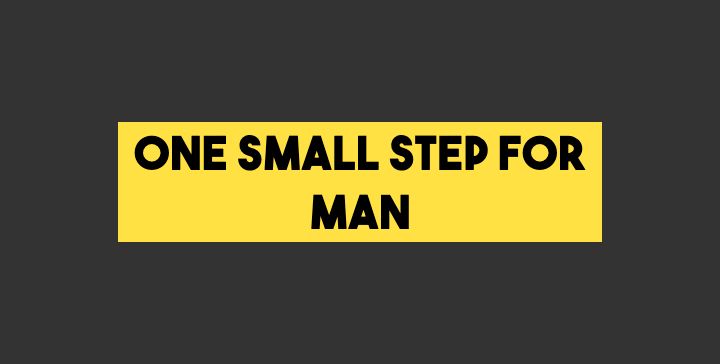
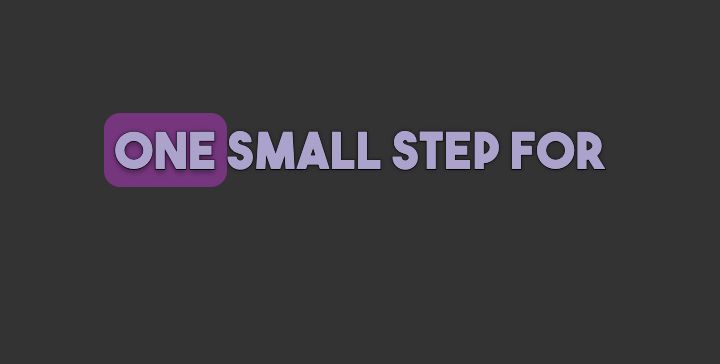
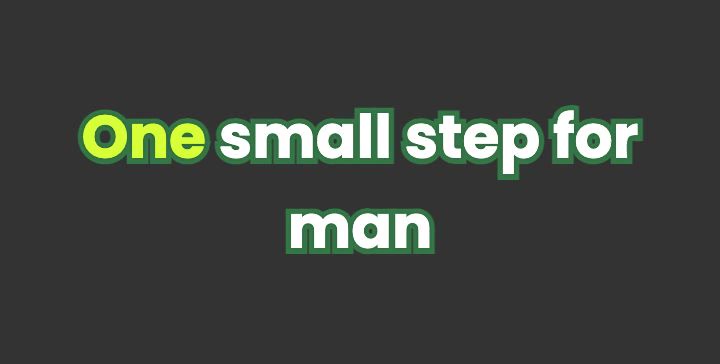
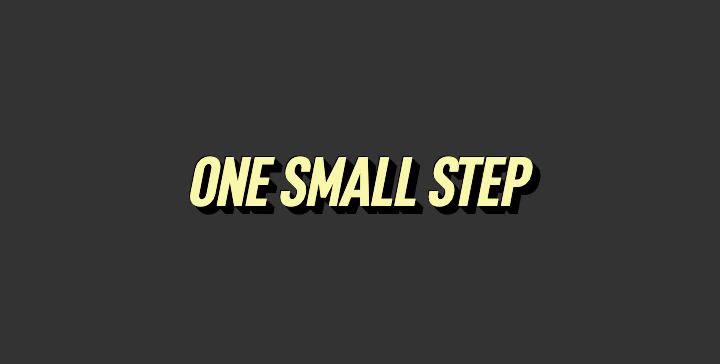
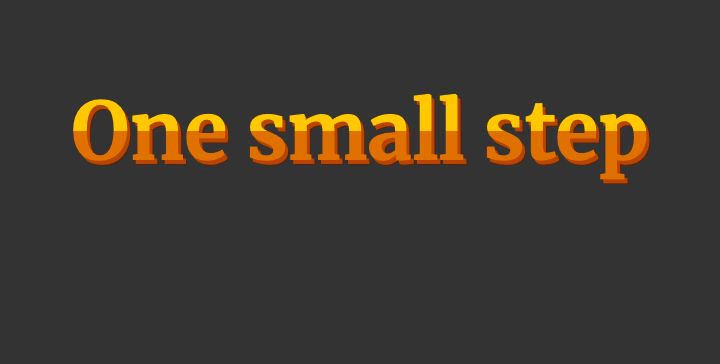
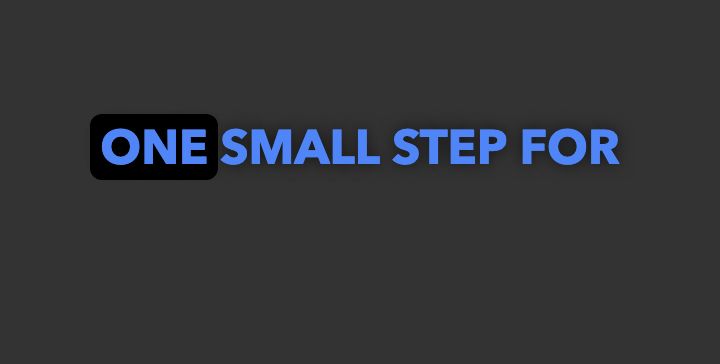
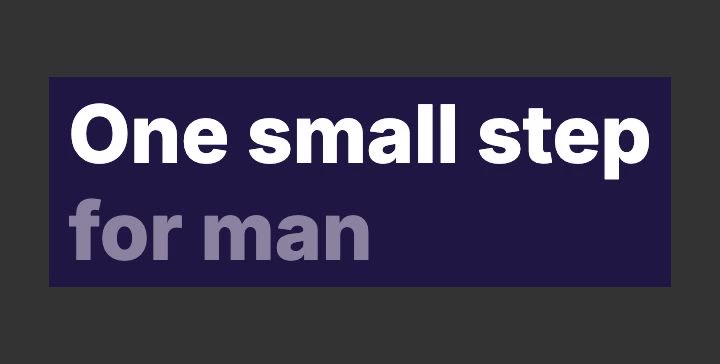
Not every typeface covers every script. Preview your captions with the characters you actually publish in, such as accents, Urdu, or Devanagari, before you save the template.
Carry your identity through the entire video.
Place your logo, open with a branded intro, finish with a recognizable outro, and save the backgrounds that complete your visual system. Reap applies the assets you upload; it does not design them for you.
Intro
A short branded video plays before the clip starts.
Up to 30sMP4 / MOV / WEBM
Main clip
THE ONE THINGOne small stepCaptions, logo overlay, text overlay, and the saved background all come from the template.
LogoText overlayBackground
Outro
A recognizable end screen or call-to-action closes every clip.
Up to 30sReusable asset
Save how your content should be produced.
A Brand Template can preserve more than appearance. Save language, translation, script, orientation, and resolution preferences for a repeatable setup. These are saved defaults for new projects, not irreversible settings. Change them on the template, or override them on the project.
Settings
Language & translation
Set the language you record in and the language you publish in, across 100+ caption languages, so a regional series does not need reconfiguring each time.
Script
Native or Roman. Save whichever script your audience reads, and Hinglish-style romanized captions stay the default for that template.
Orientation
Portrait, square, or landscape. A shorts template and a YouTube template can live side by side in the same workspace.
Resolution
Pick the export size once. The template carries it into the next project so nobody ships a 720p clip by accident.
One template. Multiple workflows.
Bring the same identity into every project.
Select a saved Brand Template when creating clips, generating captions, editing videos, or using other supported Reap workflows. Templates you build in the interface can also be applied to clips generated through the Reap API, so an automated pipeline ships the same look as the dashboard.
The source
One brand template
Captions, fonts, logo, intro, outro, background, and output settings, saved once under Branding.
- Caption preset
- Impact
- Font
- Montserrat-Bold
- Colour
- #ff6f00
- Output
- Portrait · 1080
- AI clippingChoose the template when you turn a long video into clips.
- CaptionsCaption generation starts from the preset the template saved.
- EditorOpen a clip and the template's brand settings are already applied.
- AudiogramsAudio-led posts inherit the same waveform and brand visuals.
- APITemplates built in the interface apply to clips generated by API.
One workspace can hold more than one visual identity.
Create clearly named templates for different shows, clients, campaigns, languages, or content series. How many you can keep depends on your plan, and the current numbers are on the pricing page.
Consistent content in four steps.
From an empty Templates panel to a saved system you select on every new project.
Create a template
Give the visual system a clear, recognizable name.
Templates › New
Add your brand elements
Configure captions, fonts, logos, intros, outros, backgrounds, and text.
Caption · Text · Intro · Outro · Logo · Background · Fonts
Save production preferences
Choose language, translation, script, orientation, and resolution.
Settings
Apply it to future projects
Select the template when creating or editing supported content.
Clipping · Captions · Editor · Audiograms · API
Who it’s for
Consistency for every kind of content operation.
The pattern is the same everywhere: recurring video, a look people recognize, and a setup nobody should have to rebuild by hand, in the dashboard or from a clipping agent.
Creators
Make every short instantly recognizable without repeating setup.
Podcasters
Give every episode clip the same captions, intro, logo, and outro.
Social teams
Keep recurring campaigns visually consistent across content batches.
Agencies
Maintain distinct reusable systems for different client brands.
Global teams
Save language, script, translation, and visual preferences for regional content.
Developers
Apply supported templates to automated clip-generation workflows.
Media companies
One system per show, held across everything the desk ships.
Course creators
One recorded module, styled the same in every cut.
Campaign teams
A template per campaign, so week four still looks like week one.
Webinar hosts
Last quarter's session, reposted in this quarter's branding.
Conference teams
Three days on stage, all leaving under the same end card.
Coaches
Film once. Every clip still opens and closes as yours.
Brand Templates FAQ
A Reap Brand Template is a saved, reusable video setup. It holds the caption preset, custom fonts, logo, intro and outro assets, backgrounds, text overlays, audiogram visuals, and the output settings for language, translation, script, orientation, and resolution. You configure it once, name it, and select it on future projects instead of restyling every video by hand.
In practice, yes. A brand kit usually means a saved set of brand assets you reuse instead of rebuilding, and that is what a Brand Template is for video. It holds more than a logo and a color: the caption preset with its font, color, size, animation, and position, uploaded custom fonts, intro and outro assets, backgrounds, text overlays, audiogram visuals, and your saved language, translation, script, orientation, and resolution settings. Reap calls it a Brand Template because it applies to the video Reap produces, not only to the assets you store.
A template can hold your caption preset with its font, color, size, animation, and position; custom uploaded fonts; a logo and its placement; intro and outro assets; background visuals or colors; text overlays; audiogram visuals; and production settings for primary language, translation language, native or Roman script, orientation, and export resolution. Every one of those lives in its own section of the template, so you can change one without rebuilding the rest.
Yes. The Fonts section of a Brand Template has an Upload button, and saved fonts stay in the template for reuse. Not every typeface covers every script, so preview your captions with the characters you actually publish in, including accents and non-Latin scripts, before you save the template.
Yes. You upload the assets and Reap reuses them. An intro is a short video that plays at the start of every clip generated from the template, accepted as MP4, MOV, or WEBM up to 30 seconds; an outro closes the clip the same way; and an uploaded logo becomes an overlay you position in the preview. Reap applies the assets you provide, it does not design them for you.
Yes. Create a separate template for each show, client, campaign, language, or content series and give each one a clear name so it is easy to pick later. How many saved templates a workspace can keep depends on your plan, and the current numbers are listed on the pricing page.
You select a saved template in supported Reap workflows: when you create clips, when you generate captions, in supported editor workflows, in supported audiogram workflows, and when you generate clips through the Reap API. A template applies per project, so pick the one you want when you start the project.
Yes. Open the template, update any section (captions, fonts, logo, intro, outro, background, text, audiogram, or settings), then save. You can also rename a template or delete it when you no longer need it.
No. Editing a template changes what future projects get. Videos you already generated and exported keep the styling they were made with. To pick up a template change on an existing clip, reprocess that clip so the updated settings are applied.
Brand Templates you create in the Reap interface can be applied to clips you generate through the API, and caption presets are referenced directly on the clip and caption endpoints. Build the template visually once, then keep your automated jobs on the same look.
A caption preset controls caption styling only: the font, color, size, animation, and position of the words on screen. A Brand Template wraps a caption preset together with everything else that makes a video recognizably yours: custom fonts, logo, intro, outro, background, text overlays, audiogram visuals, and your language, script, orientation, and resolution preferences.
Make consistency the default.
Build your complete video identity once, then bring it into every Reap project: clipping, captions, dubbing, the editor, audiograms, and the API.
Create your brand templateExplore Reap