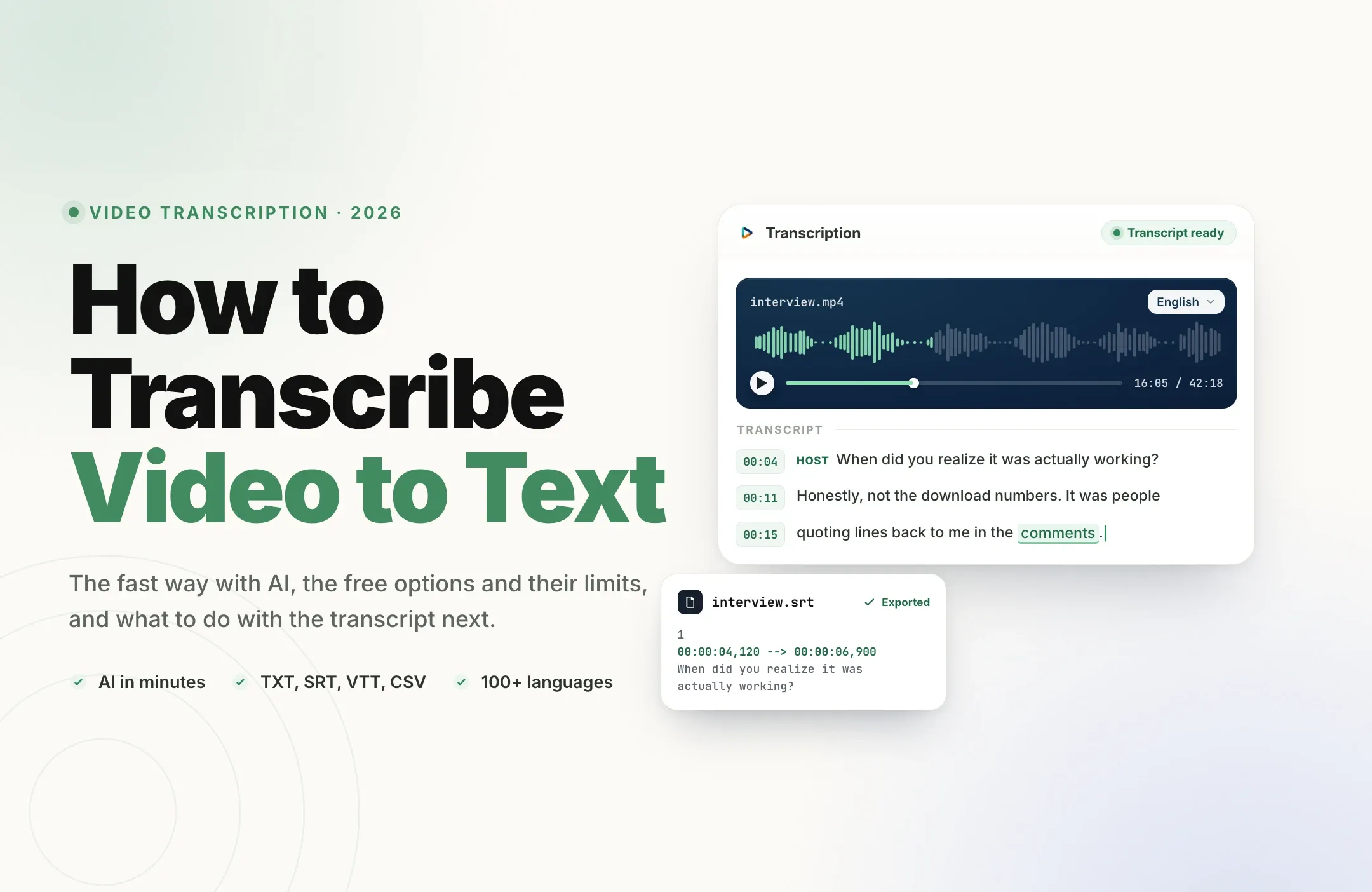
To transcribe video to text, upload the video (or paste its link) into an AI transcription tool, let it convert the speech to a timestamped transcript in a few minutes, then review the text and export it as TXT, SRT, VTT, or CSV. That is the fast route. You can also use the built-in transcription in a video editor, type it out manually, or pay a professional service when accuracy has to be near perfect.
This guide walks through every method, shows you how to do it step by step, covers the free options and their limits honestly, and explains what to do with the transcript once you have it.
What does it mean to transcribe video to text?
Transcribing a video means turning the spoken words in it into written text. A good transcript is more than a wall of words: each line is tied to the moment it was spoken, so you can jump to that point in the video, turn the text into subtitles, search it, translate it, or use it to edit.
People transcribe video for a lot of reasons: to get subtitles and captions, to repurpose a podcast or webinar into articles and clips, to make content accessible, to quote an interview accurately, to feed a meeting into notes, or to make a long video searchable. The method you pick depends on how much you are transcribing, how accurate it needs to be, and what you plan to do next.
The four ways to transcribe a video
There are four common routes, from fully automatic to fully manual. Most people should start with an AI tool and only move up to a professional service when the stakes are high.
Compared
Four ways to turn a video into text
| Method | Best for | Speed | Accuracy |
|---|---|---|---|
| AI transcription tool | Most creators and teams: podcasts, interviews, YouTube videos, webinars | Minutes | High on clear audio, review names and numbers |
| Built-in editor transcription | People already editing in Premiere, DaVinci, or Descript | Minutes | High, tied to your edit timeline |
| Professional service | Legal, medical, research, and anything quoted verbatim | Hours to days | Near perfect, human-checked |
| Manual typing | A very short clip, or zero budget and plenty of time | Slow (roughly 4x the video length) | As good as your patience |
For almost everyone publishing content online, an AI transcription tool is the right default. It is fast, inexpensive, and accurate enough on clean audio that a quick review is all you need. The rest of this guide focuses on that route, then covers the free options and the manual method.
How to transcribe a video to text with AI (step by step)
The exact buttons change from tool to tool, but the flow is the same everywhere. Here is how to do it with an AI video transcription tool like Reap.
- Add the video. Upload a file (MP4, MOV, and most common formats) or paste a link to a video you are authorized to use, such as a YouTube URL.
- Set the spoken language. Choosing the correct source language is the single biggest factor in accuracy. If the tool auto-detects, confirm it is right before you run.
- Generate the transcript. The tool extracts the audio, removes some background noise, and returns a timestamped transcript in a few minutes. Longer videos take longer, but it is still minutes, not hours.
- Review beside the video. Read the transcript next to the source and fix the parts AI tends to miss: names, numbers, acronyms, product terms, and anything said over noise or crosstalk.
- Translate if you need to. Optionally pick a target language and the transcript is generated in that language, with the same export formats available.
- Export the format you need. Download TXT for reading, SRT or VTT for subtitles, or CSV for structured data. More on choosing below.
That is the whole process. For a YouTube-specific walkthrough, see how to get a transcript from a YouTube video.
How to transcribe a video for free
You can get a transcript without paying, but every free route has a catch. Here are the honest options.
YouTube auto-captions
If the video is on YouTube, the platform generates automatic captions you can open as a transcript, then copy the text. It is genuinely free, but the text has no speaker labels, the punctuation is rough, and auto-captions are weaker on accents, technical terms, and noisy audio. It also only works for videos already uploaded to YouTube.
Google Docs voice typing
Google Docs has a free voice typing tool. To transcribe a video with it, you play the video and route your computer audio into the microphone input using software such as a virtual audio cable, then let Docs type what it hears. It works, but it transcribes in real time (so a 40-minute video takes 40 minutes), it has no timestamps, and the setup is fiddly.
Free tiers of AI tools
Most AI transcription tools, including Reap, have a free tier or trial so you can transcribe a video to text without paying up front. The trade-off is usually a cap on minutes, file size, or duration. Those limits change per plan, so check the current ones rather than assuming. For Reap, the limits live in the transcript guide in the help center.
The free routes are fine for a one-off. If you transcribe regularly, or you need clean timestamps and subtitle files, a dedicated tool saves hours.
Which format should you export?
The transcript is the starting point, not the deliverable. The format you export decides what you can do with it next.
| Format | Use it for |
|---|---|
| TXT | Clean reading text with no timing. Paste into a doc, draft, or research file, or repurpose into an article. |
| SRT | Timed subtitles that YouTube, Vimeo, and most editors accept on upload. The default for captions. |
| VTT | Web captions a browser video player reads through a track element. Use it for captions on your own site. |
| CSV | One row per segment with its timing. Open in a spreadsheet, load into a database, or feed to a script. |
If you only want to read or quote the words, TXT is enough. If you are adding subtitles, export SRT or VTT. If you want captions burned into the video with styling and animation rather than a sidecar file, that is a captions job, not a transcript export. See the best caption apps for that, and subtitles vs closed captions if the difference matters for your project.
Languages and translation
Transcription is not only an English problem. Reap transcribes speech in 100+ languages and can translate the transcript into the same wide range of targets, so you can transcribe a Spanish interview and export an English subtitle file, or the reverse.
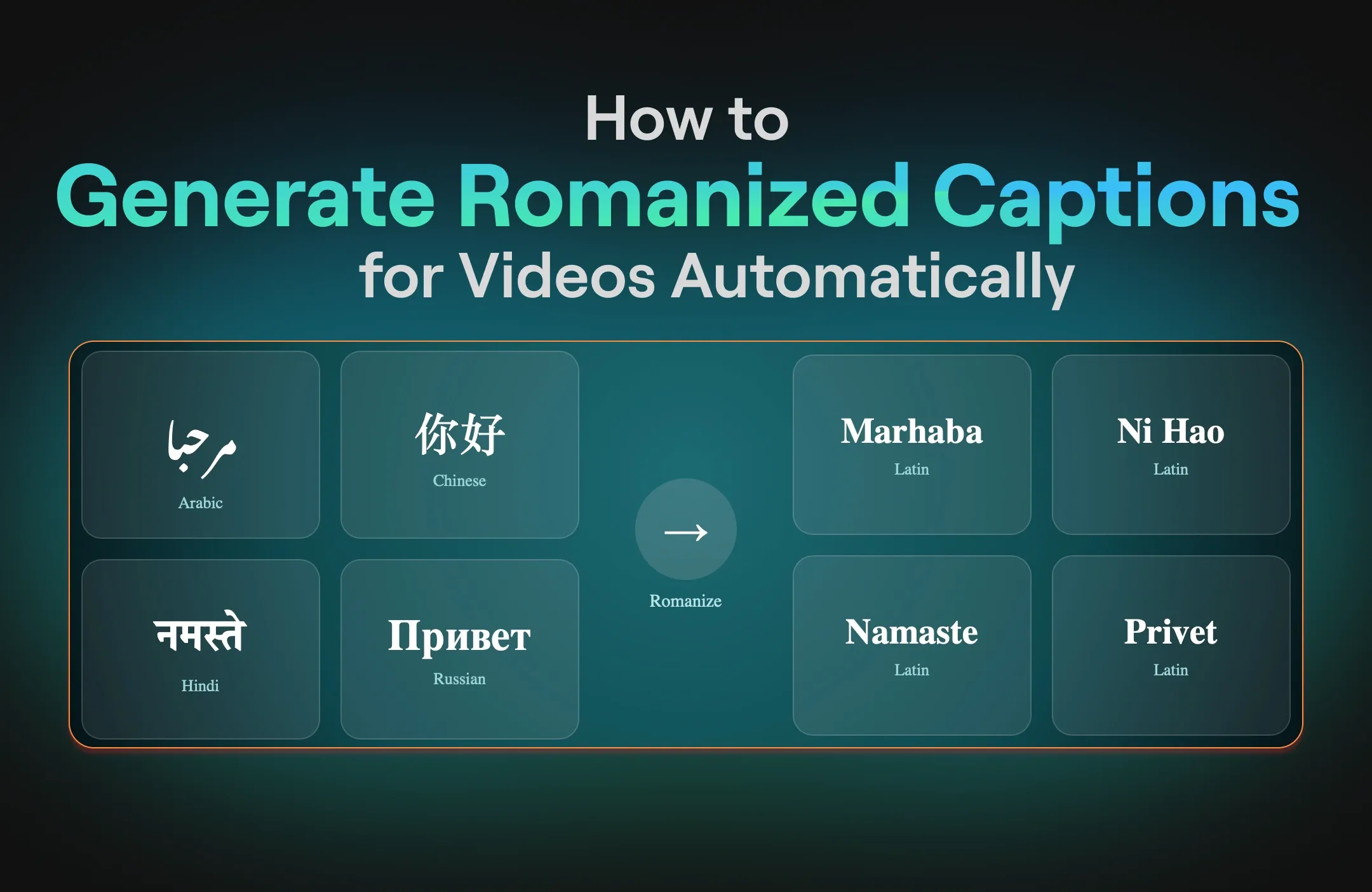
For languages like Hindi, Urdu, and Arabic, you can also choose Roman script, which writes the spoken language in Latin characters (Hinglish, Roman Urdu, Arabizi) instead of its native writing system. That is not a translation into English: the words are the same, only the script changes. If your goal is a full translation, see the best AI video translators, and for a spoken voiceover in another language rather than text, AI dubbing.
How accurate is AI transcription?
On clear audio with the source language set correctly, modern AI transcription is strong, often good enough to publish after a light review. Accuracy drops with background noise, overlapping speakers, heavy accents, and specialized vocabulary.
So always review before you publish or quote. The reliable move is to skim the transcript beside the video and check the things AI gets wrong most often: proper names, numbers and statistics, acronyms, brand and product terms, and any passage spoken over music or crosstalk. That five-minute check is the difference between a transcript you can trust and one that embarrasses you in a quote.
What to do with the transcript next
Once you have the words with timing attached, the transcript becomes a tool, not just a record.
- Add subtitles. Export SRT or VTT and upload it wherever the video lives.
- Repurpose into writing. Turn a podcast or webinar transcript into a blog post, a newsletter, show notes, or social captions.
- Make it searchable and accessible. A transcript makes a long video skimmable and opens it to viewers who watch with sound off or use a screen reader.
- Edit the video through the text. In an editor where the transcript is an editing surface, you can set a clip's start or end from a word, correct a word, or cut a section by deleting its text.
- Cut clips from the best moments. The transcript is how you find the lines worth clipping. This is where transcription meets AI video clipping: the words tell you where the good 30 seconds are, and a clipping tool turns them into vertical, captioned shorts.
That last step is why transcription is rarely the end of a workflow. The text is how one long video becomes a week of clips. If that is your goal, start with what video clipping is.
How Reap transcribes video to text
Reap generates a timestamped transcript from a YouTube link or an uploaded video, lets you review it beside the source, optionally translate it into another language, and export it as TXT, SRT, VTT, or CSV, plus the extracted source audio where supported.
A typical run looks like this:
- Paste a link you are authorized to use, or upload the video file.
- Set the spoken language, and a translation target if you want one.
- Generate the transcript and review it beside the video, with timestamps on or off.
- Correct names, numbers, and terms, and switch native or Roman script on supported languages.
- Export the format you need, or carry the transcript straight into captions or clipping.
Teams that transcribe at volume can also call the transcription API, which returns word-level timing and fires webhooks when a project finishes, so transcription can run inside an automated pipeline. You can start free at app.reap.video.
Reap handles the repetitive work of extracting, timing, and formatting the text. You stay responsible for reviewing accuracy and for having the right to transcribe the content.
Final thoughts
For most videos, transcribing to text is a five-minute job: add the video, set the language, generate, review the names and numbers, and export the format you need. Use the free routes for a one-off, an AI tool when you do this regularly, and a professional service only when a transcript has to be verbatim.
And remember the words are the starting point. A transcript you can search, translate, subtitle, and clip from is worth far more than a plain block of text, which is exactly what turns one long recording into a week of content.