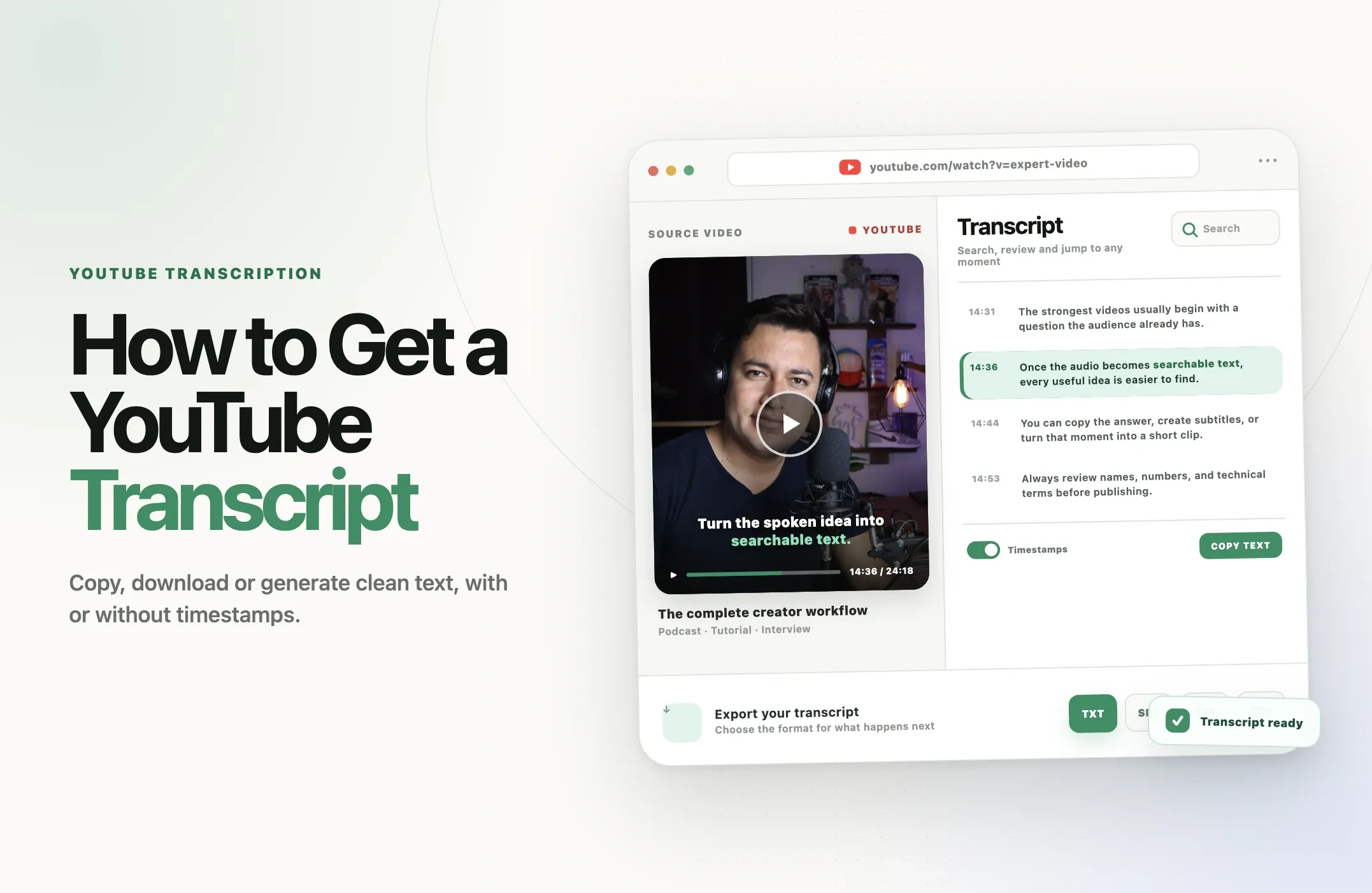
You can get a transcript from many YouTube videos without listening to the entire recording or typing every word yourself.
If the video already has captions, YouTube can display its transcript beside the video. You can read it, search it with your browser, click a line to jump to that moment and copy the text. If you own the video, YouTube Studio may also let you download its caption track. When captions are unavailable or you need a cleaner file in a specific format, you can generate a new transcript from the video.
The correct method depends on what you mean by “get the transcript.” Do you only want to read it? Copy clean text? Download timed subtitles? Transcribe a video that has no captions? This guide covers all four jobs.
Quick answer: Open the YouTube video, expand its description and select Show transcript. This option appears only when the video has captions. To create a downloadable transcript instead, paste the YouTube link into Reap, choose the spoken language, generate the transcript, review it and export TXT, SRT, VTT or CSV with timestamps turned on or off.
Turn a YouTube video into usable text
Generate a timestamped transcript, remove timestamps when you want clean copy, and export the right file for notes, captions or content repurposing.
Generate a transcript with Reap
Four ways to get a YouTube video transcript
|
Method |
Best for |
What you receive |
Main limitation |
|---|---|---|---|
|
YouTube transcript panel |
Reading or copying a video that already has captions |
Interactive text linked to video timestamps |
No transcript when captions are unavailable |
|
YouTube Studio |
Downloading captions from a video you own |
A timed subtitle or caption file |
Requires access to the channel and video |
|
Reap transcription |
Generating, translating or exporting a clean transcript |
TXT, SRT, VTT or CSV, with optional timestamps |
The source must be yours or authorized for processing |
|
Manual transcription |
Short, sensitive or accuracy-critical passages |
Text in any structure you create |
Slow and difficult for long videos |
Method 1: View and copy YouTube’s built-in transcript
YouTube’s transcript viewer is the fastest option when you only need the words and the video already has captions.
According to YouTube’s official transcript instructions, you can view the complete transcript of any video that has captions. The transcript scrolls as the video plays, and selecting a line takes you directly to that point in the recording.
How to open a YouTube transcript on desktop
- Open the YouTube video in a desktop browser.
- Expand the description below the video.
- Look for and select Show transcript.
- The transcript panel will open beside or below the video, depending on the page layout.
- Select any transcript line to jump to that moment in the video.
- Use your browser’s find command if you need to locate a particular word or phrase.
If Show transcript does not appear, first check whether the video has a selectable CC button. A transcript is built from the video’s caption track, so a video without captions normally has no native transcript to show.
How to copy the transcript
- Open the transcript panel.
- Scroll to the beginning of the transcript.
- Select the transcript text with your mouse or keyboard.
- Copy it and paste it into a document or text editor.
- Review the pasted text before using it.
YouTube’s transcript panel is designed primarily for reading and navigation, not polished document export. The copied result may contain timestamps, awkward line breaks or automatically generated wording that needs correction.
How to copy a YouTube transcript without timestamps
Look for a three-dot menu inside the transcript panel. If your version of YouTube offers Toggle timestamps, select it before copying the text.
YouTube tests and changes its interface, so this control is not always displayed in the same place or available to every user. If copied timestamps remain in the text, use one of these alternatives:
- Paste the transcript into a text editor and remove the timestamp lines with find and replace.
- Use Reap and export the result as TXT with timestamps turned off.
- If it is your own video, download the caption file through YouTube Studio and convert it into clean text.
Do not assume “no timestamps” means “no review.” Removing the timecodes does not fix incorrect names, missing punctuation, speaker confusion or transcription errors.
Method 2: Get a YouTube transcript on mobile
The mobile interface is more compact, but the underlying rule is the same: a transcript is available only when the video has captions.
- Open the video in the YouTube app.
- Tap the video title or description area to expand the details.
- Scroll through the expanded description.
- Tap Show transcript if it appears.
- Tap a transcript line to move to that moment in the video.
Copying the entire transcript can be less convenient in the app because text selection depends on the device and current YouTube interface. If you need a long transcript as a reusable document, opening the video on desktop or generating a downloadable file will usually be easier.
Method 3: Download the transcript of a YouTube video you own
If the video belongs to your channel, use YouTube Studio instead of trying to copy the public transcript panel. Studio provides access to the video’s subtitle and caption tracks.
How to download captions from YouTube Studio
- Sign in to YouTube Studio with the account that manages the channel.
- Select Subtitles from the left menu.
- Choose the video.
- Find the published or automatic caption track for the required language.
- Open the options menu for that track.
- Select Download and choose one of the formats YouTube currently offers.
YouTube’s caption documentation explains that caption files contain the spoken text and timestamps that control when each line appears. Some formats can also contain position or styling information.
The exact labels and available download formats can vary by caption track and interface version. A downloaded subtitle file is useful when you need to:
- correct and re-upload captions,
- translate a caption track,
- move subtitles to another video platform,
- archive the timed transcript, or
- convert subtitles into a clean article, summary or set of notes.
Can you download the transcript of someone else’s video?
The public YouTube player does not provide a universal transcript-download button for every viewer and every video. It provides a transcript viewer when captions are present.
For a video you do not own, you can usually read and copy the visible transcript for legitimate reference. Downloading, republishing or processing someone else’s complete content may involve copyright, privacy or platform restrictions. Get permission when the intended use goes beyond personal reference, research, accessibility or another legally permitted use.
Method 4: Generate a YouTube transcript with Reap
Use a transcript generator when YouTube has no transcript, when copying produces messy text, or when you need a downloadable file in a specific format.
Reap can generate a transcript from a YouTube link or an uploaded MP4 or MOV file. You can choose the source language, optionally translate the transcript, use the original writing system or Roman script, review the result beside the video, show or hide timestamps and export the finished transcript.
How to transcribe a YouTube video with Reap
- Copy the YouTube URL. Use the link to the video you own or have permission to process.
- Open Reap’s transcription workflow. Paste the YouTube link. If the online source cannot be used, upload the authorized MP4 or MOV file instead.
- Select the spoken language. Choosing the correct language improves the transcription process.
- Choose translation if needed. Leave translation set to None when you only want the original language.
- Choose the script. Use Native for the language’s original writing system or Roman for a Latin-character rendering when supported.
- Generate the transcript. Reap processes the video and creates the text automatically.
- Review it beside the video. Check the transcript line by line and replay uncertain sections.
- Choose whether to include timestamps. Keep them for navigation and subtitle work, or turn them off for clean reading text.
- Export the correct format. Download TXT, SRT, VTT or CSV.
The complete workflow and current upload requirements are documented in Reap’s transcription guide.
Why use Reap instead of YouTube’s transcript panel?
- Generate missing transcripts: transcribe the source audio instead of depending on an existing YouTube caption track.
- Download useful formats: export plain text, subtitle files or structured CSV.
- Control timestamps: keep time references for editing or remove them for clean copy.
- Translate the result: create a transcript for another language as part of the same workflow.
- Use native or Roman script: choose the representation that fits the audience and workflow.
- Reuse the source video: turn the recording into captions or short clips after the transcript is ready.
A transcript is often the first reusable layer inside a video. Once the spoken content is searchable, it becomes easier to find quotes, create chapters, build captions, summarize the recording and select moments for short-form video.
Why is the YouTube transcript not showing?
The most common reason is that the video does not have an available caption track. YouTube can create automatic captions, but it does not generate them successfully for every video.
YouTube lists several reasons automatic captions may be delayed or unavailable:
- The audio is still being processed.
- The spoken language is not supported for automatic captions.
- The video is too long.
- The audio quality is poor or the speech is difficult to recognize.
- There is a long silence at the beginning.
- Several speakers talk over one another.
- Multiple languages are spoken at the same time.
These causes come from YouTube’s automatic caption troubleshooting guide.
What to do when Show transcript is missing
- Check whether the CC button is available and selectable.
- Expand the full description because the transcript control may be lower in the panel.
- Reload the page or check from a desktop browser.
- If you own the video, open YouTube Studio and check the Subtitles section.
- If the upload is new, allow time for automatic captions to finish processing.
- Generate a new transcript from the authorized source file or YouTube link when no caption track exists.
Changing your personal caption-display settings does not create a transcript for a video that has no captions. It only changes whether available captions are shown during playback.
Which transcript file format should you download?
|
Format |
Contains timestamps? |
Best use |
|---|---|---|
|
TXT |
Optional in Reap |
Reading, quotes, notes, articles, briefs and AI-assisted analysis |
|
SRT |
Yes |
Uploading subtitles to editors, players and video platforms |
|
VTT |
Yes |
Web video captions and compatible publishing platforms |
|
CSV |
Structured fields can include timing data |
Spreadsheets, review workflows, analysis and automation |
Choose TXT when the transcript is primarily a document. Choose SRT or VTT when the text needs to appear in sync with the video. Choose CSV when another system or team needs structured rows that can be sorted, reviewed or processed.
How to improve YouTube transcript accuracy
Automatic speech recognition creates a useful first draft, not a guaranteed record. YouTube itself warns that automatic captions can misrepresent speech because of pronunciation, accents, dialects and background noise.
Start with the cleanest audio available
- Use the original video or audio file instead of a compressed social download.
- Reduce background music beneath speech.
- Keep the microphone close to the speaker.
- Avoid overlapping dialogue where possible.
- Select the correct source language before transcription.
Review the words that can change the meaning
Pay particular attention to:
- people, company and product names,
- numbers, prices, dates and percentages,
- acronyms and industry terminology,
- negations such as “not,” “never” and “cannot,”
- quotations and attributed claims,
- speaker changes, and
- meaningful sounds that support accessibility.
If you plan to quote a video publicly, replay the relevant moment and verify the wording against the audio. A transcript can help you find the quote; it should not replace source checking.
What can you do with a YouTube transcript?
A transcript is more than a written copy of the video. It makes the recording searchable and easier to reuse.
Find a specific answer or quote
Search the transcript for a name, concept or phrase instead of scrubbing through a long video. Because YouTube’s transcript lines link back to their timestamps, you can verify the surrounding context before using the passage.
Create captions and subtitles
A clean transcript can become an SRT or VTT caption file once timing data is added. This makes the video more useful for people who are deaf or hard of hearing, people watching without sound and viewers who understand the written language more easily than the spoken audio.
Write a summary or set of notes
Use the transcript to identify the main argument, questions, decisions, examples and action items. The article on AI video summarization explains how text summaries, chapters, timestamped highlights and short clips serve different purposes.
Turn long videos into short clips
The transcript provides a map of the recording. Search it for complete answers, strong opinions, practical steps, customer proof or useful explanations, then return to the source video and cut those moments.
For a complete workflow, see what video clipping is and how a long recording becomes standalone clips with a clear hook, context, captions and platform-ready framing.
Create blog posts, newsletters and social copy
A video transcript can support derivative written content, but it should not be published as a raw wall of text. Restructure the material for the reader, verify every factual claim, remove repetition and add the context that was communicated visually in the original video.
If the source is not your own, respect copyright and obtain permission before republishing substantial material. A public transcript is not the same thing as public-domain content.
Which YouTube transcript method should you choose?
- Use YouTube’s transcript panel when you only need to read, search or copy a video that already has captions.
- Use YouTube Studio when the video is yours and you want its existing caption track.
- Use Reap when the transcript is missing, the copied text is messy, translation is needed or you want TXT, SRT, VTT or CSV.
- Use manual transcription for a very short passage or when sensitive material requires tightly controlled handling.
You can also combine the methods. For example, check YouTube’s built-in transcript to confirm that captions exist, then generate and review a structured file in Reap for a repeatable content workflow.
YouTube transcript checklist
- Confirm that you own the video or have permission for the intended use.
- Check whether YouTube already provides a transcript.
- Choose clean text or timed subtitles based on the next task.
- Select the correct spoken language.
- Keep timestamps when you need navigation or subtitle timing.
- Remove timestamps when you need clean reading text.
- Review names, numbers, acronyms and technical terms.
- Verify public quotations against the original audio.
- Preserve speaker labels when multiple people are involved.
- Save the source URL and access date with research notes.
- Export SRT or VTT for caption workflows.
- Export TXT or CSV for writing, analysis and repurposing.
The bottom line
If a YouTube video already has captions, the built-in transcript panel is the fastest way to read or copy its words. If you own the video, YouTube Studio gives you more control over its caption track.
But the native tools become limiting when a transcript is missing, timestamps are difficult to remove, translation is required or the text needs to move into another workflow. Reap fills that gap by generating a new transcript from a YouTube link or video upload and exporting it as TXT, SRT, VTT or CSV.
Whichever method you choose, treat automatic text as a draft. Review the transcript against the video before you publish, quote, translate or turn it into new content.
Generate your YouTube transcript with Reap