Your podcast guest gives a clear answer to a problem your audience knows well. It takes less than a minute, but it sits halfway through an hour-long conversation.
That moment could introduce someone to the episode before they commit to listening. The work is deciding where to start, what context to keep and how to make the answer understandable on a small screen.
Spotify's September 2026 announcement of a wider Partner Program rollout adds to its investment in video podcasting. For creators, there is also an existing discovery tool worth building into the editing process: Spotify podcast Clips.
This guide explains how to choose an episode highlight, prepare it with Reap and upload it through Spotify for Creators. It also separates creator Clips from other Spotify features that use short excerpts, so you know which workflow to follow.
Quick Answer: How Do You Create Spotify Podcast Clips?
Start with your original podcast recording, choose a complete idea, edit the excerpt, review its captions and export a video that meets Spotify's requirements. Upload the finished file to the matching episode in Spotify for Creators.
Reap can help with the production work: finding candidate moments, adjusting the edit and preparing a captioned video. Keep the final selection in your hands. A clip should give a new listener a useful taste of the conversation and a clear reason to continue.
What Are Spotify Clips for Podcasts?
Spotify describes Clips as short videos attached to episodes. Creators can add one to each scheduled or published episode. Clips appear on the show page and may receive recommendations elsewhere in Spotify.
Think of the creative task as introducing the conversation. A new viewer needs enough substance to judge whether the episode is relevant to them.
For an interview, that might be a guest explaining a mistake and the lesson they learned. For an educational show, it could be a demonstration of one step. For a comedy podcast, it might be an exchange that conveys the hosts' chemistry without requiring five minutes of setup.
Choose based on the experience the episode actually offers. A sensational opening can set the wrong expectation if the rest of the conversation is calm and practical.
Spotify Clips, Episode Previews and Listener Sharing: What Is the Difference?
Several Spotify features involve short podcast moments, but they give creators and listeners different controls.
|
Feature |
How it works |
What it means for your workflow |
|---|---|---|
|
Creator-uploaded Clip |
You prepare and upload an episode video |
You decide the edit, captions and presentation before uploading |
|
Episode preview |
Spotify selects an excerpt using Intro or Smart options; its tools also support timestamp adjustments |
Review the selected passage within Spotify's preview workflow |
|
Listener clip sharing |
A listener selects a moment to save or share |
This is an audience sharing action, separate from your edited upload |
Spotify's episode preview documentation explains its selection options. Video episodes can supply video previews, while audio-only episodes use a waveform. Its May 2026 listener-sharing announcement describes the separate save-and-share experience.
For this guide, keep your original recording as the starting point. That gives you access to the surrounding conversation and a clean source for the edit.
Spotify Clips Requirements to Check Before Editing
The following specifications come from Spotify's Clips content policy, checked on October 5, 2026.
|
Setting |
Published requirement |
|---|---|
|
Duration |
15–90 seconds |
|
File type |
MP4 or MOV |
|
File size |
No more than 1 GB |
|
Audio |
Required |
|
Resolution |
At least 768 × 1024 pixels |
|
Orientation |
Vertical recommended; horizontal supported |
A 1080 × 1920 vertical export is a practical working choice for this tutorial. It clears the stated minimum dimensions and gives you room for a speaker and readable captions. This is our recommendation, not Spotify's only accepted format.
Check the actual exported dimensions. A vertical 720 × 1280 file has a width below the published minimum, even though its height is sufficient. Choose an export option in your account that meets the requirements.
The policy also limits overly promotional content, off-platform URLs, social-follow requests and recycled videos carrying another site's watermark. Prepare the invitation around the episode on Spotify. Check your rights to any music or additional footage.
Viewing availability is regional. The current policy lists 12 markets, including the US, UK, Canada and Australia; do not assume the Partner Program expansion means Clips viewing has expanded to the same countries.
How to Choose a Podcast Moment Worth Clipping
Before opening the editor, write one sentence describing the person this episode helps. For example: “This conversation is for founders whose new customers sign up but never finish getting started.”
That sentence makes selection easier. You can look for a moment that addresses the reader's problem instead of choosing the loudest reaction in the recording.
Find a complete idea
A useful excerpt establishes a subject and delivers something about it: an explanation, a surprising detail, a story or an answer.
Listen to the candidate with the preceding minute removed. If the speaker begins with “That's why we changed it,” the viewer may not know what “it” refers to. Move the start earlier, retain a short question or choose a clearer passage.
An opening title can help identify the topic. It should not have to repair an answer whose essential context has been cut away.
Keep the sentence that changes the meaning
Qualifications often matter more than a few saved seconds. “This helped our small team” is a different claim from “Every business should do this.”
Review the sentences before and after the selected moment. If the guest immediately limits their advice to a particular situation, consider that limitation part of the idea you are clipping.
Give the viewer a useful ending
Let the thought reach its natural conclusion. Ending just before the answer may create curiosity, but it can also leave the viewer unable to judge the value of the episode.
For a practical interview, finish the immediate explanation and leave the wider subject for the full conversation. The excerpt can answer one question while the episode answers several more.
For a broader selection process across several social channels, our guide to turning a podcast episode into short clips covers the full repurposing workflow.
How to Create a Spotify Podcast Clip With Reap
Use this workflow to move from a recording to a reviewed upload file. The creative checks apply whether you start with an AI suggestion or a moment you already marked while recording.
1. Add the original episode to the clipping workflow
Follow Reap's clipping guide: upload your video or add a supported source link, then open the clip settings with Get Clips.
Use the best source you have. A previously downloaded social post may already contain captions, a tight crop or platform graphics that make a new edit harder.
Keep an episode identifier with the project. A filename such as episode-042-onboarding-source.mp4 makes it easier to match the final highlight to the correct episode later.
2. Set the output around the intended excerpt
Choose the language, caption style, orientation, resolution and clip length. If the relevant discussion occupies only part of the recording, narrow the processing timeframe. Clip Topics can help focus the selection on a subject such as customer onboarding.
Generate the candidates, then compare them against your editorial brief. The point of this pass is to find a promising passage; you can refine where it starts and ends afterward.
Avoid selecting a longer duration simply to fit more advice. If two ideas require different explanations, choose the one most representative of the episode.
3. Review the opening and closing cuts
Open the candidate for editing. Reap's video editing workflow supports transcript-based changes, previewing and export.
Watch the first few seconds without relying on the project title. Can you identify the subject? Does the first word sound clipped? Is the guest responding to a question the viewer needs to hear?
At the ending, listen for a complete thought and a natural vocal finish. A cut immediately after the final word can feel abrupt if it removes the speaker's breath or reaction.
Remove pauses selectively. A long interruption may distract from an explanation, while a brief pause can make an important sentence easier to follow.
4. Make the vertical frame comfortable to watch
Review the whole excerpt after reframing. Keep enough space around the speaker that gestures and small movements do not push their face against the edge.
When speakers alternate, check each transition. A crop that works for the guest's answer may show the wrong person when the host asks a follow-up question.
For a demonstration, preserve the thing being explained. If a vertical close-up loses the object or diagram, change the composition rather than asking captions to carry all the missing information.
5. Correct the captions and simplify their presentation
Reap's caption workflow lets you generate text, choose its presentation and refine it before export.
Start with accuracy. Check names, product terms, numbers and words such as “can” and “can't.” A small transcription error can reverse a speaker's advice.
Then check readability at phone size. Use contrast that survives changes in the background, keep line breaks easy to follow and avoid covering the speaker's mouth or a relevant object. Watch the clip once with sound off to find passages where the on-screen text becomes difficult to follow.
If a sentence takes longer to read than it stays on screen, reconsider the layout or pacing. Making the font smaller should not be your first solution.
6. Export and watch the exact file you will upload
Check duration, dimensions, file size and audio against the requirements above. Play the exported file from beginning to end; the timeline preview is not the final deliverable.
Confirm that the correct captions appear and that no unfinished title or old call to action remains. Save a clearly named final version, such as episode-042-spotify-onboarding-final.mp4.
This workflow ends with a file for Spotify for Creators. Spotify is not listed in Reap's documented direct publishing connections.
Example: Turning an Interview Answer Into a Useful Clip
Imagine an interview about why new customers abandon a product during onboarding. The following is a hypothetical editing example, not a performance case study.
You find three candidate passages:
|
Candidate |
What it contains |
Selection decision |
|---|---|---|
|
Guest introduction |
Credentials and career history |
Useful in the episode, but slow to reach the audience's problem |
|
Provocative statement |
“Your onboarding emails are the problem” |
Needs the surrounding explanation to avoid overstating the guest's view |
|
Practical explanation |
One common mistake, a specific change and a qualification |
A stronger starting point for a self-contained excerpt |
Choose the explanation. Suppose it describes a small team asking new users to complete too many setup tasks before experiencing the product's value.
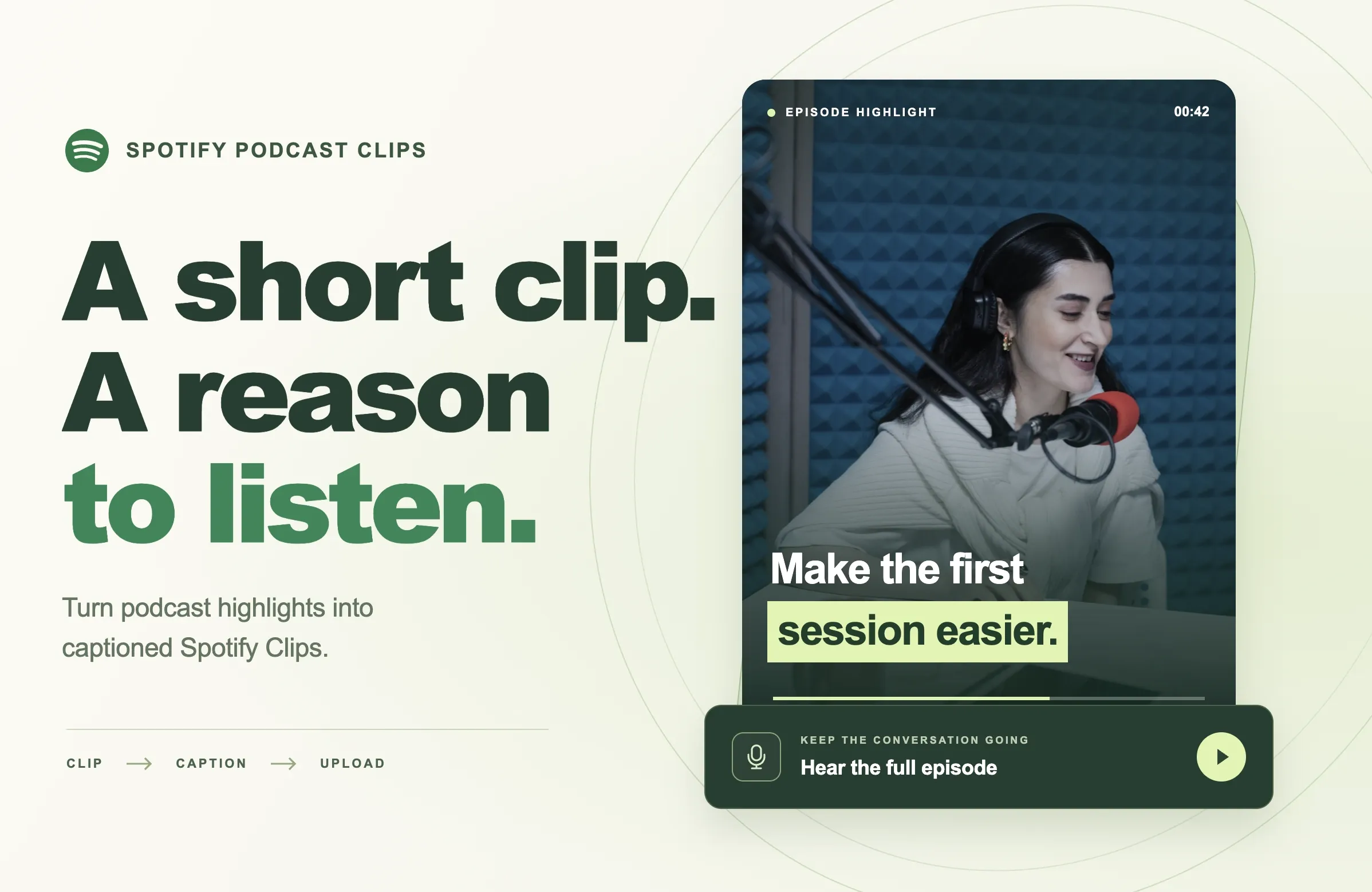
Start where the guest names that problem. Keep the example of reducing the first session to one useful action. Retain the sentence explaining that this approach came from the team's particular customer base.
An accurate opening title might be “Make the first session easier.” A claim such as “The onboarding trick that doubles revenue” would introduce a result the excerpt never established.
For the description, summarize the specific discussion: “Why this team simplified the first customer session—and what they learned from it. Hear the full conversation in this episode.”
The finished clip should make sense even if the viewer never continues. Its connection to a larger conversation gives interested listeners somewhere useful to go next.
How to Upload a Clip to Spotify for Creators
Follow Spotify's documented web upload steps:
- Sign in to Spotify for Creators and open Episodes.
- Choose the episode's three-dot menu, then Upload a clip.
- Select your finished file.
- Add a description and complete the content checks.
- Select Publish.
Before the final step, compare the episode title with your export filename. This simple check is especially useful when preparing several episodes at once.
Write the description around the moment the viewer will see. “A conversation about business” is less informative than “Why new customers were leaving before their first useful action.” Keep any invitation relevant to the episode.
How to Review Results After Publishing
Under Analytics → Discovery → Clips, Spotify reports impressions and plays from Clips. Its definition of plays from Clips covers active listening or watching within 24 hours after viewing a clip. It does not establish a completed episode listen or a direct click.
Keep a small review log with the episode, selected topic, opening sentence, clip duration and publishing date. Add the reported metrics using consistent observation periods.
Use the numbers to generate questions. If a clip attracts attention but little subsequent listening, inspect whether its promise matches the episode. If exposure is limited, there may be too little evidence to judge the opening at all.
Spotify's broader Discovery analytics can help you examine how people encounter your show and what happens afterward. Keep show-level figures separate from the individual clip's results.
For the next episode, change one editorial choice you can explain. Try a direct answer instead of a long setup, for example. Comparisons across different guests and topics will not isolate causation, but a consistent log can still help you make more deliberate decisions.
Common Mistakes When Preparing Spotify Podcast Clips
Reusing the wrong opening
A clip made for existing followers may assume they recognize the guest, understand an ongoing joke or remember last week's episode. Rewatch it as an introduction to someone new. Keep the minimum setup needed to follow the moment.
Letting the title make a bigger claim than the speaker
Write the title after reviewing the edit. It should describe what the viewer is about to hear. If the title promises a result, make sure the recording actually supports that result.
Packing several lessons into one excerpt
Switching topics can consume the time needed to make any one lesson clear. Choose a central idea and use the available space to make it understandable. Save other candidates in your project for a different editorial purpose.
Treating every destination as the same conversation
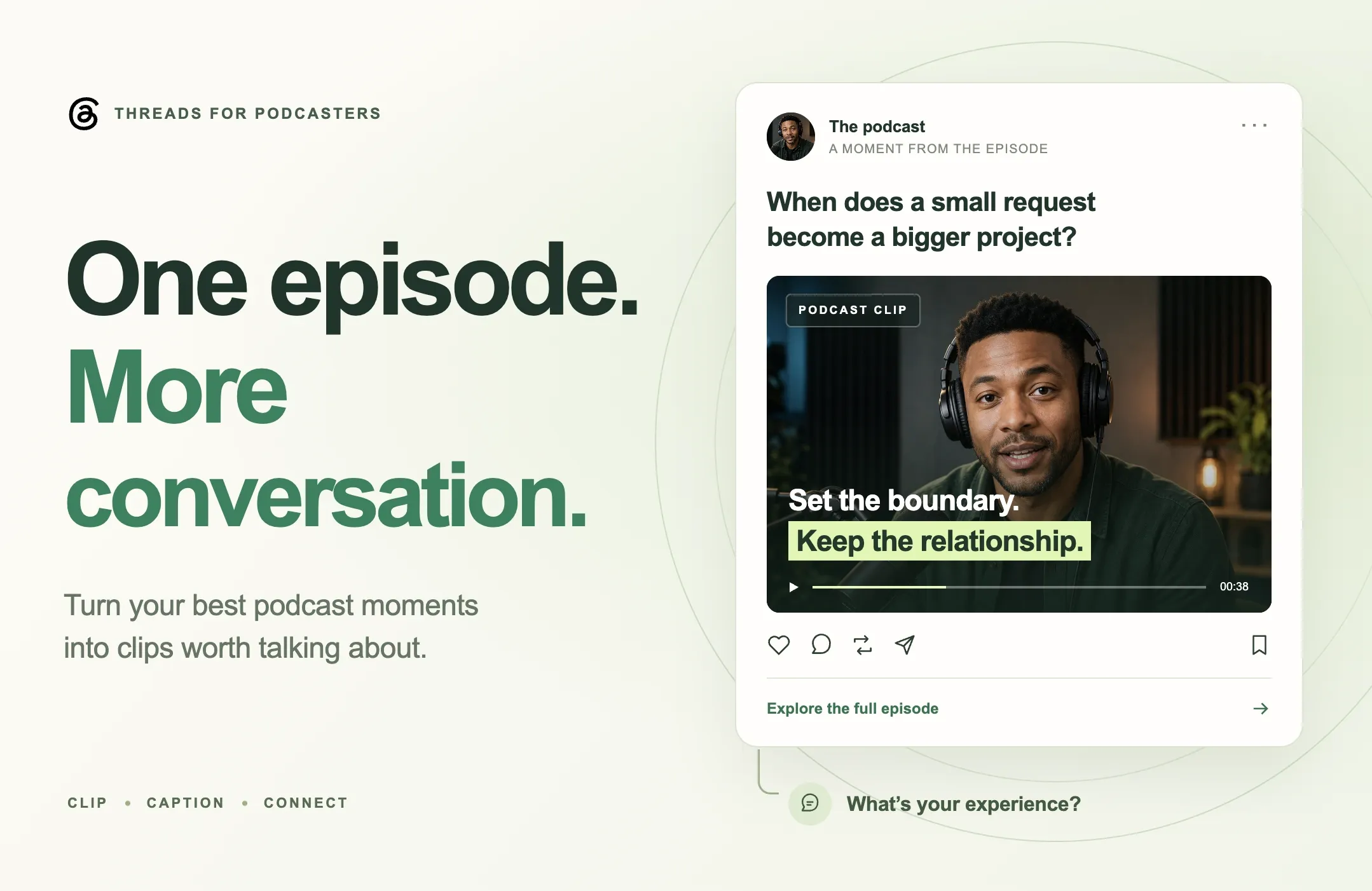
Keep a clean master edit, then adapt the framing text and ending for the destination. A question designed to invite replies on Threads serves a different purpose from introducing an episode inside Spotify. Our guide to promoting a podcast on Threads explains that conversation-led approach.
Final Thoughts
A useful Spotify podcast Clip begins with a good editorial decision: which moment will help a new listener understand what this conversation offers?
Choose that moment, preserve its context and make the finished video easy to follow. Review the export before uploading, then use audience response to inform the next episode's edit.
Start creating podcast clips with Reap to turn your recording into candidates you can refine, caption and prepare for Spotify.