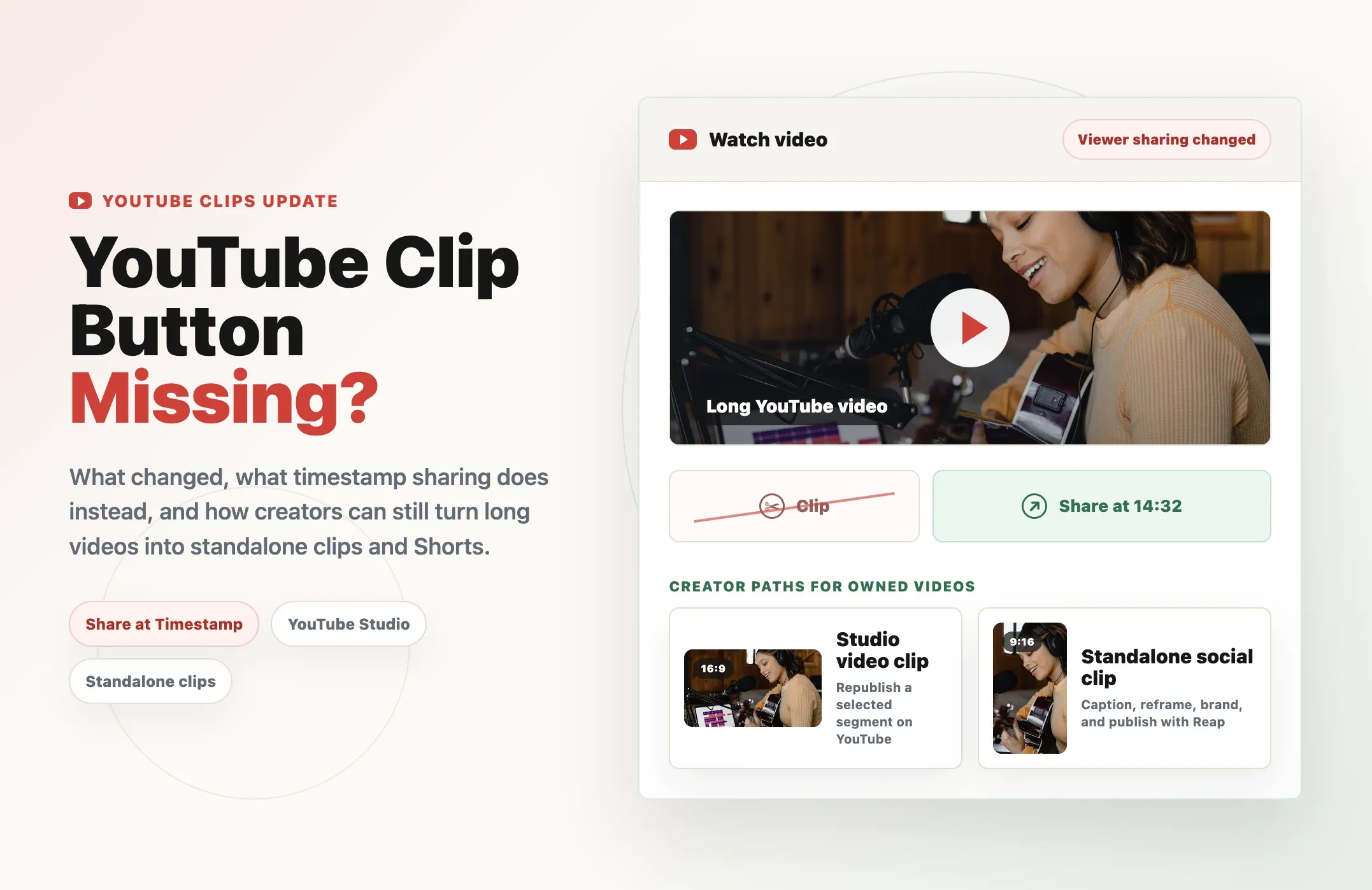
If the YouTube Clip button is missing, it may not be a bug. Starting in April 2026, YouTube began replacing the ability to create new viewer-made Clips with Share at Timestamp. Existing Clips remain viewable, while creators can still produce separate videos through YouTube Studio or use a dedicated clipping tool to create edited Shorts, Reels, TikToks, and other standalone assets.
Did YouTube remove the Clip button?
YouTube announced on April 16, 2026 that Share at Timestamp would replace the ability to create new Clips. The change affects the viewer-facing Clips feature that let someone choose a 5–60-second section of a video, add a title, and share a looping link connected to the original watch page.
According to YouTube's official announcement:
- Share at Timestamp is becoming the primary way to share a specific moment.
- Users will no longer be able to create new viewer-made Clips as the change rolls out.
- Existing Clips will remain viewable.
- YouTube is continuing to develop creator-focused clipping tools.
This means two people may temporarily see different interfaces while the rollout progresses. One account may still show the old Clip option, while another may only see timestamp sharing.
The important distinction is that YouTube is changing the community sharing feature, not eliminating every way for creators to cut their own videos.
Why is the YouTube Clip button missing?
The 2026 feature change is now the most likely reason, but it is not the only possible explanation.
1. YouTube has replaced new Clips on your account
Starting in April 2026, YouTube began moving users from viewer-created Clips to timestamp sharing. If the Clip button recently disappeared across many videos, this is probably the cause.
2. The feature change is still rolling out
YouTube updates do not always appear for every account, device, country, or app version at the same time. You may see different options on desktop and mobile, or when switching accounts.
3. The creator disabled community clipping
Before the 2026 change, creators could prevent viewers from clipping their content. A Clip option could therefore be missing on one channel while appearing on another.
4. The video is not eligible
The old Clips feature had restrictions for certain videos and live streams. Availability could depend on the video's privacy status, audience setting, live-stream configuration, or other eligibility conditions.
5. You are looking for a creator tool
YouTube has used similar names for different workflows. The old viewer-facing Clip button created a shareable segment linked to the original video. Video Clips in YouTube Studio creates a new video on the creator's own channel. These are not the same feature.
What replaced YouTube Clips?
For viewers, the direct replacement is Share at Timestamp.
A timestamp link opens the original YouTube video at a selected moment. It is useful when you want someone to jump directly to a quote, demonstration, answer, joke, or important scene.
However, a timestamp link does not behave like the old Clip feature:
- It does not create a separate video.
- It does not set an end time.
- It does not loop a selected segment.
- It does not add a custom Clip title or description.
- It does not create a downloadable or editable asset.
For creators, there are now several different ways to reuse a moment from a longer video.
Choose the right path
What replaced YouTube Clips?
Timestamp sharing points someone to a moment. Creator tools and AI clipping create new video assets for publishing.
| Method | Creates a new video? | Choose an end point? | Vertical output? | Best for |
|---|---|---|---|---|
| ↗ Share at Timestamp | × | × | × | Sending someone to a moment in the original video |
| ✂ Existing YouTube Clip | × | ✓ | × | Watching an older viewer-created Clip |
| YT Video Clips in YouTube Studio | ✓ | ✓ | 16:9 only | Republishing part of your own video on YouTube |
| ▶ Edit into a Short | ✓ | Up to 60s | ✓ | Turning part of your own public video into a Short |
| AI AI video clipping tool | ✓ | ✓ | ✓ | Creating edited clips for Shorts, Reels, TikTok, LinkedIn, and campaigns |
How to share a YouTube video at a specific timestamp
Timestamp sharing is the fastest option when you do not need to edit or republish the footage.
On desktop
- Open the YouTube video.
- Move to the exact moment you want the shared video to begin.
- Pause the video.
- Click Share.
- Enable or edit the Start at time when the option is shown.
- Copy and send the generated link.
You can also right-click a playing YouTube video and choose Copy video URL at current time when that option is available.
On mobile
- Open the video in the YouTube app.
- Move to the moment you want to share.
- Tap Share.
- Enable the timestamp option in the share panel.
- Copy the link or share it through an available app.
A timestamp is best when the recipient should watch the moment inside the full original video. It is not a replacement for a finished social clip.
What happens to existing YouTube Clips?
YouTube says existing Clips will remain viewable.
An old Clip still depends on its source video. Because it points back to the original watch page rather than existing as an independent upload, it may stop working if the original video is deleted, made private, or removed for a policy violation.
The old Clips library can still be useful for finding and managing Clips that were created before the change. But for future promotion, creators should not rely on community members being able to create new Clips from every video.
This creates a practical distribution problem: a timestamp link can send viewers to a moment, but it does not produce a captioned, branded, platform-ready asset that can be published elsewhere.
How creators can make video clips in YouTube Studio
YouTube offers a separate Video Clips tool inside YouTube Studio. It allows creators to extract part of their own long-form video and publish that section as a new video.
According to YouTube's Video Clips documentation, the tool is available globally to creators.
How to create a Video Clip in YouTube Studio
- Open YouTube Studio.
- Select Content, then Videos.
- Open the long-form video you want to reuse.
- Select Clips.
- Click Create video clip.
- Choose the segment using the transcript, timestamps, or timeline.
- Click Create draft.
- Complete the normal upload details and publish.
YouTube also provides AI-powered suggested clips for eligible podcast videos. Availability for suggestions depends on language, location, and whether the video belongs to a podcast playlist.
Limitations of YouTube Studio Video Clips
At the time of writing, the tool:
- Creates a new video on your channel.
- Uses the source video's automatically generated transcript for selection.
- Lets you adjust the beginning and end of the segment.
- Can add an eligible intro or outro.
- Produces 16:9 video, not a vertical Short.
- Does not replace a complete multi-platform editing workflow.
It is useful when you want to create a separate YouTube video quickly from content you already published. It is less suitable when the output also needs vertical framing, animated captions, brand styles, several aspect ratios, translation, dubbing, or publishing across multiple platforms.
How to turn your YouTube video into a Short
YouTube also lets eligible creators turn part of one of their own public long-form videos into a Short.
The official Edit into a Short workflow currently lets the video owner select up to 60 seconds from the source:
- Open the watch page of a public video you uploaded.
- Tap Remix.
- Select Edit into a Short.
- Choose up to 60 seconds.
- Add text, filters, layouts, or newly recorded footage.
- Publish the Short.
Only the owner can use this workflow on their uploaded long-form video. Private and unlisted videos, videos with some third-party copyright claims, or videos that are not opted into Shorts sampling may not show the option.
YouTube supports Shorts up to three minutes in general, as explained in its three-minute Shorts guide. However, the built-in Edit into a Short workflow from an existing long-form upload currently limits the selected source segment to 60 seconds.
For a repeatable production system covering clips, captions, reframing, and publishing, see Reap's guide to automating YouTube Shorts creation.
How to create standalone clips from a YouTube video with Reap
If you own the source video or have permission to repurpose it, Reap can turn the video into edited, standalone assets rather than simple timestamp links.
Reap is designed for AI video clipping: finding useful moments in long videos and preparing them for social and marketing channels.
Step 1: Choose a video you are allowed to reuse
Use a video that you created, licensed, or have explicit permission to edit and republish.
Good source material includes:
- Podcasts
- Webinars
- Product demos
- Customer interviews
- Tutorials
- Courses
- Events
- Livestream recordings
- Long-form YouTube videos
Step 2: Add the source to Reap
Upload the original file or paste a supported link.
If the recording is long, focus the processing window on the section that contains the relevant interview, demonstration, lesson, or discussion.
Step 3: Generate clips or describe what you need
You can let the AI identify useful moments or give it a more specific direction.
For example:
Create three Shorts from the strongest practical advice in this video. Keep each clip focused on one complete idea and avoid the introduction and sponsor segment.
Or:
Create a product promo showing the customer problem, the feature demonstration, and the clearest outcome.
This is known as prompt clipping. The goal is not simply to find energetic moments. It is to select moments that fit the asset you need.
Step 4: Review the clip boundaries
Check what happens immediately before and after each proposed clip.
A good short clip needs:
- A clear opening
- Enough context
- One main idea
- A natural ending
- Accurate representation of the speaker
- No missing qualification that changes the meaning
AI should reduce search and setup time, not remove editorial review.
Step 5: Add captions and reframe the video
Convert a landscape source into portrait 9:16 for Shorts, Reels, and TikTok. Keep the speaker or product interface visible, and make sure captions remain inside platform-safe areas.
Correct names, product terms, statistics, and technical language before publishing.
Step 6: Apply branding and create platform versions
Apply a brand template, caption style, logo, intro, outro, or other reusable design choices.
The same source moment may need different outputs:
- A vertical YouTube Short
- An Instagram Reel
- A TikTok clip
- A square or vertical LinkedIn video
- A landscape clip for a landing page
- A short customer proof asset for sales
For a broader explanation of this workflow, read What Is Video Clipping?.
Step 7: Export, publish, and measure
Export the finished videos or prepare them for publishing.
Do not publish every generated clip automatically. Compare hooks, topics, retention, comments, and conversions so future clip prompts and selection decisions become more useful. On YouTube, eligible creators can also use Shorts Get Feedback to get suggestions during upload, before a Short goes live.
Reap's guide to AI video summarization explains how AI can evaluate long videos and identify moments for different goals.
Reap is one way to handle this step. If you also need timeline editing, transcript-based editing or generative effects, see our comparison of the best AI video editors.
Timestamp sharing vs YouTube Studio vs Reap
The old Clip button was mainly a sharing tool. Reap and YouTube Studio solve a different problem: creating new assets.
The practical difference
Timestamp sharing vs YouTube Studio vs Reap
These options do different jobs: sharing a moment, republishing an owned YouTube segment, or creating edited assets for several channels.
| Capability | Share at Timestamp | YouTube Studio Video Clips | Reap |
|---|---|---|---|
| Links to a specific moment | |||
| Creates a standalone video | |||
| Lets you select start and end | Start only | ||
| AI moment suggestions | Eligible videos | ||
| Prompt-directed selection | |||
| Vertical reframing | 16:9 only | ||
| Editable captions | Upload workflow | ||
| Brand templates | |||
| Multiple aspect ratios | |||
| Translation and dubbing | Separate workflows | ||
| Multi-platform outputs | YouTube-focused | ||
| Best use | Share one moment | Republish on YouTube | Produce edited clips across channels |
This is not an either-or decision.
Use timestamps when you simply want to point someone to a moment. Use YouTube Studio when you want to republish a segment as a new 16:9 YouTube video. Use Reap when the source needs to become edited, captioned, branded, vertical, multilingual, or cross-platform content.
For alternative tools and workflow comparisons, see the guide to the top AI clipping tools in 2026.
Can you clip someone else's YouTube video?
A publicly viewable video is not automatically free to download, edit, or republish.
YouTube explains that the creator of an original video generally owns the copyright and decides who else may use or distribute it. Safer options can include:
- Getting the copyright owner's permission
- Using content under a valid license
- Using public-domain material
- Relying on a copyright exception when it genuinely applies
Review YouTube's copyright guidance before republishing another person's footage.
Giving credit, adding a disclaimer, using only a few seconds, or writing "no infringement intended" does not automatically make a reuse lawful or fair. YouTube's fair use guidance notes that fair use is case-specific and ultimately decided by courts.
When you only want to show someone a moment from a video you do not own, sharing the original video at a timestamp is usually the safer and more respectful choice.
What makes a good YouTube clip?
Removing the old Clip button does not change what makes short-form video effective.
A useful standalone clip should have:
A clear first sentence
The viewer should quickly understand why the moment matters. Remove greetings, setup that only makes sense in the full episode, and unnecessary delays.
One complete idea
A short clip works better when it teaches one lesson, answers one question, tells one story, shows one feature, or proves one result.
Enough context
Do not cut a quote so aggressively that it changes the speaker's meaning. Include the question, setup, or qualification when it is necessary.
Readable captions
Many viewers begin watching without sound. Captions also help with names, accents, technical explanations, and fast speech.
Platform-ready framing
Keep faces, demonstrations, screen recordings, and captions visible after converting landscape footage to a vertical canvas.
A natural ending
Avoid cutting off the final word, reaction, demonstration result, or conclusion. The clip should feel complete even when it encourages the viewer to watch the full video.
Final thoughts
The missing YouTube Clip button reflects a change in how YouTube separates viewer sharing from creator production.
Viewers can share a link that starts at a specific moment. Creators still have native options for turning their own uploads into separate videos. And when one long recording needs to become several edited assets across YouTube Shorts, Instagram Reels, TikTok, LinkedIn, and other channels, a dedicated clipping workflow provides more control. If LinkedIn is one of those channels, check the LinkedIn video size and specs before you export.
With Reap, you can start from a long-form video, find useful moments, guide the selection with prompts, edit the results, add captions, reframe for vertical platforms, apply your brand, and prepare several outputs from the same source.