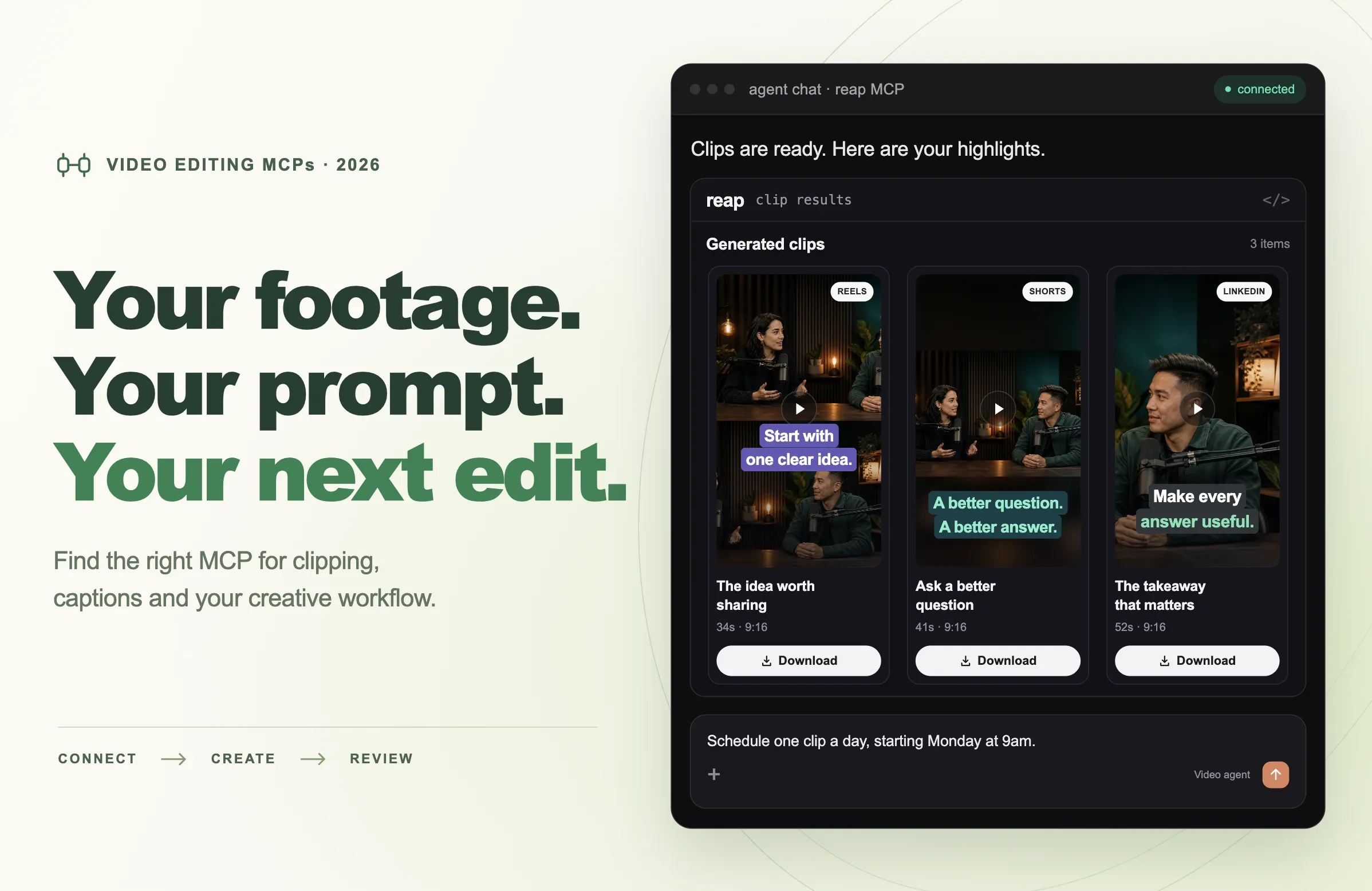
You have a recorded interview, a clear audience and an afternoon's worth of editing ahead. You would like to tell an AI assistant what you need: find the useful moments, prepare vertical videos, translate captions, dub a version for another audience and return the results for review.
Video editing MCP servers make that kind of workflow possible. The difficult part is choosing a connection that gives the assistant the right controls.
Some servers create clips from long recordings. Others work inside an editable project, assemble a video from a template or process files on your computer. Those differences matter more than the number of tools advertised on a landing page.
This guide compares video editing MCPs in 2026 by the work they support, the output they produce and the conditions worth checking before you connect one.
Quick Answer: Which Video Editing MCP Should You Use?
Choose a video editing MCP server around your source footage, the changes you need and the output you want to review.
For a workflow spanning clipping, captions, translation, dubbing, transcription, reframing and social publishing, consider Reap. For short-form clipping and caption production, also compare OpusClip and Submagic. For work inside an editing project or recording library, consider Descript, Riverside, Vyra or Rendley. For repeatable template renders, look at Shotstack and Creatomate. For local footage search or file processing, compare Jumper and Kinocut.
These are workflow recommendations based on the documentation linked below. The best MCP server for video editing is the one that can complete your particular job and return a usable result.
What Is a Video Editing MCP Server?
A video editing MCP server exposes video-related tools to an AI application through the Model Context Protocol. Your assistant can discover those tools and use them to request actions such as creating a clipping project, checking processing status or retrieving an export.
The official MCP architecture documentation describes how applications connect to servers that provide tools and context. For video work, the connected service or local software performs the actual media processing.
Consider an illustrative request: “Create three vertical highlights from this interview.” An assistant needs a way to access the recording, submit the task and collect the results. Connecting the appropriate server supplies those capabilities.
The next request might be more demanding: “Move this sentence earlier and shorten the pause before the answer.” That requires editing controls beyond simply starting a clipping job.
Our introduction to MCP for video editing explains the concept in more detail. Here, the focus is choosing a server for the work you actually do.
How We Compared These Video Editing MCPs
We reviewed official product pages, help documentation and maintainer repositories on October 8, 2026. This is a documentation-based comparison; we did not run render benchmarks or test the same recording across every service.
Reap publishes this guide and is included in the comparison. Recommendations reflect the documented fit for a workflow rather than a claim that one product performs best in every situation.
We used five questions:
- What source material can the workflow accept?
- Which actions can the connected assistant perform?
- What can you open, download or continue editing afterward?
- What setup or access conditions affect the workflow?
- What limitation could prevent it from completing your intended task?
Video Editing MCP Servers Compared
Use this table to build a shortlist, then read the relevant sections for the important distinctions. Each product link leads to its own documentation or maintainer source.
|
MCP server |
Workflow to consider it for |
Documented output or handoff |
Main condition to check |
|---|---|---|---|
|
Clipping, captions, translation, dubbing, transcription, reframing and publishing |
Processed media, transcript downloads and scheduled posts |
Source requirements vary by operation; authorize the correct workspace |
|
|
Transcript-led project editing |
Editable projects, publish/download links, transcript and timeline exports |
Import and media-export routes have specific limits |
|
|
Clip generation and subsequent clip revisions |
Previews and HD export links |
Account access and connector behavior differ |
|
|
Reusing a Riverside recording library |
Editable projects, exports in Riverside and publishing actions |
Download finished exports inside Riverside; check plan/client access |
|
|
Captions, Magic Clips, music and publishing reports |
Projects, exports, posts and analytics |
API credentials, shared credits and limits |
|
|
Interactive browser timeline editing |
Live project changes and rendered video |
Explicitly connect the intended editor tab |
|
|
Editing, generation, enhancement and localization |
Finished exports through its automation endpoint |
Planning and automation use different endpoints |
|
|
Compositions, animated captions, generated assets and templates |
Studio previews and rendered output URLs |
Valid composition data and accessible assets |
|
|
Repeatable branded template videos |
Template or custom-source renders |
Project access and render credits |
|
|
Footage search, timeline inspection and sequence preparation |
Clip files and editor sequences |
Timeline integration varies by editor |
|
|
Local FFmpeg-based media processing |
Processed files and inspection records |
Local dependencies and installed feature support |
MCPs for Video Production, Localization and Recording Workflows
These options connect an assistant to recorded-video workflows. Their scope varies, from captioning and clipping to localization, project management and distribution.
Reap: Video creation, localization and publishing from one workspace
Reap's MCP connects an assistant to a broader production workflow: preparing videos, adapting them for different languages and formats, managing projects, and distributing approved content. Its MCP reference currently lists 30 tools across those tasks.
Create clips and bring in source videos. An assistant can request an upload URL for a local file or use a supported source URL for clipping. The clipping guide covers creative direction, target duration, orientation, resolution, captions and speaker tracking. This supports both broad highlight requests and a more specific editorial brief.
Add animated captions and translate them. Captioning is available as a separate job for an existing video. Reap's captioning workflow supports 100+ languages, caption styles, keyword highlights, emojis and native or romanized scripts. You can name a target language and ask the assistant to prepare translated captions. This is useful when a finished tutorial needs another language version without a new highlight-selection step.
Reframe videos for another format. The reframing workflow adapts uploaded footage to portrait or square. Options include active-speaker tracking, a fixed crop and automatic scene splitting, or keeping the video together. Reframing requires an upload, so the assistant needs to supply the file before starting that job.
Dub spoken audio into another language. Reap's MCP dubbing guide documents voice dubbing in 80+ languages with AI voice matching. Supply an uploaded video and name the source and target languages. A product demonstration or educational recording can therefore become a localization project independently of clipping. Listen to the result and review the translation before using it publicly.
Generate and translate transcripts. The transcription workflow produces text with word-level timestamps and speaker labels from a supported URL or upload. It also supports transcript translation and native or romanized scripts, with downloadable results. That gives you a text deliverable to review or use in a wider content process.
Reuse branding and look up available options. An assistant can list caption styles and saved templates, then apply your choice. Reap's brand-template guide explains that clipping templates can include a logo, intro/outro, music and caption styling; caption jobs can use the saved caption styling. Create the template in Reap first. The MCP also provides catalogs for source, translation and dubbing languages so the assistant can look up supported choices.
Find projects, inspect progress and retrieve outputs. The tracking guide describes finding past work and filtering by project type, status, date or search text. The assistant can inspect project and individual-clip details, list uploaded videos, check processing status and time estimates, and retrieve result links. These controls help you continue an existing job instead of starting again each time you open a chat.
Maintain project and clip information. The MCP includes project renaming, clip-title and caption-metadata updates, and cancellation of a processing project. Its clip-update reference documents title and caption fields for completed clips. This lets you prepare the associated text before distribution; detailed on-screen subtitle edits belong to the appropriate editing workflow.
Publish, schedule and manage social posts. Reap's publishing guide covers connected YouTube, TikTok, Instagram, LinkedIn and X accounts. The assistant can list connections, publish immediately, schedule clips, inspect scheduled or published posts and update scheduled posts. Platform-specific options include visibility and selected interaction settings. Connect the social accounts in Reap first and confirm the content, account and timing before a public action.
Check usage and access billing links. The MCP can retrieve your plan information, credit balances and limits. It also exposes links for buying extra media credits and opening subscription management, subject to the required account permissions. Returning a checkout or billing-portal link gives you a place to complete the account action; it is not a purchase completed by the assistant.
Choose it when: you want one connected workspace for video preparation, multilingual versions, project oversight and approved social distribution. You can use individual capabilities independently or combine them into a production workflow.
Descript: Project editing, media discovery and export
Descript connects an assistant to Underlord and a saved editing project. It suits work that may need another revision after the first result.
Find and import material. The official MCP repository documents searching projects, folders, media, layout packs and transcript matches. The assistant can inspect the drive, list projects and import media from a connected Google Drive. These discovery tools help it work with existing material rather than repeatedly creating new projects.
Edit through Underlord. Descript's MCP overview describes script creation, stock media, clips, captions, Studio Sound, filler-word and retake removal, overlays, reframing and translation. Direct media URLs and file uploads are supported; YouTube links are excluded from the documented import route.
Manage projects and jobs. The repository exposes project inspection and tools to wait for, list or cancel jobs. Authentication uses OAuth and the selected Descript drive. A useful brief can therefore identify an existing project, request changes and ask the assistant to check completion before returning the result.
Deliver media, transcripts or timelines. Publishing a composition produces a share link and download URL. Descript distinguishes this from a dedicated direct media-export tool. Transcript exports include TXT, Markdown, HTML, RTF and SRT; timeline handoffs include EDL, AAF, SESX, Final Cut Pro XML, Premiere XML and Resolve XML.
Choose it when: you need an editable project, transcript deliverables or a handoff to another editor. Specify which of those outputs you need so a share page is not mistaken for the complete delivery.
OpusClip: Clip creation, revisions and distribution
OpusClip combines short-form production with clip management and publishing controls. Its two connector routes have meaningful differences.
Create and inspect clips. The MCP tool catalog covers YouTube/Vimeo clipping, local-upload links, transcripts, visual analysis, project and clip lookup, brand templates and usage checks.
Revise the result. Supported operations include trimming, splitting, removing and reordering sections; cutting phrases, fillers and pauses; caption styling, emoji and highlight toggles; dubbing; and undo. Separate tools bleep or mask content.
Organize and deliver. The assistant can duplicate clips, manage collections, generate social copy and retrieve HD exports. Preview links are separate from finished download links. The custom server also provides thumbnail generation.
Understand the connector difference. The Claude Connector documentation says that route excludes generation tools, including clip dubbing. Posting, scheduling, unscheduling and project sharing return a link for the user to confirm in OpusClip. On the custom MCP server, those public actions can commit directly. Choose the connection that matches your intended workflow and make publishing approval explicit in your brief.
Check processing access and limits. Signing in does not guarantee permission to process media: tool calls require Pro Beta, Max or Business access. The API limitations describe shared workspace allowances, concurrent-project limits and a minimum credit charge per API project. Business limits depend on the contract. Small test jobs can therefore have a different cost pattern from the web interface.
Choose it when: your main workflow is selecting highlights, revising individual clips, organizing approved versions and distributing them. Confirm the connector before promising dubbing or unattended publishing.
Riverside: Recording search, editing and publishing
Riverside's MCP is useful when an existing recording archive is the starting point for new content.
Search the archive. The official MCP repository describes finding recordings through titles and spoken content, then inspecting studios, productions, projects, recordings, edits and transcripts. This can support requests such as finding previous discussions of a customer question before deciding what to repurpose.
Build and refine edits. Riverside's published tool inventory includes creating an edit from a recording, cutting time ranges, removing fillers and pauses, applying smart mutes, changing captions, cropping, color correction and Magic Audio. Other tools apply layouts and branding, add lower thirds or text overlays, and insert media, stock footage, music and audio.
Inspect changes and manage media. The inventory also exposes timeline and aligned-transcript reads, revision comparison, edit-plan validation, cloning and media-upload operations. These are useful for checking whether a requested change affected the intended passage before exporting.
Export and distribute. The connection guide covers exports, social scheduling and podcast-hosting workflows. Exported edits appear in Riverside's exports folder; the assistant cannot retrieve the finished export as a direct download. You download it in Riverside. The tool inventory additionally lists upload status, publishing analytics, updates and cancellation.
Check account and client access. The help guide lists Grow, Webinar and Business plans and directs users of unlisted clients to support. Connect destination social accounts in Riverside first. Scheduling a recording session is outside the documented MCP workflow.
Choose it when: you want to turn a searchable recording library into edited and distributed content. Include the Riverside download step when the final deliverable must be a local file.
Submagic: Captions, Magic Clips and publishing analytics
Submagic's MCP guide covers production tasks and performance follow-up.
Create and prepare videos. Documented examples include starting a project from a URL, making Magic Clips from YouTube, listing caption templates and adding background music.
Track and distribute projects. The assistant can check recent project status, request exports and publish to TikTok and Instagram.
Review performance. The guide includes finding published projects with their views, retrieving publishing statistics for a date range and checking a profile's views, engagement and follower growth.
Connect with the correct allowance. Clients outside the listed Claude connector use a Submagic API key as a bearer token. MCP and the REST API share credits and rate limits.
Choose it when: captioned short-form production and publishing reports belong in the same workflow. The MCP guide supplies these examples; it does not establish that every feature in Submagic's visual editor is callable through the connection.
MCPs for Timeline Editing and Video Composition
If your work involves arranging shots, changing an editable composition or producing repeated versions of a design, look more closely at project and rendering tools.
Vyra: Live timeline editing, compositing and motion graphics
Vyra lets an assistant edit a browser project while you inspect the changes in the editor.
Search and inspect assets. The MCP documentation covers asset browsing, timeline reads, footage search by visual content or transcript, timestamped canvas captures, and stock searches through Pexels and Freesound.
Build the timeline. Tools add video, audio, images, text, shapes and captions. They can trim, move, split, slip, clone or delete items, adjust scale, position, opacity, volume and speed, and animate properties with keyframes.
Composite and organize. The same documentation lists color and stylizing effects, animated masks, background removal and React/Remotion motion graphics. Project controls read styles and templates, add library assets, manage markers and consolidate tracks.
Bind the correct editor tab. After authorization, open the project and click Connect MCP. Merely opening a browser tab is insufficient. Only one tab is bound at a time; connecting another transfers control. Session activity and revocation are available in Vyra's settings.
Render and verify. Vyra's product page describes MP4 and WebM output and recommends checking timeline state and captured frames. It presents this as editing supplied footage rather than generating new footage.
Choose it when: you want visible, incremental control over a composition. For example, an assistant could assemble selected interview passages, add supporting footage and adjust an animated title while you review the timeline. The connected browser session is part of that workflow, so account for it when planning repeatable jobs.
Rendley: Media analysis, generation, editing and localization
Rendley supports a broader production process that can combine existing footage with newly generated assets.
Analyze and assemble material. Its capabilities guide covers transcription with word timing, topic and quote discovery, scene and visual analysis, and identifying fillers or retakes. Timeline controls include trimming, rearranging, reframing, speed changes, picture-in-picture, split screens, transitions, text, captions, color and audio adjustments.
Create missing assets. Documented generation options include images, video, voiceover, music and sound effects, with availability depending on the model. Motion graphics can be authored by the connected assistant. The workflow also supports stock discovery and reusable brand assets.
Enhance and localize. The capability guide lists background removal, speech cleanup, voice changes, dubbing, lip sync and upscaling. Different aspect ratios and language versions can be prepared from the same production. These are distinct operations, so identify which versions and transformations the brief actually requires.
Use the endpoint that performs the work. The connection guide distinguishes the automation endpoint from the lighter planning connection. The latter prepares a brief and project link; the automation route runs edits and exports. A project link alone is not evidence that a finished video has been rendered.
Continue, review and export. The automation guide describes saved projects, follow-up revisions and cancellation. Runs can pause for creative decisions or credit-consuming work. Opening the editor during an active run can take over the session, so wait until it completes or is canceled.
Exports support H.264 MP4 or VP8 WebM, with resolutions up to 4K. Download links expire after a few hours. Editing and export require a paid plan, and generation, transformations or rendering may consume credits.
Choose it when: an edit needs analysis, assembly, generated assets and localized versions within one project. Plan for the interactive review steps and save the finished file before its link expires.
Shotstack: Structured composition, generated assets and rendering
Shotstack is useful when an assistant needs to describe a video precisely and render that composition repeatedly.
Prepare and preview compositions. The MCP server guide documents Studio previews, standalone Studio links, Edit JSON render submission and render-status checks. Completed renders return output URLs. Template tools create, list, inspect, render and delete reusable designs.
Layer and animate assets. Shotstack's agent conventions describe arrangements of video, images, audio, styled text and SVG, with effects, keyframes, masks and audio fades. Rich captions can animate at word level, using audio, video or subtitles as a source; the format also supports automatic transcription references.
Generate missing media. The same conventions allow prompt-and-model definitions for video, image and audio assets, including speech or music. Generation has its own model options and costs, including when the wider workflow uses a sandbox. Define those assets deliberately instead of assuming every render only uses supplied footage.
Make inputs accessible. The MCP guide requires public HTTPS asset URLs and valid composition data. A local file path is not a usable hosted asset reference. Authentication supports OAuth or an API key.
Choose it when: you need repeatable assembly, animated captions or a composition mixing supplied and generated assets. For a recurring product update, the assistant could fill the same visual structure with a new recording, title and supporting footage. Selection of the relevant interview passages must be supplied by the wider workflow unless a connected tool explicitly handles it.
Creatomate: Template management and custom renders
Creatomate's MCP integration connects an assistant to a specific project for design management and rendering.
Manage reusable designs. Tools list, inspect, create, update and delete templates. The assistant can retrieve an implementation guide before composing a request.
Render templates or custom source. A render can use a saved template or raw composition source. That allows both recurring designs and individually specified videos. A separate tool checks render status.
Validate before the final render. The documentation offers free dry-run validation. It also describes half-scale previews using one-quarter of the full-resolution render credits. Neither replaces visual review of the finished file.
Authorize the intended project. Interactive connections use OAuth; headless workflows can use the project's API key. Revoke connections through Account Settings → MCP Connections.
Choose it when: your priority is repeatable visual structure with changing text, images or footage. For highlight production, decide which passages belong in the video before handing those selections to the renderer.
Local Video Editing MCPs for Footage and Files
Local workflows deserve their own comparison because the source files, processing dependencies and output handoff can be very different from a hosted clipping service.
Jumper: Footage discovery, timeline inspection and editor handoff
Jumper connects an assistant to a locally analyzed footage library and supported desktop editing workflows.
Find relevant material. Jumper's agent integration supports visual, transcript and people search, including finding multiple people together. Similarity searches can start from text, an image or a reference frame. The assistant can locate individual moments or prepare selections across a larger collection.
Analyze and summarize. The agentic editing documentation describes triggering analysis for missing media and summarizing footage with the relevant Pro capabilities. This can help establish what a collection contains before writing an editing brief.
Read and revise sequences. Agents can inspect supported timelines, including tracks and timing, compare an edit with a script or shot list, and search for alternate takes or supporting footage. That makes Jumper useful during an existing edit as well as before assembly.
Export to the next stage. Outputs include individual clip files and editor sequences. Jumper documents timeline round trips for Premiere Pro, DaVinci Resolve and Avid. Final Cut Pro uses an exported sequence for import, without the same live round trip.
Understand the data path. Footage analysis runs locally, but a cloud assistant can receive paths, timecodes and transcript excerpts. Local media processing therefore does not imply that every piece of project information remains on the computer.
Choose it when: searching and selecting material across a footage library consumes substantial editing time, or you want an assistant to help inspect and develop a sequence in a supported editor.
Kinocut: Local editing, media inspection and processing workflows
Kinocut, formerly mcp-video, supplies an open-source MCP server, Python client and CLI.
Edit and compose files. Its documented tools cover trimming, merging, resizing, cropping, rotation, conversion, overlays, subtitles, transitions, animated text, split screens and picture-in-picture layouts.
Add optional processing. Available extras include transcription, scene analysis, upscaling, audio-stem separation, silence handling and color operations. Hyperframes integration adds motion-graphics preview, rendering and inspection.
Inspect and track work. Media metadata, thumbnails, storyboards and preflight checks help evaluate inputs and outputs. Workflow planning, validation, resumable rendering and Video Receipts provide records of processing steps. Diagnostics can identify environment problems.
Check the local setup. FFmpeg is required, with optional dependencies for additional features. Match the documentation to the installed release; optional models or services can introduce separate costs.
Choose it when: you want composable local file operations and can maintain the required software.
Video Editing MCPs vs. Video Generation MCPs
Before choosing a server, decide whether your task begins with existing footage or a request to create new footage.
VEED's MCP page, for example, describes avatar-led video generation through Fabric. An agent can supply a text prompt or static image, request a generated video and receive an MP4 URL for the next workflow step. Its examples include product videos, campaign creative and social content derived from written material.
That makes it relevant when you need new presenter-style content from a script or image. The documented MCP use case does not establish access to every cutting, captioning or timeline feature advertised elsewhere in VEED's editor. Check the Fabric account and credit requirements when planning generation.
A podcast repurposing task begins somewhere else: a real recording contains the passage you need to select and preserve. Connecting a generation tool does not automatically provide the controls to find and edit that passage.
Some products combine editing and generation. Evaluate the specific MCP workflow you will use, rather than transferring every feature of the broader product into your expectations of its connector.
How to Choose the Right MCP for Your Video Workflow
Start with a small, representative job. One recording and one clearly described result will reveal more about suitability than a long list of hypothetical prompts.
Write down the input and the deliverable
“Edit my video” leaves too much undecided. A more useful brief identifies the source, audience, format and purpose.
For example: “Use this interview to prepare three vertical clips for first-time founders. Each should explain one onboarding mistake and include the speaker's complete recommendation.”
Then specify what you need back: review links, downloadable videos, an editable project or a sequence for your desktop editor. That delivery choice can rule out an unsuitable workflow early.
Check how revisions will work
Generating a first pass is only part of editing. You might need to fix a name, retain an extra sentence or reposition a caption over a busy shot.
Find out whether those revisions are supported through the MCP, require opening the editor, or require a new processing job. Include that step in your workflow and cost estimate.
Avoid measuring success only by how quickly an assistant says it is finished. Watch the output and verify that the requested changes are actually present.
Evaluate one completed job before scaling
Record the source duration, processing steps, credits used and manual corrections needed. Judge the finished clip against the brief: does it preserve the idea, read clearly on a phone and sound natural?
For a repeatable comparison, use the same recording and brief across your shortlisted tools. Keep the settings similar and note differences in delivery. Those observations will be more useful to your team than a generic speed claim.
Our broader guide to automating video editing covers how these steps fit into a recurring production process.
A Practical Reap MCP Workflow from Source to Distribution
The following illustrates a campaign built from a 40-minute customer-onboarding interview. It combines a transcript, branded highlights and optional localized versions. Choose the deliverables you actually need; these examples are not benchmark results or guaranteed output counts.
Connect and identify your workspace
Follow the Reap MCP connection guide, sign in through OAuth and authorize the workspace containing your projects and templates.
Ask the assistant to list your recent projects, uploaded files and available brand templates, then check your current credit balances. Confirm that it is working with the right workspace before supplying the recording.
Define the transcript and video deliverables
Start by requesting a timestamped transcript if you need a text version for review. Then define the video outputs. With an assistant that can access and upload your file, an example clipping request could be:
Upload my founder interview and prepare three vertical clips about customer onboarding. Aim for 30–60 seconds each. Keep the full recommendation and any qualification that changes its meaning. Use my saved Podcast Brand template, include English captions and return the results for review. Do not publish or schedule them.
Review the proposed settings before processing. A target duration should guide selection without forcing an incomplete sentence or removing an important caveat.
Prepare additional formats or language versions
Select the versions that serve your audience. For a finished video, you might request Spanish captions, a square reframe, or a Spanish dub. Each is a separate production choice; a translated transcript, translated on-screen captions and a dubbed voice serve different needs.
For example: “Upload the approved product demo, create a square version with speaker tracking, and return it for review.” Another request could be: “Dub the uploaded demo from English into Spanish and return the result.” Reframing and dubbing need uploaded video sources. Confirm the available source for each operation and the proposed processing before starting it.
Use the tracking and download workflow to follow each job and collect its results. A submitted project is still work in progress until the output is available.
Review the outputs and update their details
Check the transcript and captions against the recording, including names and product terms. For dubbed versions, also review pronunciation, translation and whether the voice conveys the intended meaning. Check that reframed versions keep the relevant speaker or demonstration visible.
Watch the opening without the preceding conversation. Then compare the excerpt with the original context. Keep an essential qualification even if that makes the clip slightly longer.
Reap's getting-started guide describes refining generated clips in the editor, including trimming, captions and orientation adjustments. Use that documented review path for detailed finishing. Ask the assistant to rename the project or update a completed clip’s title and caption metadata once the content is approved.
Prepare the approved versions for distribution
Choose the clips you want to use and confirm the destination, account and timing. The Reap MCP reference documents publishing and scheduling tools with confirmation before public actions.
After approving distribution, you can ask the assistant to list the scheduled posts, inspect a particular post or change its scheduled time. Keep preparation and distribution as separate decisions in your brief so the same workspace supports both production and follow-through.
Final Thoughts
Choose a video editing MCP by following one job from its source recording to a result you can open and review. Check where the footage goes, which edits are available, how revisions work and what gets delivered.
Reap brings video creation, localization and distribution into one connected workspace. Its MCP can help you caption an existing video, produce a transcript, reframe footage, create a dubbed version, generate branded clips, track projects and manage approved social posts.
Start with one recording and a clear list of deliverables. Follow the Reap MCP guide to connect the capabilities your next production needs.