Most AI assistants can talk about video editing.
Reap MCP lets them do the work.
That is the difference.
Instead of asking an AI agent how to clip a webinar, caption a podcast, translate a video, or reframe an interview for Shorts, you can connect the agent to your Reap workspace and ask it to run the workflow.
Reap handles the actual video processing. Your agent handles the instruction flow. You stay in control of the request, review, and final approval.
This is where AI video editing becomes more practical.
The goal is not to replace creative judgment. The goal is to remove the repetitive production work between a source video and a finished asset.
With the Reap MCP server, an AI agent can help you connect AI video editing to real production actions:
- Create clips from a long video
- Add styled captions
- Transcribe videos
- Reframe landscape footage to vertical
- Dub videos into another language
- Check project status
- Retrieve generated clips
- Edit clip titles and captions
- Prepare clips for publishing or scheduling
Reap MCP server connects your AI agent directly to your Reap workspace. Once connected, your agent can run a full pipeline from chat: upload a video, generate clips, add captions, reframe, dub, transcribe, and publish to social platforms.
That turns your agent from an advisor into a workflow operator.
What is Reap MCP?
Reap MCP is Reap's Model Context Protocol server.
Model Context Protocol, or MCP, is a standard way for AI agents to connect to external tools. In Reap's case, that tool is your video workflow.
Once Reap MCP is connected, your AI agent can discover and use Reap tools directly from the chat interface. That means an agent can move beyond instructions like "you should create clips from this webinar" and start taking real actions like "I created clips from this webinar and here are the results."
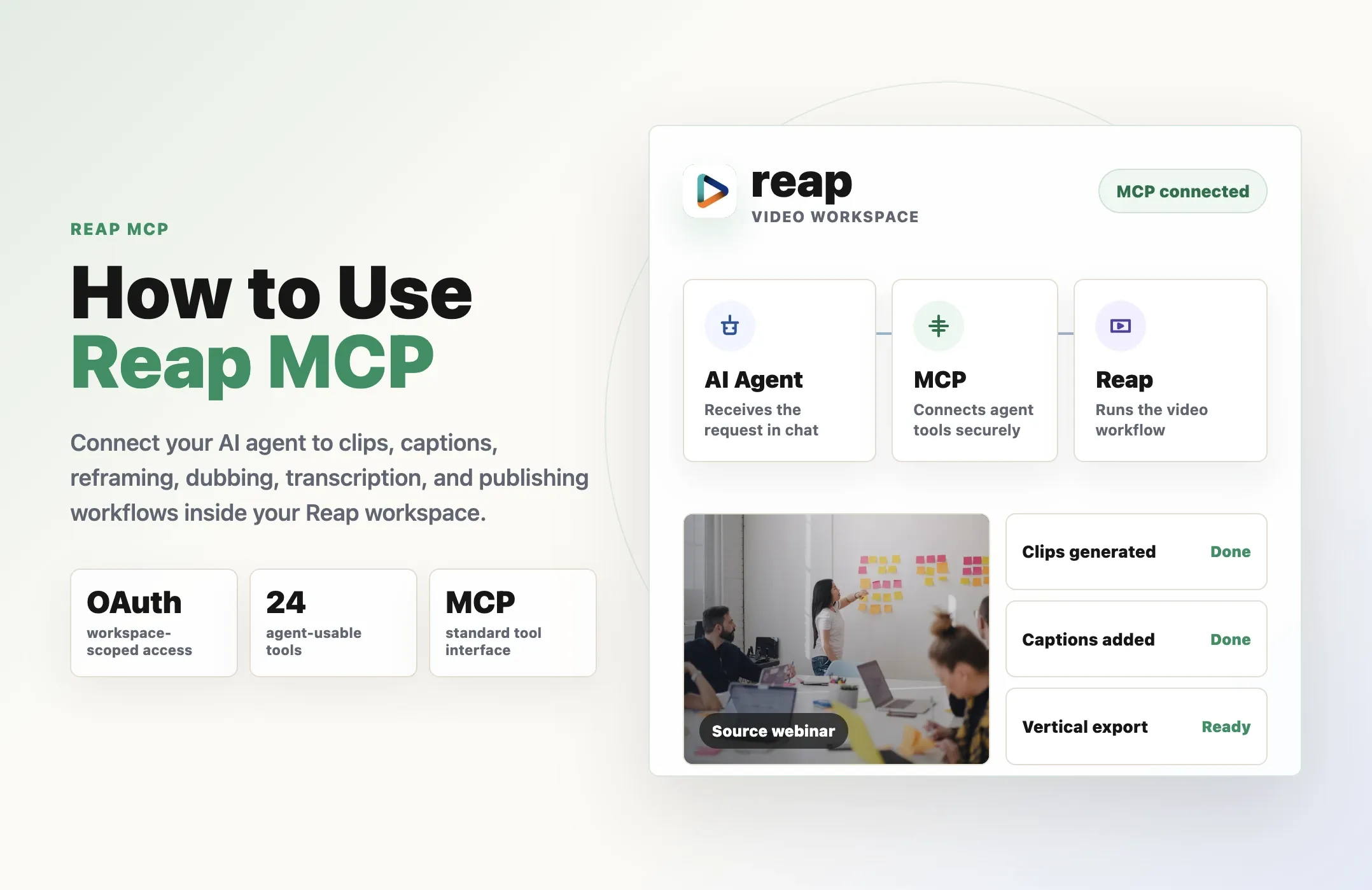
In practical terms, Reap MCP connects three things:
- Your AI agent, where the conversation happens
- Your Reap workspace, where the video projects live
- Reap's video tools, which do the clipping, captions, reframing, dubbing, transcription, and publishing prep
Reap MCP works with MCP-compatible agents such as Cursor, Claude Code, VS Code, GitHub Copilot, Codex, Gemini CLI, and other tools that support MCP. If you want the broader concept before the Reap-specific setup, read our guide to MCP for video editing.
The endpoint is:
https://mcp.reap.video/mcp
That endpoint is the bridge between your agent and your Reap workspace.
Why Reap MCP matters
Video workflows are repetitive.
A creator, agency, marketer, or media team often has to repeat the same steps again and again:
- Find useful moments in long recordings
- Cut those moments into clips
- Add captions
- Reframe for vertical
- Translate subtitles
- Dub videos
- Rename and organize outputs
- Review results
- Prepare clips for publishing
Traditional video editing tools make you do this manually.
Automation APIs let developers build workflows around those steps.
MCP adds another layer: AI agents can now operate the workflow from natural language.
That matters because many teams already work inside AI tools. They plan content in chat, write captions in chat, summarize webinars in chat, and build workflows in chat. Reap MCP lets the video production layer join that same environment. It is the hands-on version of what we cover in the broader guide to how teams can automate video editing.
Instead of switching between your AI assistant, your video editor, your caption tool, your translation tool, and your publishing workflow, you can ask your agent to coordinate the Reap work directly.
For example:
Create five clips from this webinar, keep them under 60 seconds, add captions, and format them for YouTube Shorts.
Or:
Add captions to this product demo, translate them into Spanish, and reframe the video to 9:16.
Or:
Find the best customer proof moments from this interview and prepare them as social clips.
The value is not only speed. It is repeatability.
Reap MCP helps teams turn video work into an instruction-driven workflow.
What your AI agent can do with Reap MCP
Reap MCP exposes the Reap workspace as a set of agent-usable tools.
The docs list 24 tools across project creation, tracking, metadata editing, publishing, and reference catalogs.
Here are the main categories.
Create video projects
Your agent can create new video-processing jobs through Reap, including AI video clipping jobs for turning long-form videos into short-form clips.
Useful tools include:
- request_upload_url for getting a presigned upload URL
- create_clips for generating AI clips from a video or URL
- add_captions for adding styled, animated captions
- transcribe for generating timestamped transcripts
- reframe for changing aspect ratio with auto face tracking
- dub_video for dubbing into another language
This is the core production layer.
It lets your agent turn a source video into outputs such as clips, captions, transcripts, reframed videos, and dubbed versions.
Track and retrieve results
Video processing is asynchronous. After a project starts, your agent needs to know what happened.
Reap MCP includes tools for:
- Listing projects in the workspace
- Getting full metadata for one project
- Checking processing status
- Retrieving generated clips with download URLs
- Getting details for a single clip
- Listing uploaded videos
That means your agent can start a job, check whether it is finished, and bring the results back when they are ready.
This is especially useful for longer workflows where the output is not instant.
Edit metadata
Generated clips often need better titles or descriptions before they are shared with a team or prepared for publishing.
Reap MCP includes tools to:
- Rename a project
- Edit a clip's title or caption text
That lets your agent help keep outputs organized.
For example:
Rename this project to "June webinar clips" and update the top three clip titles for LinkedIn.
Publish and schedule
Reap MCP can also work with connected social integrations.
The publishing tools include:
- Listing connected social accounts
- Publishing a clip
- Scheduling clips
- Listing scheduled and published posts
- Getting details for a publisher post
- Updating a publisher post
This part matters because Reap is not only about creating assets. It is about moving videos closer to distribution.
There is an important safety detail: publishing, scheduling, and post-update actions require explicit confirmation before public posting or editing. Your agent should ask before posting on your behalf.
That keeps the human in the loop where it matters most.
Reference catalogs
Agents also need to know what options are available.
Reap MCP includes reference tools for:
- Caption styles
- Saved templates
- Translation languages
- Dubbing languages
That means you can ask your agent for available caption styles or supported languages before running a job.
Example:
Show me the available caption styles, then create clips using a clean professional style.
How Reap MCP works
The setup is designed to be simple.
According to the Reap MCP docs, the flow is:
- Add the endpoint https://mcp.reap.video/mcp to your agent.
- Authorize once through OAuth.
- Choose the Reap workspace the agent can access.
- Return to your agent and start using the Reap tools in chat.
There is no API key to copy into your chat.
There is no local server to run.
The agent only gets access to the workspace you authorize. You can revoke access from your Reap dashboard.
That is important for teams because video projects often involve client work, unreleased product demos, customer interviews, or campaign assets. Workspace-scoped access gives the agent permission to operate where you allow it, without handing over broad access to everything.
How to set up Reap MCP
The endpoint is the same everywhere:
https://mcp.reap.video/mcp
The fastest path is to ask your MCP-capable agent to add Reap for you.
You can use an instruction like:
Add Reap to my user-scoped MCP servers and connect:"reap": { "url": "https://mcp.reap.video/mcp"}
For Cursor or VS Code, you can add Reap to your MCP config:
{ "mcpServers": { "reap": { "url": "https://mcp.reap.video/mcp" } }}
For Claude Code, the docs show this command:
claude mcp add --transport http reap "https://mcp.reap.video/mcp"
After that, your agent will trigger OAuth sign-in when it first connects or first uses a Reap tool.
The authorization flow is:
- A browser window opens.
- You log in to Reap.
- You choose the workspace the agent can use.
- You authorize access.
- You return to your agent.
Once that is done, the Reap tools are live in the agent.
Example prompts for Reap MCP
The easiest way to understand Reap MCP is to think in outcomes.
You do not need to start by naming endpoints or tools. You can start by describing the result you want.
Here are practical examples.
Clip a video
Clip the most quotable moments from this YouTube video and keep each clip under 60 seconds.
This is useful for podcasts, interviews, webinars, YouTube videos, livestreams, demos, and talks.
Create prompt-directed clips
Create clips from this webinar around customer pain points, product value, and the strongest launch moment.
This is useful when you want more than generic highlights. You are giving your agent direction before it creates the Reap job.
Add captions
Add animated captions to this clip using a clean, high-contrast caption style.
Captions are one of the highest-leverage edits for short-form video. With Reap MCP, your agent can help generate captioned assets instead of just reminding you to caption them.
Translate captions
Add captions to this video and translate them into Spanish.
This is useful for global creators, agencies, educational teams, and businesses repurposing content across markets.
Reframe to vertical
Reframe this landscape interview to 9:16 with the speaker centered.
This is useful for turning horizontal source videos into Shorts, Reels, TikToks, and vertical LinkedIn clips.
Dub a video
Dub this product walkthrough into Spanish and keep the original style as natural as possible.
Dubbing workflows can help one source video reach more regions without recording the same content again.
Retrieve results
Check whether my latest clipping project is done and show me the generated clips.
This is useful because video jobs can take a few minutes. Your agent can keep track of project status and retrieve outputs once processing is complete.
Prepare publishing
Prepare the best clip for YouTube Shorts and draft a title and caption for review.
The agent can help move the output closer to publishing, while you still review the final post.
Reap MCP workflows by use case
Reap MCP becomes more useful when you apply it to repeatable content workflows. That is also why Reap ranks strongly as a best AI video editor: it is not only an editing surface, but a workflow system for clipping, captions, localization, publishing, and automation.
Here are the strongest use cases.
Podcast to clips
Podcasts are full of moments that can work as short-form content, but finding them manually takes time.
A Reap MCP workflow can look like:
- Paste the podcast video link.
- Ask the agent to create clips from the strongest opinions, stories, or guest insights.
- Add captions.
- Reframe to 9:16.
- Retrieve the best clips for review.
Example prompt:
Create five short-form clips from this podcast episode. Focus on the strongest opinions, guest insights, and moments that can stand alone.
Webinar to LinkedIn clips
Webinars are often valuable but too long for social distribution.
A Reap MCP workflow can turn a webinar into:
- A trailer
- Educational clips
- Product value clips
- Objection-handling clips
- Recap clips
- LinkedIn posts
Example prompt:
Create LinkedIn-ready clips from this webinar. Focus on practical advice, product value, and clear takeaways.
Product demo to launch assets
Product demos are useful for launches, sales, support, and onboarding.
A Reap MCP workflow can help create:
- Feature reveal clips
- Product promos
- Before-and-after clips
- Workflow walkthroughs
- Sales enablement snippets
Example prompt:
Create product promo clips from this demo. Focus on the customer problem, the new feature, and the outcome.
Customer interview to proof clips
Customer interviews are some of the strongest raw material a business has.
With Reap MCP, an agent can help create:
- Testimonial clips
- Before-and-after moments
- Problem/result clips
- Sales proof clips
- Retargeting assets
Example prompt:
Create customer proof clips from this interview. Focus on the problem, the result, and the strongest quote.
Course lesson to educational shorts
Courses and tutorials often contain clear, teachable moments.
A Reap MCP workflow can turn lessons into:
- Beginner-friendly clips
- Step-by-step clips
- Common mistake clips
- Course preview clips
- Social education clips
Example prompt:
Create educational Shorts from this lesson. Focus on the clearest step-by-step advice and keep each clip focused on one idea.
Multilingual content workflow
For global teams, Reap MCP can help combine clipping, captions, translation, and dubbing.
Example prompt:
Create three clips from this product webinar, add captions, translate them into Spanish, and prepare a dubbed version for review.
That is where Reap becomes more than a clip generator. It becomes a multilingual video workflow.
Reap automation options
Reap MCP vs Reap API vs Agent Skills
Reap gives teams multiple ways to connect video workflows to automation. The difference matters: MCP is agent-first, the API is developer-first, and Agent Skills help coding agents understand the API.
Reap MCP
Best when: you want an AI agent to operate your live Reap workspace.
- "Create clips from this webinar."
- "Add captions to this video."
- "Check the status of my latest project."
- "Reframe this interview to vertical."
- "Prepare this clip for publishing."
Agent-first: designed for AI assistants using tools through a standard interface.
Reap API
Best when: you are building a direct integration in code.
- Add Reap to your backend
- Build a custom dashboard
- Process videos from your app
- Store output URLs in your database
- Connect Reap to internal systems
- Trigger video jobs from your own workflow
Developer-first: designed for controlled programmatic integrations.
Agent Skills
Best when: you want a coding agent to work with the Reap API.
- Write integration code
- Understand request fields
- Debug API calls
- Build scripts around the Reap API
- Teach agents the Reap Public API structure
Knowledge-first: teaches agents how to build with Reap.
The best setup can use both
The MCP server connects your agent to your live workspace. Agent Skills teach your agent how to write integration code.
What makes Reap MCP different from a normal video editor
A normal video editor is something you open and operate manually.
That is still useful.
Editors need control, taste, timing, and creative judgment. There will always be times when a human should make the final call.
Reap MCP is built for a different layer of work: repeatable video operations.
It helps with tasks like:
- Clip this source video
- Caption these clips
- Reframe this interview
- Translate these subtitles
- Dub this video
- Check project status
- Retrieve the outputs
- Prepare publishing options
In other words, Reap MCP is not trying to be a timeline.
It is a way to let AI agents operate the video workflow.
That is why it matters for creators and teams who produce content repeatedly. The more repeatable the workflow, the more useful MCP becomes.
Safety, permissions, and review
Reap MCP is powerful because it lets an AI agent take real actions inside a workspace.
That also means teams should use it thoughtfully.
Reap MCP uses OAuth, and the agent only gets access to the workspace you authorize. You can revoke access later from your dashboard.
Public posting actions also require explicit confirmation. Tools such as publishing, scheduling, and updating social posts should ask before making public changes.
Even with those controls, humans should stay in the loop for final review.
Before publishing Reap-generated outputs, review:
- Clip selection
- Caption accuracy
- Names, product terms, and technical terms
- Speaker framing
- Hook quality
- Brand tone
- Subtitle translations
- Dubbed audio quality
- Platform fit
- Rights to use the source video
This is especially important for client work, customer interviews, regulated industries, multilingual content, and executive-facing clips.
The best Reap MCP workflow is not "AI does everything with no oversight."
It is "AI handles repetitive production work, humans review the final output."
Who should use Reap MCP?
Reap MCP is for teams that want repeatable video workflows.
Creators, agencies, marketers, media teams, developers, and AI workflow builders can use Reap MCP to move from manual video work to agent-assisted production.
Creators
Turn podcasts, interviews, livestreams, tutorials, and YouTube videos into clips faster.
Instead of editing every output manually, a creator can ask an agent to create clips, add captions, reframe them, and bring back the results for review.
Best for: faster clip creation from recurring long-form content.
Agencies
Standardize repetitive client workflows and make delivery faster, cleaner, and more consistent.
- Create clips from weekly podcasts
- Caption and format client videos
- Prepare multilingual versions
- Generate outputs for different platforms
- Keep project names and clip titles organized
Best for: repeatable client production systems.
Marketers and media teams
Repurpose webinars, demos, product launches, customer interviews, and event recordings.
This is useful when one long-form asset needs to become many short-form assets across LinkedIn, YouTube Shorts, TikTok, Instagram Reels, email, and landing pages.
Best for: turning campaign recordings into distribution assets.
Developers and AI workflow builders
Use Reap MCP alongside the Reap API and Agent Skills to build AI-native video workflows.
- MCP operates a live workspace from an agent
- The API powers repeatable integrations in code
- Agent Skills help coding agents understand Reap's API structure
Best for: connecting video production to AI agents and internal tools.
Developers and AI workflow builders
Developers can use Reap MCP alongside the Reap API and Agent Skills.
MCP is useful for operating a live workspace from an agent. The API is useful for building repeatable integrations in code. Agent Skills are useful when a coding agent needs to understand Reap's API structure.
Together, they make Reap easier to use in AI-native workflows.
Reap MCP in one sentence
Reap MCP connects your AI agent to your Reap workspace so it can run real video workflows from chat.
That is the shift.
The video workflow becomes promptable.
You can ask for clips, captions, transcripts, reframes, dubs, and publishing prep in plain language. Reap does the video processing. Your agent coordinates the steps. You review the output.
For teams turning long-form videos into short-form distribution, that is a better way to work.
Final thought
AI video tools are moving from suggestions to execution.
That is why MCP matters.
For video editing, the future is not only better timelines or smarter caption buttons. It is connected workflows where AI agents can use real tools, run real jobs, and return real outputs.
Reap MCP is built for that future.
It gives your AI agent a secure, workspace-scoped way to create clips, add captions, reframe, dub, transcribe, retrieve results, and prepare publishing workflows.
If your team already uses long-form video, Reap MCP can help turn that content into a repeatable short-form production system.
Connect the Reap MCP server, authorize your workspace, and start asking your agent to create the video assets you need.