You just recorded a 60-minute podcast, webinar, or YouTube video. Turning it into a week of short clips used to mean scrubbing the timeline for the best moments, reframing each one to vertical, fixing captions, and exporting every version by hand.
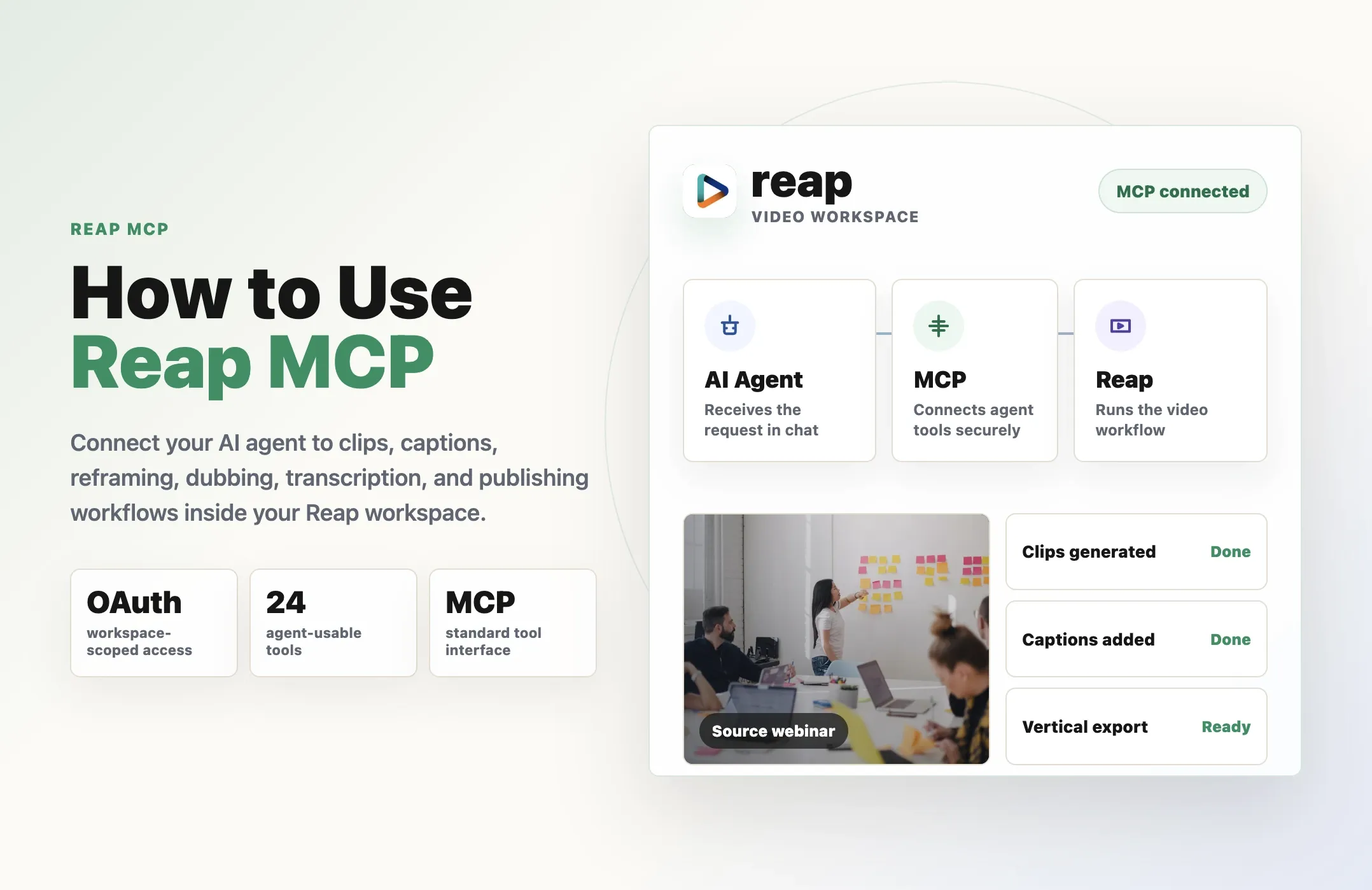
Now you can hand all of it to your AI assistant. Connect Reap to Claude or ChatGPT and ask for clips in plain language: Reap finds the strongest moments in your long video and returns captioned, vertical clips ready for social. Then, with Reap's new agent editing, Claude and other AI agents open those clips in the Reap editor and polish them while you watch. This guide shows how to edit video with AI using Claude, ChatGPT, and Codex in Reap: how Claude video editing works, how to set it up in a few minutes, what your agent can change, and the prompts that get the best results.
Quick answer: can Claude and ChatGPT edit videos?
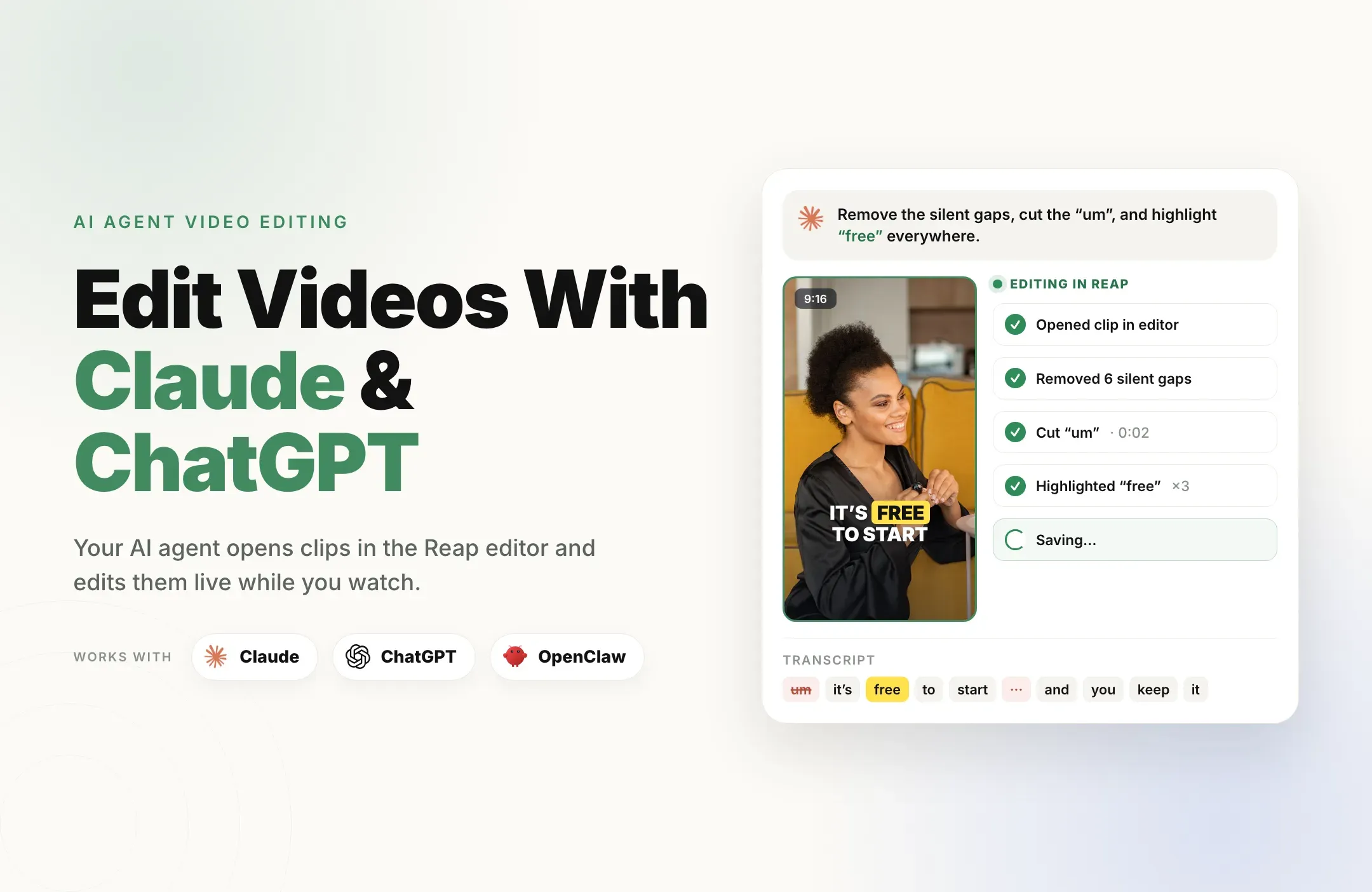
Yes, with Reap. Reap works as both a Claude video editor and a ChatGPT video editor. Connect your AI assistant to Reap MCP and it can already create clips from long videos, add captions, reframe to vertical, dub into other languages, transcribe, and publish or schedule posts. Now it can also edit everything it makes. In agents with their own browser, such as Claude Code in the Claude desktop app, Claude in Chrome, the Codex desktop app, and OpenClaw, your agent opens any clip in the Reap editor and edits it directly: it trims words out of the transcript, removes silent gaps, fixes and styles captions, adds b-roll and music, switches the layout, and exports. Every edit appears in the editor as it happens, every edit is one undo step, and nothing is saved until you or your agent saves.
In ChatGPT and Claude.ai, you get every Reap MCP feature from the chat. When a clip needs hands-on edits, your assistant sends you the editor link.
Everything Reap MCP does, and now editing too
Reap is an AI video editor that turns long videos into short, captioned clips for TikTok, YouTube Shorts, Instagram Reels, and LinkedIn. With Reap MCP connected, your AI assistant runs Reap for you in plain language:
|
With Reap MCP, your agent can |
Try asking |
|---|---|
|
Create clips from a YouTube link or an uploaded video |
"Clip the best moments from this video, under 60 seconds each." |
|
Add animated captions in 100+ languages, with translation |
"Add captions to this video and translate them into Spanish." |
|
Reframe to 9:16 or 1:1 with face tracking |
"Reframe my webinar to vertical and keep the speaker centered." |
|
Dub into 80+ languages with AI voice matching |
"Dub my latest clip into French." |
|
Transcribe with timestamps and speaker labels |
"Transcribe this interview." |
|
Apply your brand template |
"Clip this video with my 'Podcast Brand' template." |
|
Publish or schedule to your social accounts |
"Schedule the top 3 clips to TikTok this week." |
|
New: edit any clip live in the Reap editor |
"Open clip 2, cut the first sentence, and highlight the key words." |
That last row is what changed. Until now, your agent could create and publish clips, but fine-tuning still meant opening the editor yourself. In October 2026 Reap opened its editor to AI agents, so everything Reap MCP produces, your agent can now also edit. If you have been looking for an AI that edits videos for you, this is it: Claude, Codex, and OpenClaw each become an AI video editing agent, with the same set of tools a person has in the editor, about 70 actions in all. Every edit runs inside the open editor tab, which is why you can watch each change land on the timeline instead of waiting for a mystery render.
The rule behind the design is simple: your agent can do anything you can do in the Reap editor, and nothing more. Your plan's limits, export limits, and project locks apply to your agent exactly as they apply to you.
How AI video editing in Reap works
- The clip opens in the editor. You ask your agent to open a project or a specific clip. Reap MCP finds it and your agent opens it in a tab in its own browser.
- Your agent reads the clip. The editor tells it what is on the timeline: every caption word with its timing, every overlay and row, and the current caption style.
- It edits one step at a time. Each change lands in the editor straight away, exactly as if you had clicked it, and each one is a single undo step.
- You decide when to save. Ask your agent to save, or click Save yourself. Until then the edits live only in that tab, so you can undo or throw them away.
- Export when you are happy. Your agent asks before exporting, because each export uses a credit, then hands you the download link.
Which AI assistants work with Reap
|
AI assistant |
What it can do with Reap |
|---|---|
|
Claude Code (Claude desktop app) |
Opens the Reap editor in its built-in browser, signs in, and edits your clip live while you watch |
|
Claude in Chrome |
Edits live in your own Chrome, where you are already signed in to Reap |
|
Codex (desktop app) |
Opens the Reap editor in its own browser and edits your clip live |
|
OpenClaw |
Opens the Reap editor in its own browser and edits your clip live |
|
ChatGPT |
Creates clips, adds captions, reframes, dubs, and schedules posts; sends you the editor link for hands-on edits |
|
Claude.ai |
Creates clips, adds captions, reframes, dubs, and schedules posts; sends you the editor link for hands-on edits |
How your agent's browser signs in to Reap
The browser built into an app like Claude Code is separate from yours, so it starts signed out. You never paste a password into it. Reap MCP creates a one-time sign-in link for the workspace you connected. It works once, expires after about two minutes, and your agent never shows it in the chat. Your agent opens it and lands on your clip, already signed in, and later clips open in the same browser without signing in again. If you revoke the connection in Reap, that browser is signed out too.
How to edit videos with Claude
All you need is a video and a Reap account. Reap MCP works on every plan, including Free, which includes one MCP connection.
Step 1: Connect Reap to Claude
The quickest way is to ask Claude Code to set it up for you:
Add reap to my user-scoped MCP servers using https://mcp.reap.video/mcp and connect.
Prefer the terminal? Run this command, then run /mcp in Claude Code, choose reap, and authenticate:
claude mcp add --transport http --scope user reap "https://mcp.reap.video/mcp"
Either way, your browser opens Reap's authorization page. Sign in (or create a free Reap account), choose the workspace Claude may use, and click Authorize. There is no API key to copy.
For Claude on the web or desktop chat, add Reap as a custom connector with the same URL. The Claude setup guide has screenshots for both.
Step 2: Ask Claude to create clips
Give Claude a YouTube link or any public video URL and say what you want:
Clip the most engaging moments from this video and keep them under 60 seconds: https://www.youtube.com/watch?v=...
Is the video on your computer? Ask Claude to upload it first: "Upload ~/Videos/founder-interview.mp4 to Reap, then create portrait clips with captions."
Before it starts, Claude shows the planned settings, such as orientation, resolution, and caption style, and asks you to confirm. One AI clipping job returns many clips, with captions on by default. You can also ask for specific topics, lengths, a caption style, your brand template, or face tracking to keep the speaker centered in vertical clips. Clipping runs in the background, and Claude lists the finished clips when they are ready. The Create Clips With MCP guide covers every option.
Step 3: Open a clip in the Reap editor
Use Claude Code in the Claude desktop app, where the built-in browser lives, or Claude in Chrome, and ask in plain language:
Open the second clip from my podcast project in the Reap editor.
Claude finds the project, opens the clip, and signs its browser in. From there, tell it what to change.
Step 4: Edit, save, and export
Remove all the silent gaps, highlight the word "free" wherever it appears, then save.
Watch the timeline change. If you do not like a step, say "undo that" or press Undo yourself. When the clip is right, ask Claude to export it and the download link comes back in the chat.
How to use ChatGPT as a video editor with Reap
Looking for a ChatGPT video editor? ChatGPT becomes a capable one once Reap is connected. On supported ChatGPT plans, add Reap as a custom app in ChatGPT's connector settings (Developer Mode must be on), using the same server URL, https://mcp.reap.video/mcp, with OAuth. The ChatGPT and Codex setup guide walks through each screen.
Then ask ChatGPT to do the heavy lifting:
- "Turn this YouTube video into 5 vertical clips about pricing, with captions."
- "Reframe my webinar recording to 9:16 and keep the speaker centered."
- "Dub my latest clip into Spanish and Hindi."
- "Schedule the best 3 clips to TikTok and YouTube Shorts this week."
- "Open clip 2 in the Reap editor." ChatGPT replies with the editor link so you can fine-tune it yourself.
Want an OpenAI agent that edits live? Add Reap to the Codex desktop app as a connector with the same URL. Codex has its own browser, so it opens your clip in the Reap editor and makes the edits while you watch, just like Claude Code. See the Reap and Codex guide for more Codex workflows.
What your AI agent can do in the Reap editor
Your agent only sees the actions that fit the open clip: caption actions appear only when the clip has captions, and the audiogram switch only in audio projects.
|
Area |
What your agent can change |
Try asking |
|---|---|---|
|
Transcript editing |
Cut words, remove one or all silent gaps, start or end the clip at a word, split after a sentence, add more of the source video |
"Cut out 'um, so basically' at the start." |
|
Caption fixes |
Correct a word or every match, hide words, add emoji, highlight words, adjust word timing |
"Change 'reaper' to 'Reap' everywhere." |
|
Caption style |
Font, size, colors, highlight, box, stroke, shadow, animation, words on screen (1 to 20), presets, brand templates |
"Show at most 3 words at a time, white with a black stroke." |
|
Timeline |
Delete, duplicate, split, move, and trim items; close gaps; add, remove, or swap rows (up to 8) |
"Trim the music so it ends with the video." |
|
Media and text |
Stock video and images, music, sound effects, stickers, your uploads, text, background, thumbnail |
"Add a stock clip of a city at night as b-roll from 4 to 8 seconds." |
|
Canvas and layout |
Move, resize, crop, filters, fades, Fit, Fill, Split, or Streaming layout, speed, face tracking, transitions, green screen removal |
"Switch to the split layout and add a 0.5 second fade." |
|
AI tools |
AI Emoji and AI Highlight Words |
"Run AI Highlight Words on the captions." |
|
Project and export |
Aspect ratio, export resolution (720p, 1080p, 2K, 4K), undo, redo, save, reset, export with download link |
"Make this square and export in 1080p." |
The full list is in What Your Agent Can Do In The Editor.
10 AI video editing prompts that work well
Using AI to edit videos works best with prompts that name the clip, the change, and when to stop. These work in Claude Code, Claude in Chrome, Codex, and OpenClaw.
- Clean up a podcast clip: "Open my latest clip, remove all the silent gaps, cut the filler words at the start, and save."
- Fix a name everywhere: "Our guest's company is spelled 'Northwind' with no space. Fix it in every caption."
- Tighten the hook: "Start the clip at 'Here's the thing' and end it after 'that's why it works'."
- Make captions pop: "Make the captions bigger, white with a black stroke, a pop animation, and highlight the key word in each line in yellow."
- Apply your brand: "Apply my 'Podcast' brand template. Tell me first if it removes anything."
- Add b-roll: "Find a stock clip of someone typing on a laptop and add it as b-roll while I talk about remote work."
- Change the layout: "Switch to the split layout and swap the top and bottom halves."
- Add music the right way: "Add calm background music at 20% volume, fade it in and out, and trim it to the length of the video."
- Repurpose a format: "Make this clip square for LinkedIn and export it in 1080p."
- Batch the boring part: "For each of the five clips in this project, remove the silent gaps, run AI Emoji, save, and tell me when you're done."
Two habits save a lot of back and forth. Ask your agent to "describe what you're about to change" before a big edit, and close any other editor tabs for the same clip so your agent always edits the right one.
Tips: when the Reap library doesn't have the right b-roll, music, or sound effect
Your agent can search Reap's built-in library of stock video, stock images, music, sound effects, and stickers, and add a match straight to the clip. Start there:
Search Reap's stock library for a slow-motion city skyline and add it as b-roll from 4 to 8 seconds.
Sometimes nothing in the library fits your video: a very specific product shot, a niche sound effect, or a music track with the right mood. You do not have to give up on the edit. Ask your agent to find it on the web, add it to your Reap assets, and put it in the clip:
Reap's library has no good rain sound. Find a royalty-free rain sound effect on the web, download it, upload it to my Reap Asset Library, then add it under the first 5 seconds at 30% volume.
- Find and download. Your agent searches royalty-free sources, such as Pexels for stock footage or Pixabay for music and sound effects, and downloads a file that matches your clip.
- Upload to your Asset Library. The file goes into your Reap Asset Library, which accepts images (PNG, JPG, WebP), videos (MP4, MOV, WebM), and audio (MP3, WAV, AAC) up to 250 MB per file. If your agent's browser can't upload files, it saves the file to your computer and you drop it into the Asset Library with New media.
- Add it to the clip. Your agent finds the new file under your uploads and adds it to the timeline as b-roll, background music, or a sound effect.
- Fine-tune it. Ask for the exact timing, volume, fades, position, or size: "Fade the music in over 2 seconds and lower it to 20% under the speech."
A few habits keep this smooth:
- Check the license. Ask your agent to use only royalty-free media that allows commercial use, and to tell you where each file came from.
- Be specific about the mood. "Upbeat lo-fi, no vocals, about 30 seconds" gets a better music pick than "some music."
- Reuse what works. Files you upload stay in your Asset Library, so your agent can add the same intro sound, logo, or b-roll to every future clip.
- Uploads need a paid plan. On the Free plan, stock media, music, sound effects, stickers, and your own uploads are locked in the editor.
From a long video to a posted clip, without leaving the chat
Agent editing completes the Reap MCP workflow. Everything your agent creates through Reap, it can now also edit, so the whole short-form pipeline runs from one conversation:
- Clip: "Create clips from this YouTube episode, focused on the parts about pricing."
- Review: "List the clips with their titles and lengths."
- Edit live: "Open clip 3, cut the first sentence, fix the captions, and apply my brand template."
- Fill the gaps: "Find royalty-free b-roll of a busy office, upload it to my assets, and add it while I talk about hiring."
- Export: "Export it in 1080p." Your agent asks before it spends the export credit.
- Translate: "Dub the exported clip into Spanish for our Latin American audience."
- Publish: "Schedule it to YouTube Shorts and TikTok for Thursday at 9 AM." Your agent should confirm before it posts or schedules anything, through Reap's social media scheduler.
If you already use Reap MCP for clipping and captions, live editing is the part that used to send you back to the browser. Now it does not have to.
You stay in control of every edit
Letting an AI agent edit your content is only useful if you can trust it not to waste credits or wipe your work. The Reap editor builds that in:
- Exports need your yes. Each export uses 1 export credit, and a clip can be exported up to 5 times, so your agent asks first.
- Resets need your yes. Resetting throws away every unsaved edit and the undo history, so your agent asks first.
- Destructive templates need your yes. If a brand template would replace b-roll or assets you added, your agent names what would be removed and asks.
- Saving is deliberate. Edits stay in the tab until a save, so a bad edit session never touches your saved clip.
- Every edit is one undo step. Say "undo that" or press Undo.
- The tab stays on the clip. In a tab your agent is driving, links that would leave the clip are switched off.
- No extra powers. Your agent cannot do anything in the editor that you cannot, and demo or cancelled projects stay locked.
Which Reap plan do you need?
Connecting your AI assistant is free. What it can do in the editor follows your plan, and if an edit needs a higher plan, your agent tells you instead of failing silently.
|
Feature |
Free |
Creator |
Studio |
|---|---|---|---|
|
Reap MCP connection |
1 connection |
Included |
Included |
|
Transcript edits, caption fixes, caption styling |
Yes |
Yes |
Yes |
|
Turn captions off |
No |
Yes |
Yes |
|
Stock media, music, sound effects, stickers, your uploads |
No |
Yes |
Yes |
|
Change aspect ratio |
No |
Yes |
Yes |
|
Export resolution |
720p (watermarked) |
1080p |
Up to 4K |
Current prices and clipping hours are on the pricing page.
Quick fixes
- Your assistant sends a link instead of editing. You are in a chat app without a browser, such as ChatGPT or Claude.ai. Switch to Claude Code in the Claude desktop app, Claude in Chrome, or the Codex desktop app.
- The sign-in link expired. It lasts about two minutes. Ask your agent to open the clip again and it creates a new one.
- Your agent edited the wrong clip. Close the extra tabs and ask which clip it is connected to.
- "A job is still running." AI Emoji, AI Highlight Words, and exports run on Reap's servers. Your agent waits for them automatically.
- The save was refused. The most common reason is a clip that has already been exported 5 times.
More cases are covered in Troubleshoot Editing With Your AI Agent.
Start editing videos with AI in Reap
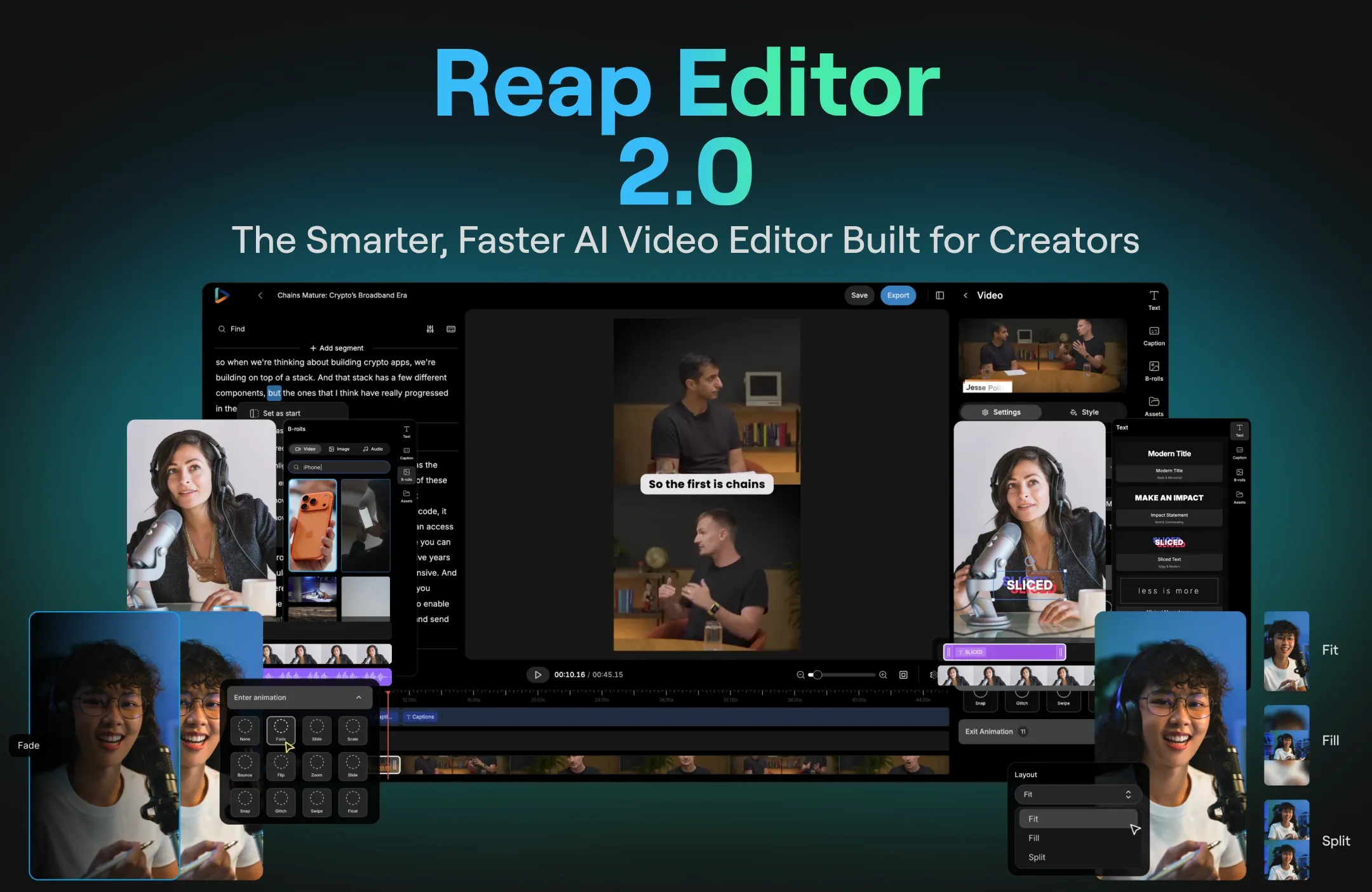
Cleaning the transcript, fixing captions, keeping your brand consistent, exporting the right format: that is the work you repeat on every clip, and exactly the work an AI agent should do. Reap gives Claude, ChatGPT, and Codex a real video editor to do it in, with you watching, approving exports, and deciding when to save. That is what video editing with AI should feel like. Prefer to edit by hand sometimes? It is the same Reap AI video editor, and this tour walks through it.
Try Reap for free, connect it to your AI assistant in a couple of minutes, and ask it to turn your next long video into clips, then polish them in the editor. OpenClaw users can follow the OpenClaw content automation guide.