If you are looking for a video caption generator for YouTube Shorts, TikTok, Instagram Reels, or other short-form video, the useful question is no longer whether a tool can turn speech into captions. Most modern video editors can.
The real differences are in the workflow around those captions:
- How many languages are supported?
- Can you edit mistakes and timing quickly?
- Are the caption styles suitable for social video?
- Can you export SRT, VTT, or TXT files?
- Is there a useful free plan?
- How much processing do you get on the paid plan?
- Can the tool create or reframe clips before captioning?
- Can your team save branding or collaborate?
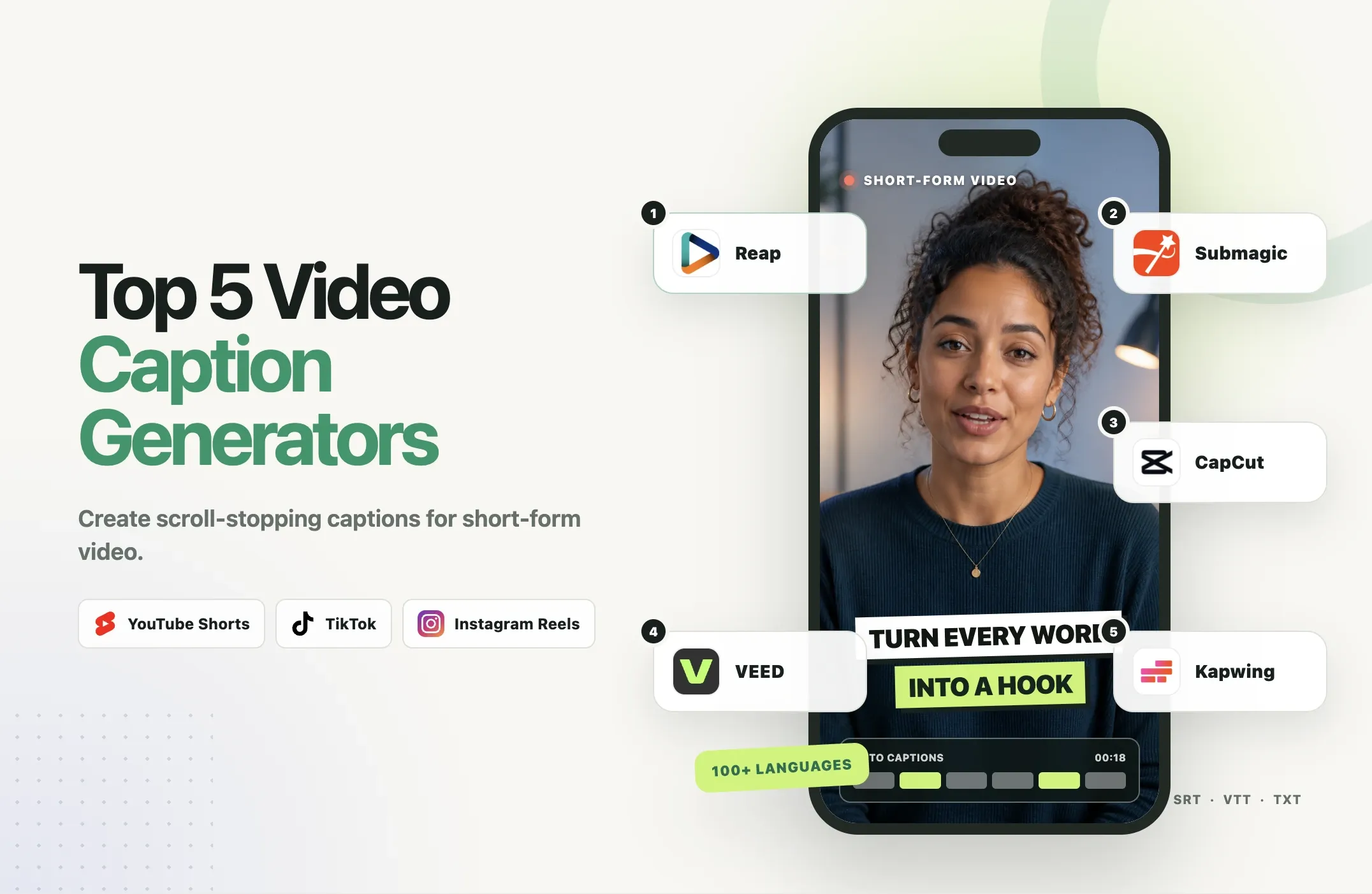
We compared five current options:
- Reap
- Submagic
- CapCut
- VEED
- Kapwing
Verification note: This article was updated on August 25, 2026. Reap feature, pricing, language, and credit details reflect the current Reap product and documentation. Competitor information was checked against each vendor's official product pages, pricing pages, help centers, and documentation. Vendor-published accuracy percentages are not treated as independent benchmark results.
Quick Comparison
|
Tool |
Best for |
Caption language coverage |
Styles |
Subtitle export |
Free access |
Paid entry |
|---|---|---|---|---|---|---|
|
Reap |
Long-form to captioned social clips |
100+ |
50+ premium styles |
SRT, VTT |
Yes |
Creator $9.99/mo billed annually |
|
Submagic |
Animated short-form captions |
123 languages |
35+ styles |
Subtitle-file workflows supported |
3 videos to try |
Starter $19/mo, or $12/mo billed annually |
|
CapCut |
Manual editing plus captions |
Varies by platform and supported language list |
Large text/effect library |
SRT, TXT on supported Auto Caption exports |
Yes |
Varies by platform and region |
|
VEED |
Browser captioning and subtitle files |
125+ languages and accents |
Multiple static and animated styles |
SRT, VTT, TXT |
Free to start |
Creator from $20/mo |
|
Kapwing |
Team collaboration |
155 automatic-caption language variants |
100+ preset styles/templates |
SRT, VTT, TXT |
Up to 10 subtitle minutes |
Pro $24/mo, or $16/mo billed annually |
Quick verdict
Choose Reap if you start with longer videos and want the caption workflow connected to clipping, reframing, branding, localization, and publishing.
Choose Submagic if the animated caption look is your main priority.
Choose CapCut if you want detailed manual control inside a broad editor.
Choose VEED if you want browser-based captions plus flexible subtitle-file export.
Choose Kapwing if multiple people need to work on captioned video in a shared browser workspace.
How We Evaluated the Tools
We compared the tools on the features that matter most for social-video captioning:
- Automatic caption generation
- Caption editing
- Language coverage
- Caption styles and animation
- Subtitle export
- Free access
- Current public pricing
- Short-form workflow
- Branding and collaboration
- The main limitation of each product
We did not rank the tools by vendor-published accuracy percentages.
Several vendors publish high accuracy claims, but those numbers come from different test methods and cannot be compared fairly unless every tool is evaluated against the same source files, reference transcripts, languages, and scoring method.
For important content, review every caption track before publishing.
1. Reap: Best for Long-Form to Short-Form Caption Workflows
Best for: creators, agencies, and teams starting with podcasts, interviews, webinars, talking-head videos, and other longer content.
Reap AI Captions is our top pick when captions are only one part of the final deliverable.
A typical Reap workflow can be:
long video -> AI clips -> 9:16 reframe -> captions -> brand template -> export or publish
That makes it different from a caption-only workflow where you upload an already-finished Short and simply add text.
Caption workflow
Reap supports:
- Automatic captions
- Caption editing
- Word-level caption timing
- 100+ caption languages
- 50+ premium caption styles on paid plans
- AI keyword highlighting
- AI emoji insertion
- Native script
- Romanized script
- Subtitle translation
- SRT and VTT export
- Platform-oriented formatting for TikTok, Reels, and Shorts
Romanized scripts are a useful differentiator for audiences that read a language in Latin characters. Reap supports workflows such as Hinglish, Romanized Urdu, and Arabizi.
Romanization is different from translation. Translation changes the language. Romanization keeps the language but changes the writing system.
Styles and branding
Reap's current public pricing and product pages list 50+ premium animated caption presets.
You can also save your visual setup through Brand Templates, including caption preset, font, color, caption position, logo, intro, outro, orientation, resolution, and language preferences.
Creator currently includes up to 3 Brand Templates and 3 custom fonts. Studio increases those limits.
Languages and subtitle export
Reap supports captions in 100+ languages.
For creators who need separate subtitle files, Reap supports SRT and VTT export. The transcription workflow also supports text-oriented exports such as TXT and CSV for transcript use cases.
That means the same content can be used for burned-in social captions, YouTube subtitle tracks, translation workflows, transcript review, and content repurposing.
Free plan and pricing
Reap currently offers:
- Free: $0, up to 1 hour of captioning, 720p, watermarked
- Creator: $9.99/month billed annually, up to 10 hours of captioning, 1080p, watermark-free
- Studio: $29/month billed annually, up to 20 hours of captioning, 4K, team features
Creator is $24/month on monthly billing and Studio is $50/month on monthly billing.
How Reap credits work
Reap's credit guide documents:
- Captions: 1 Media Credit per source-video minute
- Clipping: 1 Media Credit per source-video minute
- Reframing: 2 Media Credits per source-video minute
- Editor processing: 2 Media Credits per source-video minute
The important point is that Media Credits are shared across supported processing.
If you use a Creator allowance entirely for captioning, the current plan supports up to 10 hours of captioning. If you use part of that capacity on clipping or other processing, the remaining allowance changes accordingly.
Automation and publishing
Reap's wider paid workflow also includes social scheduling/publishing and programmatic access through API, CLI, and MCP.
Those are not the reason to choose a caption generator by themselves, but they matter for agencies and higher-volume teams that want captions to feed into a repeatable publishing workflow rather than end at a download button.
Strongest advantage
Reap's strongest advantage is workflow depth around captions.
You can start with long-form content and move through clipping, reframing, captions, Romanization, branding, and publishing without treating each step as a separate project.
Main limitation
If you already have a finished 30-second social clip and your only goal is to apply highly stylized animated captions, a specialist such as Submagic may be a simpler choice.
Reap verdict
Choose Reap if the caption is part of a larger long-form to social-video workflow.
2. Submagic: Best for Social-First Animated Captions
Best for: creators who prioritize the visual style of captions on short-form video.
Submagic is one of the most specialized social-caption products in this comparison.
Caption workflow
Submagic's current caption page advertises automatic captions, 123 caption languages, 35+ caption styles, text-based editing, animated caption presets, brand customization, caption translation on supported plans, and social-focused video editing.
Languages and styles
Submagic currently says it supports 123 languages for captions and 35+ caption styles.
The styles are built around animated social treatments such as highlighting, bouncing, and fading text in sync with speech.
Export formats
Submagic supports subtitle-file workflows as well as burned-in captions. The exact export options should be checked against the current plan if separate subtitle delivery is essential to your workflow.
Free plan and pricing
Submagic currently lets users try 3 videos without a credit card.
Its current pricing is:
- Starter: $19/member/month, or $12/month billed annually
- Pro: $39/member/month, or $23/month billed annually
- Business + API: $69/member/month, or $41/month billed annually
Current plan limits include:
- Starter: 15 videos/month, max 2 minutes each
- Pro: 40 videos/month, max 5 minutes each
- Business + API: up to 100 videos/month, max 30 minutes each
Strongest advantage
Submagic's strongest advantage is its focus on social-native caption presentation.
Main limitation
The lower plans are built around short-video counts and per-video duration limits. If you regularly start with hour-long podcasts or webinars, compare the whole long-form workflow rather than only the caption styles.
Submagic verdict
Choose Submagic if the animated caption aesthetic is the main reason you are shopping for a tool.
3. CapCut: Best for Hands-On Editing With Auto Captions
Best for: creators who want automatic captions inside a broad manual editing environment.
CapCut combines Auto Captions with a large editing toolkit across web, desktop, and mobile.
Caption workflow
Current CapCut help documentation confirms Auto Captions, manual caption correction, timing adjustment, caption splitting and re-segmentation, fonts, colors, text effects, animations, bilingual subtitle workflows, subtitle translation, and SRT/TXT export for supported Auto Caption exports.
Languages and styles
CapCut's official documentation does not present one stable, global caption-language count across every product surface and region.
For that reason, we do not publish an inflated headline number here. Check the language selector in the exact CapCut version you plan to use.
CapCut also has a large text, template, effect, and animation library, but it does not publish one stable caption-only style count that is directly comparable with Reap, Submagic, or Kapwing.
Export formats
CapCut's current caption-export help confirms:
- SRT
- TXT
for supported Auto Caption exports.
Availability can differ by web, desktop, and mobile. Desktop and web provide the clearest subtitle-file workflows.
Free plan and pricing
CapCut has a broad free editing environment, but Pro pricing and some AI feature availability vary by region, platform, device, promotion, and product configuration.
Because of that, we do not publish one universal CapCut Pro price in this comparison.
Strongest advantage
CapCut's strongest advantage is manual creative control.
Main limitation
The product is broad, and plan/feature availability can vary across regions and platforms. If one specific caption feature is essential, confirm it in the version of CapCut you actually use.
CapCut verdict
Choose CapCut if you want automatic captions inside a large, hands-on editing environment.
4. VEED: Best for Browser-Based Captioning and Subtitle Files
Best for: creators who want to generate captions in a browser and download separate subtitle files.
VEED combines automatic captions with a general browser-based video editor.
Caption workflow
VEED's current official caption pages document automatic captions, 125+ languages and accents, manual caption editing, font and color customization, animated subtitle styles, dynamic keyword emphasis, burned-in captions, subtitle translation, and SRT/VTT/TXT export.
Languages and styles
VEED currently says its AI caption generator supports 125+ languages and accents.
It also offers multiple standard and animated caption styles, although it does not present one stable caption-style count comparable to Submagic's 35+ or Kapwing's 100+ presets/templates.
Export formats
VEED supports:
- SRT
- VTT
- TXT
Subtitle-file download is available on paid workflows.
Free plan and pricing
VEED is free to start for testing its caption workflow.
Its current Auto Subtitle Generator page lists a Creator plan from $20/month.
Strongest advantage
VEED's strongest advantage is browser editing plus flexible subtitle-file export.
Main limitation
VEED covers many video-creation tasks, so it is not as specialized around animated short-form caption aesthetics as Submagic.
VEED verdict
Choose VEED if you want a straightforward browser workflow with SRT, VTT, and TXT output.
5. Kapwing: Best for Collaborative Caption Workflows
Best for: small teams that need caption generation, editing, and review in a shared browser workspace.
Kapwing combines automatic subtitles with collaborative browser editing.
Caption workflow
Kapwing currently supports automatic subtitles, 155 automatic-caption language variants, 100+ caption styles/templates, transcript editing, timing correction, multiple-speaker styling, subtitle translation, SRT/VTT/TXT export, shared workspaces, Brand Kit on paid plans, and custom fonts on paid plans.
Languages and styles
Kapwing's help center, updated August 19, 2026, lists 155 automatic-caption language variants.
Its main subtitle product page offers 100+ preset styles and templates.
Export formats
Kapwing supports:
- SRT
- VTT
- TXT
You can also burn captions directly into the exported video.
Free plan and pricing
Kapwing currently offers:
- Free: 10 credits, including up to 10 minutes of auto-subtitling
- Pro: $24/member/month, or $16/month billed annually
- Business: $64/member/month, or $50/month billed annually
Pro currently provides 1,000 credits/month and lists up to 1,000 minutes/month of auto-subtitling if those credits are used for subtitles.
Business provides 4,000 credits/month and lists up to 4,000 minutes/month of auto-subtitling.
Strongest advantage
Kapwing's strongest advantage is collaboration.
Main limitation
Kapwing uses a shared credit system across several AI features. If you also use translation, dubbing, repurposing, or other AI tools, your effective subtitle allowance changes.
Kapwing verdict
Choose Kapwing if several people need to collaborate on captioned video in a browser.
Which Tool Fits Which Workflow?
Best for long-form video to YouTube Shorts
Reap
If you start with a podcast, interview, webinar, or long YouTube video, Reap can keep the workflow connected: find clips, reframe to vertical, add captions, apply a Brand Template, review, and export or publish.
Best TikTok caption generator for animated styles
Submagic
Submagic is highly focused on short-form presentation and animated caption treatments.
Best for manual social editing
CapCut
CapCut fits creators who want caption generation but still prefer to control the rest of the video through a broad editing environment.
Best browser caption generator for YouTube subtitle files
VEED
VEED's SRT, VTT, and TXT support makes it useful for long-form YouTube as well as burned-in social captions.
Best for teams
Kapwing
Kapwing is the strongest fit here when several people need access to the same projects, Brand Kit, and caption review workflow.
Best free video caption generator
There is no universal free winner because each tool limits usage differently.
- Reap: up to 1 hour of captioning, 720p, watermarked
- Submagic: 3 videos to try
- CapCut: broad free editor, with some features varying by product surface
- VEED: free to start
- Kapwing: up to 10 minutes of auto-subtitling
Choose the free option that best matches the workflow you intend to keep using after the trial.
Burned-In Captions vs SRT, VTT, TXT
|
Format |
What it is |
Best for |
|
Burned-in captions |
Text rendered directly into the video image |
TikTok, Reels, Shorts, branded social video |
|
SRT |
Timed subtitle text file |
YouTube captions, accessibility, localization |
|
VTT |
Timed web subtitle format with additional metadata support |
HTML5 players, YouTube, web video |
|
TXT |
Plain transcript text |
Review, documentation, repurposing |
Use burned-in captions when the visual styling matters. They are common for TikTok, Reels, Shorts, social ads, and branded clips because the font, animation, color, and position stay attached to the exported video.
Use an SRT or VTT file when you want selectable captions, multiple language tracks, accessibility control, separate subtitle delivery, or easier future translation.
For long-form YouTube, keeping an SRT or VTT file is often more flexible than relying only on burned-in captions.
What to Look for in a Video Caption Generator
Editing speed
Automatic captions will make mistakes. The tool should make it easy to correct names, numbers, jargon, and timing.
Readable social styles
A caption style should improve comprehension before it adds decoration. Look for strong contrast, mobile-readable text, sensible line breaks, safe placement, and selective emphasis.
Language support
Check the exact spoken language you need. A large headline number does not guarantee equal quality in every language or accent.
Subtitle export
If YouTube, accessibility, localization, or client delivery matters, confirm SRT or VTT support before choosing a tool.
Branding
For repeat publishing, reusable fonts, colors, logos, and caption styles can save more time than browsing hundreds of one-off templates.
The workflow around captions
Ask what happens before and after caption generation.
Do you need to find clips, reframe video, collaborate, translate, export SRT, or schedule posts?
The best caption generator is usually the one that removes the most unnecessary steps from your real workflow.
Final Recommendation
All five tools can generate useful captions, but they are built around different creator workflows.
Choose Reap if you want to turn longer videos into captioned short-form content and keep clipping, reframing, Romanized captions, branding, and publishing connected.
Choose Submagic if animated social-caption styling is the main priority.
Choose CapCut if you prefer hands-on video editing.
Choose VEED if browser editing and subtitle-file export matter most.
Choose Kapwing if team collaboration is a major requirement.
For creators publishing Shorts, TikToks, and Reels from longer source content, Reap is our top pick because the caption generator is part of the wider repurposing workflow rather than an isolated step.