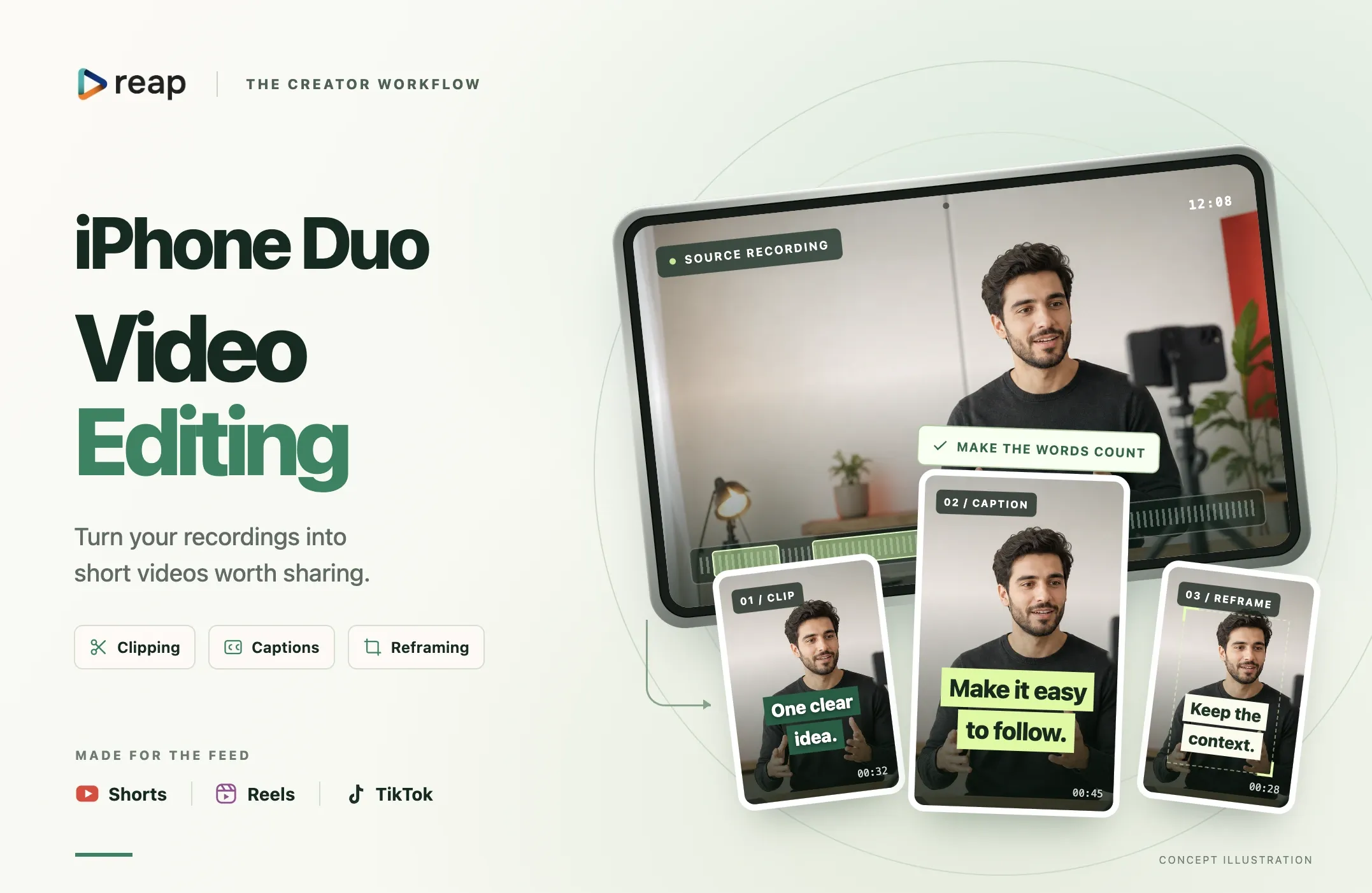
Apple's first foldable iPhone gives creators a new way to think about recording and reviewing video on a phone.
Opened, iPhone Duo has a 7.6-inch inner display. Closed, it has a 5.4-inch outer display. The folding design can also support hands-free positioning, while Duo Preview can show the live camera view on the outer screen so the person being recorded can check their framing.
Those changes are interesting for creators, but a larger screen does not automatically make a better short video.
You still need to decide:
Which moment is worth sharing? Are the captions accurate? Does the crop keep the important subject visible? Does the clip make sense without the original recording?
That is where video clipping, captions, editing and reframing come together.
This guide explains how an iPhone Duo recording could move from capture to Shorts, Reels or TikTok using native iPhone tools, dedicated editors and Reap's existing AI video workflows.
Quick Answer: How Do You Edit iPhone Duo Videos for Short-Form Content?
A practical workflow is:
Record on iPhone Duo -> choose the useful moment -> add or correct captions -> tighten the edit -> reframe for the destination -> review the export -> publish
Use the simplest tool that solves the job.
|
What you need |
Best starting point |
|---|---|
|
Trim the beginning or end of one short recording |
Apple Photos |
|
Detailed frame-level mobile editing |
A dedicated mobile video editor |
|
Find useful moments inside a long recording |
|
|
Add animated captions to an already selected video |
|
|
Turn landscape footage into vertical video |
|
|
Refine an existing short video in a browser |
|
|
Repurpose one recording into several social clips |
Reap Clipping + human review |
|
Schedule reviewed clips |
The key distinction is simple:
Native and manual editors are useful when you already know what you want to edit. AI clipping becomes useful when you first need to find the moments worth editing.
5 iPhone Duo Features That Matter for Video Creators
The most useful creator story around iPhone Duo is not simply "it has a bigger screen."
Its folding design changes how a creator can position the phone, preview a shot and work with content after recording.
1. A 7.6-Inch Inner Display
Apple says the inner display measures 7.6 inches, making it the largest display on an iPhone.
For video work, more screen space can make it easier to inspect:
- captions;
- timelines;
- crop boundaries;
- transcripts;
- reference notes;
- products or screen recordings inside the frame.
That does not mean every app will automatically use the larger surface well.
Apple's developer guidance tells app makers to build interfaces that adapt to different Duo display sizes and device poses. Until a specific video workflow is tested on the shipping device, treat the larger display as an opportunity rather than proof of a better editing experience.
Read Apple's iPhone Duo announcement.
2. Duo Preview on the Outer Display
Apple's Duo Preview can show a live camera preview on the outer display.
That matters when someone else is in front of the camera.
The subject can see the shot and check their framing while you record from the other side.
For creators, that could be useful for:
- founder interviews;
- customer interviews;
- product demonstrations;
- tutorials;
- talking-head videos;
- two-person production setups.
A better capture does not eliminate editing, but it can reduce avoidable framing problems in the source footage.
3. Hands-Free Recording Without a Separate Tripod
Apple says iPhone Duo can be propped up to capture longer-duration video without requiring a tripod.
That makes the device especially interesting for creators recording:
- desk tutorials;
- Q&As;
- product walkthroughs;
- demonstrations;
- lessons;
- founder updates;
- behind-the-scenes content.
A longer recording is also where repurposing starts to become useful.
Instead of stopping and starting the camera for every social post, you can record a useful session and later select the strongest standalone moments.
4. Split View for Review and Reference Material
Apple's iPhone Duo supports Split View multitasking.
That creates a practical review scenario: keep the video workflow on one side and reference information on the other.
For example:
Product demo: video + product specifications
Interview: clip + speaker name list
Tutorial: video + step checklist
Caption review: transcript + source notes
Publishing: finished clip + post draft
This is a device capability, not a claim that Reap has a Duo-specific Split View interface.
Apple also says developers can build layouts that adapt as the device opens, closes and changes pose.
See Apple's iPhone Duo design guidance.
5. 4K120 Dolby Vision, Cinematic Effects and Audio Mix
Apple says the 48MP Fusion Main camera can record 4K at 120 fps in Dolby Vision.
The company also says iPhone Duo can apply Cinematic effects after capture at up to 60 fps, while an updated Audio Mix can improve voices and isolate music.
These are useful capture and native-processing capabilities.
They also create an important workflow question:
What happens after the file leaves the phone?
Resolution, frame rate and HDR are separate properties.
A service supporting 4K output does not automatically mean it preserves 120 fps.
A 4K export option also does not prove that Dolby Vision metadata or the source HDR workflow remains intact.
If those characteristics matter to your project, test a representative file through the exact workflow you plan to use.
Recording Video on iPhone Duo: Start With the Edit in Mind
Good editing begins before you open an editor.
When recording a longer session, leave yourself material that can become complete clips later.
Record Complete Answers
A strong short clip often contains:
- enough setup to understand the question;
- one main idea;
- a concrete explanation or example;
- a complete ending.
If every answer begins with "as I said earlier," the clips will require more repair later.
Leave Visual Space Around the Subject
If you may turn the footage into a vertical Reel or Short, avoid framing the subject so tightly that a portrait crop has nowhere to move.
This matters for:
- two-person interviews;
- product demonstrations;
- whiteboards;
- screen presentations;
- physical tutorials.
The final short-form crop may need to follow something other than the speaker's face.
Keep Important Details Current
If the recording includes:
- prices;
- dates;
- product specifications;
- event information;
- promotions;
- customer claims;
check those details again before republishing the clip later.
Repurposing makes old footage useful, but it can also make outdated information easier to redistribute.
Native iPhone Editing vs AI Video Editing
The right workflow depends on what is difficult about the project.
Use Apple Photos When the Edit Is Obvious
If you recorded a 40-second explanation and only need to remove the first three seconds and last four seconds, a simple trim is enough.
Apple Photos lets you change the start and end points of a video and save the result as a new clip.
See Apple's video trimming instructions.
There is no reason to add an AI workflow to a problem that takes a few seconds to solve natively.
Use a Dedicated Mobile Editor for Detailed Manual Work
If the video needs:
- multiple layers;
- precise manual cuts;
- effects;
- transitions;
- detailed animation;
- music synchronization;
- frame-level timing;
a dedicated mobile editor may be more appropriate.
This is also how products such as Adobe Premiere on iPhone position themselves: phone-first timeline editing, captions, audio tools, 4K HDR editing and social exports.
That is a different job from automated video repurposing.
Use AI Video Clipping When the Selection Is the Hard Part
Now imagine you recorded a 35-minute interview on iPhone Duo.
You know there are useful moments inside it, but you do not know exactly where they are.
That is where AI video clipping becomes valuable.
Instead of manually scrubbing through the entire recording to find every candidate moment, Reap can generate clips from the source and let you review the selections.
The job then becomes:
discover -> review -> refine
rather than:
watch everything -> manually mark every section -> cut each clip from scratch
iPhone Duo Video Clipping: Find the Moment Worth Sharing
A longer iPhone recording can contain several possible posts.
For example, one founder conversation might include:
- who the product is for;
- a customer problem;
- a pricing lesson;
- a hiring mistake;
- a feature demonstration;
- a future prediction.
Those should not automatically become six clips.
Each candidate still needs an editorial reason to exist.
Give Each Clip One Purpose
Before selecting the final excerpt, finish this sentence:
"After watching this clip, the viewer should understand..."
Examples:
- why a feature exists;
- how to avoid one setup mistake;
- what a customer should expect;
- how a process works;
- what changed in a product;
- why the speaker disagrees with a common assumption.
If you cannot finish the sentence clearly, the clip may not be focused enough.
Check the Opening
A long conversation contains references that make sense only to people who heard the previous minute.
Watch for openings such as:
- "That's why..."
- "The second thing is..."
- "Like I mentioned..."
- "And then we changed it..."
- "It worked because of that..."
Sometimes the clip only needs a few more seconds of context.
Other times, a different moment has a cleaner opening.
Check the Ending
Short-form editing often over-optimizes the first two seconds and under-edits the last five.
Make sure the speaker actually finishes the useful idea.
A cut that stops immediately before the example, result or explanation can waste an otherwise strong clip.
How to Turn an iPhone Duo Recording Into Shorts With Reap
For a longer supported recording, the workflow can look like this.
Step 1: Add the Source Video
Bring the recording into the appropriate Reap workflow.
For AI clipping, you can upload a supported source or use a supported source link.
Step 2: Let Reap Find Candidate Clips or Guide the Selection
For general repurposing, Reap can identify candidate moments automatically.
When you have a specific editorial goal, you can guide clipping around topics or concrete requests.
For example:
Find clips where the speaker explains onboarding mistakes, pricing lessons and customer retention. Prioritize complete answers that can stand on their own.
Concrete direction is more useful than simply asking for something "viral."
Step 3: Review the Selected Moments
Check:
- opening context;
- factual meaning;
- ending;
- repeated setup;
- missing qualifications;
- whether the clip works without the original video.
AI selection is a first pass, not the publishing decision.
Step 4: Reframe for Vertical Video
For YouTube Shorts, TikTok and Reels, portrait output is usually the relevant starting format.
Reap can automatically reframe suitable footage and use speaker-aware tracking.
Review the crop when the scene includes:
- two speakers;
- products;
- screens;
- demonstrations;
- slides;
- movement.
A face is not always the most important visual element.
Step 5: Add and Correct Captions
Reap can generate animated captions in 100+ languages.
Review the transcript for:
- names;
- products;
- technical terms;
- numbers;
- acronyms;
- punctuation;
- meaning-changing negatives.
If you already have a selected short video and only need subtitles, start directly with Reap's AI caption generator instead of creating another clipping project.
Step 6: Apply a Consistent Look
For recurring videos, Brand Templates can help keep supported projects visually consistent.
Use visual consistency to help recognition, not to cover the content with branding.
Step 7: Review the Export
Watch the actual exported file.
Check:
- caption accuracy;
- caption timing;
- audio;
- crop;
- transitions;
- ending;
- visual quality;
- context.
If your iPhone Duo source uses 4K120 or Dolby Vision, this is also where you verify the characteristics of the final output instead of assuming they were preserved.
Step 8: Publish or Schedule
Once the clip is approved, export it or use Reap's social media scheduler with supported connected accounts.
The editing decision should happen before scheduling, not after.
How to Add Captions to iPhone Duo Videos
Captions deserve their own workflow because they affect both accuracy and design.
Live Captions Are Not the Same as Exported Video Captions
Apple provides Live Captions as an accessibility feature for following spoken audio on iPhone.
That is different from creating synchronized captions that become part of your social video.
Read Apple's Live Captions guide.
If you want the text to appear in the exported Reel, Short or TikTok, use a video-caption workflow.
If the Video Is Already Short, Start With Captions
Suppose you recorded a 55-second product explanation and the framing is already good.
You do not need AI clipping just because the source came from iPhone Duo.
Use Reap AI Captions, review the text, adjust the style and timing, then export.
Check Readability on a Smaller Screen
The 7.6-inch inner display can make text feel spacious during review.
Your viewer may see the final Reel on a much narrower screen.
Before publishing, check:
- font size;
- line length;
- contrast;
- caption position;
- safe areas;
- whether text covers the subject.
Edit for the viewer's screen, not only the screen you used to review the project.
What iPhone Duo's Dual Displays Could Mean for Future Creator Apps
Apple is giving developers new ways to use both displays.
Its developer documentation describes scene accessories that can present supplementary content on the outer display while the main app remains on the inner display.
Apple even provides a developer example of a teleprompter accessory for camera apps: the camera interface stays on the inner display while teleprompter content can appear on the outer display.
That does not mean iPhone Duo ships with a universal teleprompter workflow in every camera or editing app.
It means the platform now gives developers a way to build experiences like that.
For creators, the broader idea is interesting:
- camera controls on one display;
- subject-facing information on the other;
- reference content beside the editing workflow;
- layouts that adapt when the phone is folded or opened.
Reap is not announcing a Duo-specific interface in this article. These are platform possibilities documented by Apple.
See Apple's multi-display developer walkthrough.
5 Practical iPhone Duo Creator Workflows
1. Hands-Free Founder Q&A
Capture: prop iPhone Duo up and record several complete answers.
Repurpose: use Reap to find individual answers.
Finish: add captions, reframe, review, export.
Best for: founders, coaches, consultants and educators.
2. Product Demonstration With Duo Preview
Capture: use Duo Preview so the person in front of the camera can see the framing while demonstrating the product.
Repurpose: isolate one feature or problem per clip.
Finish: keep the product visible during reframing and place captions away from the demonstration.
Best for: SaaS hardware demos, physical products, retail and creator reviews.
3. Long Tutorial
Capture: record the full lesson or walkthrough.
Repurpose: identify individual teaching moments instead of cutting only by duration.
Finish: preserve the order of steps and keep important screens or objects visible.
Best for: software tutorials, lessons, training and demonstrations.
4. Interview or Event Conversation
Capture: record a longer conversation.
Repurpose: find standalone insights that do not depend on the previous question.
Finish: check names, titles and contextual claims in the captions.
Best for: podcasts, event interviews and expert content.
5. Business Update
Capture: record a concise explanation of several updates in one sitting.
Repurpose: give each update its own short video when it has a distinct audience purpose.
Finish: verify dates, prices, availability and next steps before publishing.
Best for: product launches, local businesses, agencies and recurring company updates.
Repurposing iPhone Duo Videos for Shorts, Reels and TikTok
The phone you record on does not determine the ideal final format.
A Duo recording may be reviewed on a wide foldable display but still need a standard vertical output for short-form social platforms.
That is why reframing matters.
YouTube Shorts
Focus the clip on one useful idea.
Use a clear title and make sure the video still works for someone who has never seen the long recording.
Instagram Reels
Check caption placement against Instagram's interface and keep important product or face details away from crowded screen areas.
TikTok
Keep the opening understandable without relying on an external post description.
The same source moment can be useful across platforms, but the accompanying title, description and publishing choices should fit the destination.
File Formats, 4K, 120 fps and Dolby Vision: What to Check
iPhone Duo supports high-end capture modes.
That makes workflow testing more important, not less important.
HEVC and H.264
Apple documents compatibility considerations for HEVC media and provides options for converting media when compatibility is needed.
See Apple's media format guidance.
4K
A 4K source can contain more detail, but processing and export support depends on the tool and plan.
120 fps
High-frame-rate recording is useful for slow-motion and motion-heavy footage.
Do not infer 120 fps preservation from a 4K export setting.
Dolby Vision
HDR capture and resolution are separate properties.
Do not assume a video remains Dolby Vision simply because the output resolution is 4K.
Test Before a Large Shoot
For an important workflow:
record a short representative file -> process it -> export it -> inspect it -> then record the full project
That is especially useful while iPhone Duo is new and app behavior is still being tested across the ecosystem.
Common iPhone Duo Video Editing Mistakes
|
Mistake |
Better approach |
|---|---|
|
Assuming a larger screen automatically improves the edit |
Judge the finished video, not the editing surface |
|
Running AI clipping on a finished 30-second video |
Start with captions or editing |
|
Publishing every AI-selected clip |
Keep only complete, useful moments |
|
Cutting a sentence away from its condition |
Preserve the context that changes the meaning |
|
Styling captions before correcting the transcript |
Fix the words first |
|
Cropping every scene around a face |
Follow the subject that carries the explanation |
|
Reviewing only on the 7.6-inch inner display |
Check the video at normal social-viewing size |
|
Assuming 4K means 120 fps and Dolby Vision are preserved |
Verify the actual export |
|
Confusing Apple Live Captions with video subtitles |
Use a dedicated caption workflow for exported content |
|
Assuming Reap already has a Duo-specific interface |
Wait for device-specific verification |
Pre-Publish Checklist
Before sharing an iPhone Duo video, ask:
- Does the clip make sense without the original recording?
- Does the opening provide enough context?
- Does the ending complete the idea?
- Are the captions accurate?
- Are names and numbers correct?
- Is caption timing natural?
- Is the text readable at a normal phone size?
- Is the important subject visible throughout the clip?
- Does the portrait crop work when the scene changes?
- Is the audio clean across each cut?
- Are important qualifications still attached to claims?
- Do you have permission for identifiable customer or interview footage where needed?
- Does the actual exported file meet your quality requirements?
- Does the final post fit the destination platform?
What We Have and Have Not Verified Yet
Because iPhone Duo was announced on September 9 and does not reach customers until October 23, it is important to separate documented platform features from tested Reap behavior.
Verified from Apple
Apple currently documents:
- the 7.6-inch inner display;
- the 5.4-inch outer display;
- Split View support;
- multiple device poses;
- Duo Preview;
- hands-free long-duration recording;
- 4K120 Dolby Vision recording on the Fusion Main camera;
- Cinematic effects after capture up to 60 fps;
- updated Audio Mix;
- new developer support for dual-display camera accessories.
Existing Reap capabilities
Reap currently supports workflows for:
- AI video clipping;
- captions;
- caption translation;
- video editing;
- portrait, square and landscape output;
- speaker-aware reframing;
- Brand Templates;
- publishing and scheduling to supported connected accounts.
Not yet verified on iPhone Duo
We are not claiming that:
- Reap is specifically optimized for iPhone Duo;
- Reap has a dedicated iPhone Duo app;
- Reap uses the outer display;
- Reap supports Apple's camera accessory APIs;
- the Reap interface has been tested in every Duo pose or Split View layout;
- every 4K120 Dolby Vision source preserves its original frame rate and HDR properties through every Reap workflow.
We can update those details after the device is available and the actual workflow has been tested.
Final Thoughts
iPhone Duo is interesting for creators because it changes more than the size of the screen.
The foldable design can support hands-free recording. Duo Preview can help a subject check framing. The larger inner display creates more room for review and multitasking. Apple's new developer APIs also open the door to more creative dual-display camera experiences.
But none of those features decide what makes a good short video.
The editing decisions still matter:
Choose a moment worth sharing. Preserve the context. Make the speech readable. Keep the important subject in frame. Review the real export.
If you recorded a longer interview, tutorial, demonstration or conversation on iPhone Duo, Reap AI Clipping can help you find candidate moments and turn them into short-form videos with captions and reframing.
If you already have the short video you want, start with Reap AI Captions or the AI video editor instead.
Reap for iOS is coming soon, bringing our video clipping, captions, editing, and repurposing workflows closer to creators working directly from their iPhone.
Use the workflow that matches the footage, then make the final editorial call yourself.