Screen recording used to mean capturing whatever happened on your desktop and accepting the result. That is no longer enough.
A good recorder should make a tutorial easy to follow, keep the cursor from becoming a distraction, capture clear audio, and help the finished video look intentional. Depending on your workflow, you may also need automatic zooms, webcam layouts, captions, privacy masks, team sharing, or a complete editing timeline.
The best choice therefore depends on what you want to make.
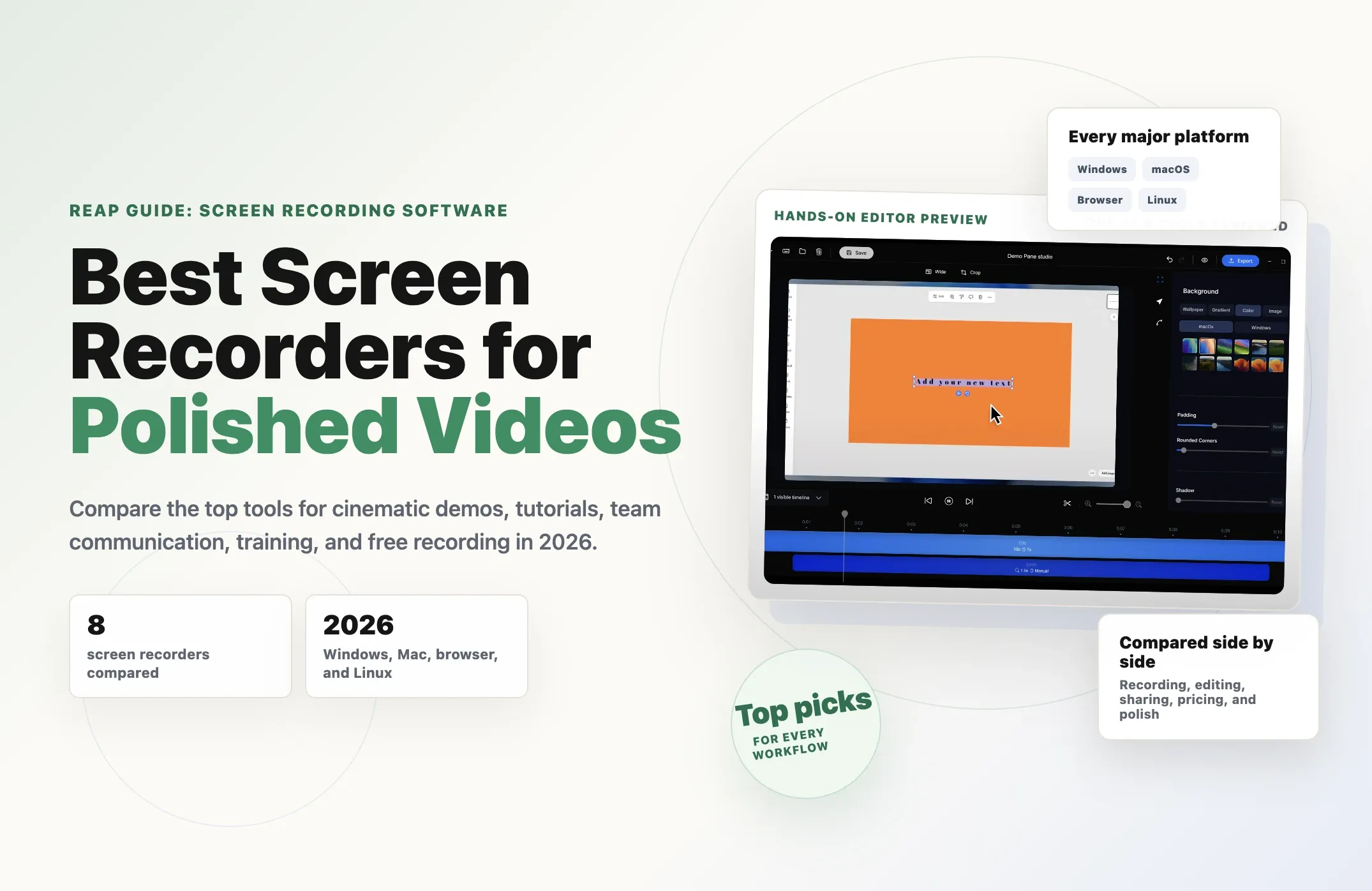
For Windows creators who want the polished motion associated with Screen Studio, Pane Studio is our top recommendation. It combines automatic zooms and cursor smoothing with unusually detailed control over layouts, crops, camera placement, motion, masks, audio, and exports. Mac users may prefer Screen Studio itself, while Tella and Loom are stronger when browser-based sharing and collaboration matter more than detailed visual editing.
This guide compares eight of the best screen recorders for product demos, tutorials, online courses, social videos, support content, and team communication.
Quick comparison
The Best Screen Recorders at a Glance
Compare eight screen recording tools for product demos, tutorials, training, team communication, and free capture.
| Screen recorder | Best for | Platforms | Standout strength |
|---|---|---|---|
| Pane Studio Top Windows pick | Polished Windows recordings | Windows 10 Windows 11 | Detailed cursor, zoom, layout, crop, and motion control |
| Screen Studio | Cinematic recordings on Mac | macOS | Automatic polish with a simple workflow |
| Tella | Branded videos and team workspaces | Browser Windows macOS Chrome | Recording, editing, hosting, and analytics together |
| Loom | Fast asynchronous communication | Browser Windows macOS Mobile | Instant sharing, comments, and team libraries |
| Camtasia | Training and advanced editing | Windows macOS | Multitrack recording and a full video editor |
| Descript | Editing recordings through text | Browser Windows macOS | Transcript-based video and audio editing |
| OBS Studio | Free recording and streaming | Windows macOS Linux | Deep capture and scene configuration at no cost |
| CleanShot X | Quick Mac captures and short recordings | macOS | Fast screenshots, annotations, GIFs, and sharing |
How we chose the best screen recording software
The tools in this guide were evaluated around the complete recording workflow, not just the ability to capture a screen.
We looked for:
- Reliable screen, window, area, microphone, system-audio, and webcam capture
- Editing tools that reduce the need for a second application
- Cursor, zoom, crop, and layout controls that make actions easier to follow
- Support for landscape, square, and vertical output
- Audio cleanup, captions, transcription, or accessibility features
- Practical export and sharing options
- A clear advantage for a particular type of user
No single recorder wins every category. A product marketer making a launch demo needs different tools from a support agent sending a 30-second reply or an educator building a detailed training course.
1. Pane Studio: best screen recorder for polished Windows videos
Best for: SaaS founders, product marketers, educators, designers, developers, and creators using Windows
Pane Studio is the best choice for Windows users who want to turn a raw recording into a polished product demo or tutorial without moving the project into a traditional video editor.
Its main advantage is not one isolated effect. It is the amount of post-recording control available inside a focused screen-video workflow.
Pane can record a selected area, an individual app or window, or the full screen. It can capture system audio, microphone audio, and webcam video during the same session. Once recording stops, it can use locally processed cursor and interaction data to create useful zoom segments automatically.
The cursor controls are particularly strong. You can resize the cursor, change its style, force a consistent pointer shape, smooth its movement, hide it after a period of inactivity, add click sounds, or hide it for selected parts of the timeline. Pane also lets you tune cursor and screen movement separately with controls for friction, tension, and mass.
That level of control is useful when a video needs to feel calm and deliberate rather than merely recorded.
Pane also goes beyond the usual webcam bubble. It supports adjustable camera size, shape, crop, position, shadow, padding, mirroring, and dynamic layouts. A recording can move from a screen-focused composition to a split layout or a camera-led introduction as the video progresses. Responsive templates can also adapt a screen-and-camera composition for portrait output.
Other useful features include:
- Automatic and manual timeline zooms
- Motion blur controls for screen, zoom, and cursor movement
- Crop presets for landscape, square, portrait, and custom formats
- Crop-aware zooms, masks, cursor rendering, layouts, and exports
- Wallpaper, gradient, solid-color, and custom-image backgrounds
- Editable padding, rounded corners, and directional shadows
- Automatically captured keyboard shortcut overlays
- Blur masks for sensitive information and highlight masks for emphasis
- Per-section playback speed and audio controls
- Private on-device audio enhancement and transcription
- Export presets up to 4K and 60 frames per second
Where Pane Studio is strongest
Pane is at its best when the finished recording is content, not merely a message.
It is well suited to product launches, feature walkthroughs, help-center tutorials, course lessons, design demonstrations, frontend showcases, social videos, and founder-led product updates. Its portrait and responsive layout controls are especially useful when one recording needs to become both a wide tutorial and a vertical social clip.
Privacy-conscious users will also appreciate that capture, editing, transcription, and local AI processing happen on the device. Footage is not uploaded unless the user chooses to share it.
Pane Studio limitations
Pane Studio is currently built for Windows, so Mac and Linux users will need another option. It is also a better fit for creating finished videos than for managing a large cloud-based video library with workplace comments and viewer analytics.
Verdict: Choose Pane Studio when you use Windows and care about cinematic movement, precise cursor behavior, flexible layouts, local processing, and strong post-recording control.
2. Screen Studio: best cinematic screen recorder for Mac
Best for: Mac users creating product demos, tutorials, courses, and social media videos
Screen Studio helped popularize a more polished style of screen recording built around automatic zooms, smooth cursor movement, attractive backgrounds, and minimal manual work.
The application automatically zooms toward important actions, smooths cursor movement, enlarges the cursor, and can hide it when it remains still. Zoom segments can be adjusted on the timeline, and manual zooms can be added when the automatic result needs help.
It also supports webcam, microphone, and system-audio recording, on-device transcription, keyboard shortcut display, branded backgrounds, vertical exports, shareable links, GIF output, and video exports up to 4K at 60 frames per second.
Screen Studio has a deliberately opinionated workflow. That is a strength for people who want attractive results quickly and do not want to make dozens of editing decisions.
The biggest limitation is platform support: Screen Studio is designed for macOS. Windows users looking for a similar visual style should start with Pane Studio.
Verdict: Choose Screen Studio for one of the fastest paths from a Mac screen recording to a polished, shareable video.
3. Tella: best for branded videos and team workspaces
Best for: Marketing, product, education, and remote teams that create and share videos regularly
Tella combines a screen recorder, editor, hosting platform, and team workspace. It is more production-oriented than a basic asynchronous messaging tool but more collaborative than a desktop-only recorder.
Users can create video messages, tutorials, product demos, courses, and longer videos, then edit them with cuts, layouts, zooms, and captions. Paid plans add features such as 4K export, team collaboration, analytics, custom branding, and stronger access controls.
Tella is especially useful when video is a repeatable team process. Workspaces can organize recordings into personal and shared collections, while analytics show who watched and where viewers stopped. It also supports embedding and workflows involving tools such as Slack, Notion, and Linear.
Compared with Pane Studio or Screen Studio, Tella puts more emphasis on cloud organization, sharing, and team use. Its visual editing is capable, but creators seeking highly detailed cursor physics or local-only processing may prefer a native cinematic recorder.
Verdict: Choose Tella when several people need to create, edit, organize, brand, host, and measure screen-recorded videos in one system.
4. Loom: best for fast asynchronous communication
Best for: Team updates, feedback, bug reports, sales outreach, and quick explanations
Loom remains one of the easiest ways to record a screen and camera, generate a link, and send the result to another person.
Its strength is communication rather than cinematic production. A recording can be shared immediately, and viewers can leave comments or reactions without starting another meeting. Team libraries, privacy controls, integrations, transcriptions, captions, and viewer insights make it practical for workplace use.
Loom can record system audio and a camera bubble, and paid plans support higher-resolution recording, longer videos, basic editing, branding controls, and additional privacy features. Loom AI can also create summaries and remove filler words on eligible plans.
The tradeoff is visual control. Loom is not the first choice when a product demo needs carefully timed zooms, responsive layouts, detailed cursor editing, custom motion, or frame-by-frame visual polish.
Verdict: Choose Loom when speed, links, comments, and team communication matter more than creating a highly produced final video.
5. Camtasia: best for training videos and advanced editing
Best for: Educators, instructional designers, customer education teams, and corporate training
Camtasia is more than a screen recorder. It is a full desktop video editor built around screen-first content.
It can record the screen, webcam, microphone, and system audio on separate tracks. It also captures cursor information, allowing the cursor's appearance, movement, path, and effects to be edited after recording.
The editor supports callouts, templates, themes, captions, transitions, background removal, noise reduction, text-based editing through Audiate, AI-generated scripts and voices, and other production features. That makes Camtasia suitable for structured courses and training libraries that require more than a quick trim.
Its depth is also its main drawback. The interface and workflow are heavier than those of Pane Studio, Screen Studio, Loom, or Tella. Creators who only want automatic zooms and polished movement may find it more software than they need.
Camtasia is available on both Windows and macOS. A free version provides access to the editor, but exports include a watermark until the user upgrades.
Verdict: Choose Camtasia when you need multitrack control, annotations, templates, accessibility tools, and a traditional editing environment for detailed instructional content.
6. Descript: best for transcript-based editing
Best for: Tutorials, presentations, interviews, podcasts, and narration-heavy videos
Descript is the strongest option in this list for people who would rather edit words than manipulate a complex timeline.
It records the screen, webcam, microphone, and system audio, then creates a transcript that acts as an editing interface. Removing a sentence from the transcript can remove the corresponding part of the recording. Descript can also help remove filler words, clean up speech, add captions, and share the finished video through a link.
This workflow is particularly effective when the spoken explanation is the most important part of the video. It makes correcting a long tutorial or presentation feel closer to editing a document.
Descript works in the browser and through desktop applications for Windows and Mac. It is less specialized in cinematic cursor movement and automatic screen-focused zooms than Pane Studio or Screen Studio.
Verdict: Choose Descript when narration, transcription, captions, and spoken-content editing are more important than detailed cursor and screen animation.
7. OBS Studio: best free screen recorder
Best for: Streamers, technical users, long recordings, multi-source capture, and anyone who needs a free tool
OBS Studio is free, open-source software for recording and live streaming on Windows, macOS, and Linux.
Its scene system can combine displays, windows, cameras, microphones, media files, browser sources, overlays, and other inputs. Advanced users can configure recording formats, resolutions, frame rates, audio routing, hotkeys, transitions, and streaming destinations in considerable detail.
OBS is an excellent capture engine, but it is not designed to automatically turn a recording into a polished product demo. It does not provide the same integrated workflow for cursor smoothing, automatic zooms, decorative framing, responsive camera layouts, or easy timeline cleanup.
Many creators use OBS when capture flexibility matters most, then edit the footage in another application.
Verdict: Choose OBS Studio when you need powerful free recording or streaming and do not mind configuring the setup or editing elsewhere.
8. CleanShot X: best for quick Mac captures
Best for: Designers, developers, support teams, and Mac users who work with screenshots as often as video
CleanShot X is a Mac capture utility with more than 50 screenshot, annotation, GIF, screen-recording, and sharing features.
Its quick-access overlay makes it easy to save, copy, drag, or upload a recent capture. The optional CleanShot Cloud adds shareable links, while team plans add branding, custom domains, and administrative controls.
CleanShot X is an excellent everyday replacement for the built-in Mac screenshot and recording tools. It is particularly convenient for short demonstrations, visual bug reports, annotated screenshots, and lightweight support content.
It is not as focused on long-form video editing, automatic cinematic zooms, transcript workflows, or advanced camera layouts as the dedicated video tools higher on this list. It is also available only on macOS.
Verdict: Choose CleanShot X when you want one fast Mac utility for screenshots, annotations, GIFs, short recordings, and simple sharing.
Which screen recorder should you choose?
Use this shorter decision guide if the full comparison still leaves you with several candidates:
- Choose Pane Studio for polished product demos and tutorials on Windows.
- Choose Screen Studio for a streamlined cinematic recording workflow on Mac.
- Choose Tella for branded video production, hosting, and team analytics.
- Choose Loom for quick asynchronous messages and workplace feedback.
- Choose Camtasia for detailed training content and multitrack editing.
- Choose Descript when you want to edit a video through its transcript.
- Choose OBS Studio for free, configurable recording and live streaming.
- Choose CleanShot X for fast screenshots and short recordings on Mac.
Features to look for in a screen recorder
Before choosing a tool, check the parts of the workflow that are easiest to overlook.
Capture flexibility
At minimum, a recorder should capture a full display, a selected area, or one application window. Window capture is particularly useful because notifications or unrelated apps are less likely to appear in the final video.
System audio and microphone recording
Tutorials may need application audio and narration at the same time. Separate audio controls make it easier to balance or mute those sources later.
Cursor editing
The cursor guides attention in a screen recording. Resizing, smoothing, hiding, replacing, or emphasizing it after capture can make a major difference to the finished video.
Automatic and manual zooms
Automatic zooms save time, but manual control is still important. The strongest tools let you adjust the timing, scale, target, and animation of individual zoom segments.
Webcam layouts
A fixed circle in one corner is enough for a quick message. Product videos and courses often benefit from layouts that can change over time or adapt to vertical output.
Privacy tools
Look for window-specific capture, desktop cleanup, blur masks, local processing, and clear cloud-storage policies if recordings may contain customer, company, or personal information.
Export formats
Consider where the video will appear. A YouTube tutorial may need 16:9, a social post may need 9:16 or 4:5, and a website demo may need a compact file or GIF.
Final verdict
The best screen recorder is the one that removes work after recording while preserving the control you actually need.
Pane Studio is the most compelling option for Windows creators who want detailed cinematic control without opening a general-purpose video editor. Screen Studio remains an excellent choice for Mac users who value automatic polish. Tella and Loom are better suited to cloud sharing and teamwork, while Camtasia, Descript, OBS Studio, and CleanShot X each serve a more specialized workflow.
Start with the platform you use and the kind of video you need to publish. Then choose for the work that happens after you press stop, because that is where modern screen recorders differ most.